Solutions
worksection
beta
help
How do I reopen a completed task?
If a task has already been completed and closed, you can reopen it to return it to active work and continue working on it.
Permissions The following users can reopen a task:
- Account owner
- Account administrator with the "allow editing everything" permission
- Team administrator with the "allow editing everything" permission (for tasks where the author or assignee is a member of their team)
- Department administrator with the "allow editing everything" permission (for tasks where the author or assignee is a member of their department)
- Project lead
- Task author
- Assignee (optional)
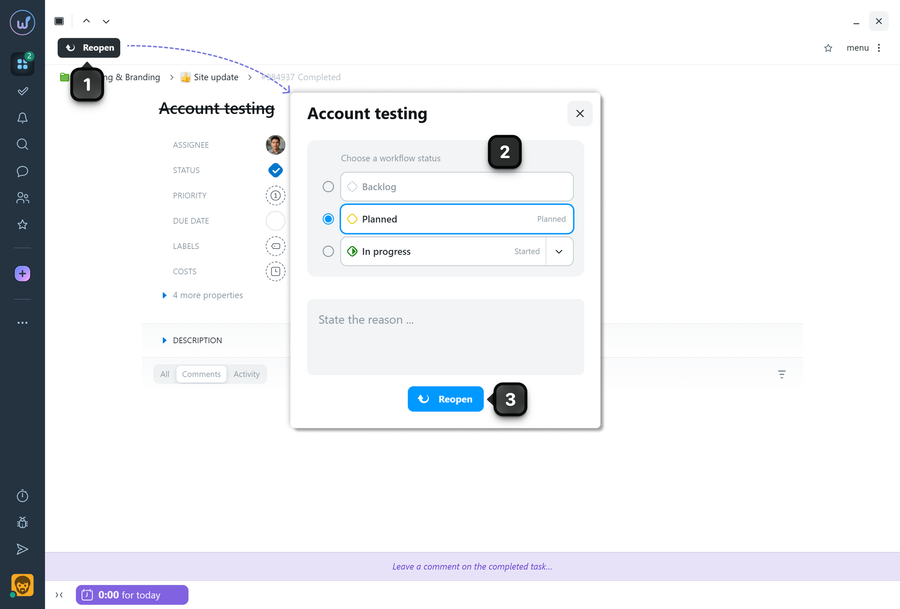
To reopen a closed task, click "Reopen" in the task window1. In the window that appears, select the status2 the task should have after reopening, enter a reason if needed, and click "Reopen"3.
Notes
- You can only select a status for reopening a task from the categories for open tasks - Backlog, Planned, Started.
- You can also reopen a task simply by changing its status to one of the statuses from the open task categories.
- The text added as the "closing reason" will be displayed in the task activity.
Leave your review
Did this article help you?
Glad we could help! What was helpful?
Sorry this didn't help. What went wrong?
Previous
How do I move a task?

