Solutions
worksection
beta
help
How to open the task menu? What actions are available in the task menu?
The Task Menu provides quick access to actions for the current task, such as copying a link, opening the task in a new tab, moving it, and more.
To open the Task Menu, click the “Menu”1 button in the task window.
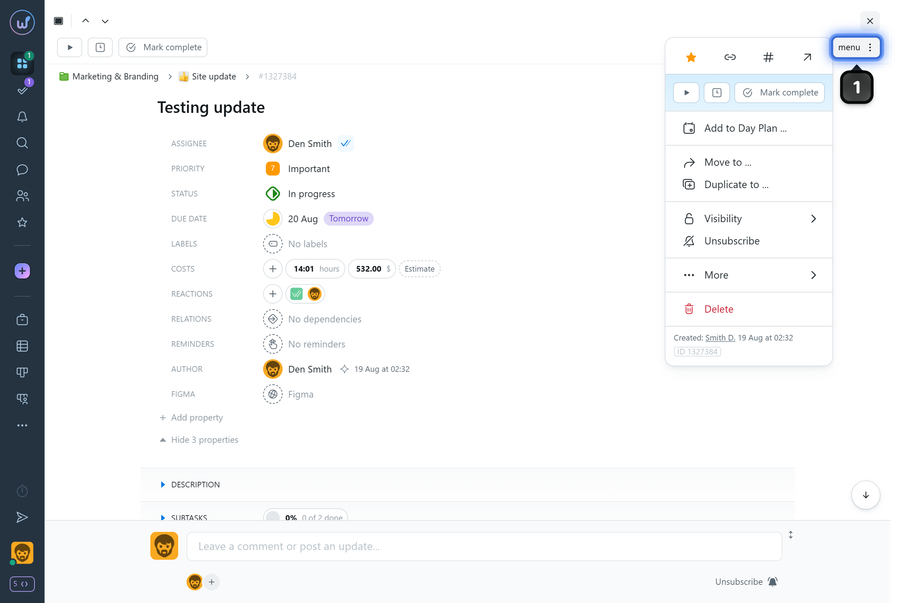
Available actions in the Task Menu
The available menu options depend on your role and permissions, but typically include the following actions:
Note! If you do not see a particular option (such as “Delete”, “Move”, visibility settings, or others), it means you do not have the required permissions.
- Star / Remove Star — adds or removes the task from your favorites.
- Copy Link — copies the task link to your clipboard.
- Copy ID — copies the task ID to your clipboard.
- Open in New Tab — opens the task in a new browser tab.
- Add to Day Plan — adds the task to your Day Plan.
- Move to — moves the task to another project or converts it into a subtask of another task.
- Duplicate — creates a copy of the task (copies it instead of moving it).
- Visibility — opens the task visibility settings to control who can view the task.
- Subscribe / Unsubscribe — manages your subscription to task notifications.
- Delete — permanently deletes the task.
- More — the “More” submenu includes:
- Status History
- Task History
- Print: Task with Comments / Task Only / Comments Only
Task information displayed in the menu
The menu also shows:
- who created the task and when;
- Task ID — clickable and copied to the clipboard when selected.
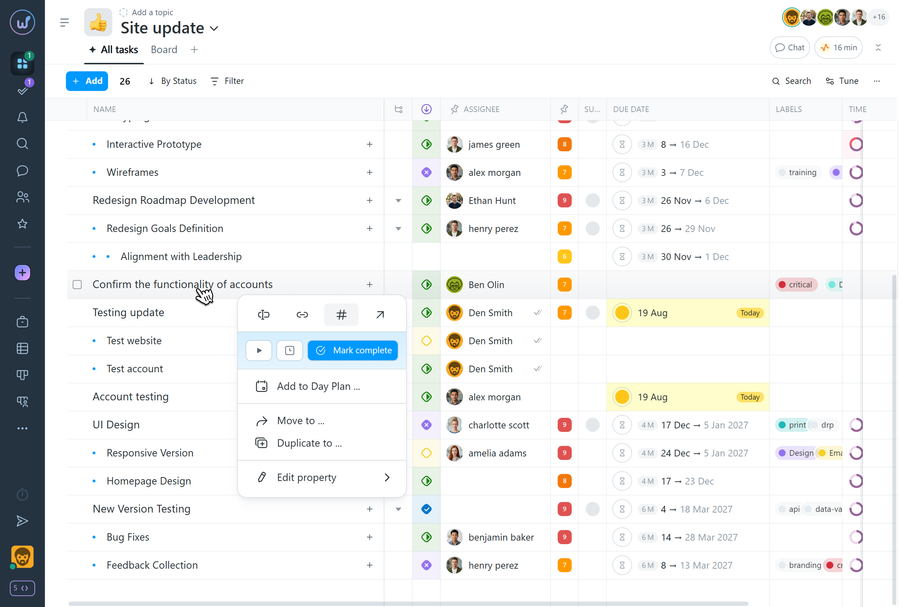
You can also open the Task Menu from the task list by right-clicking a task.
Note! The menu opened this way contains fewer actions than the one available in the task window.
Leave your review
Did this article help you?
Glad we could help! What was helpful?
Sorry this didn't help. What went wrong?

