Solutions
worksection
beta
help
How do I copy a task?
To quickly create the same task in this or another project, use the "Duplicate" feature. It copies the task and lets you choose where to add the copy.
Permissions
Any user who can create new tasks can copy tasks.
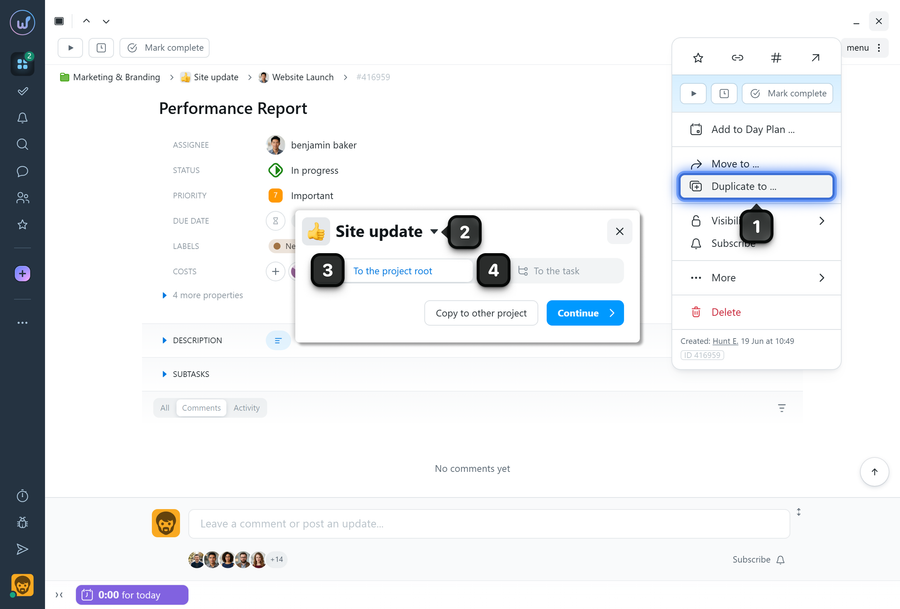
To copy a task to another project, open the "Task Menu" and select "Duplicate to"1. In the window that opens, select the project2 where you want to add the copy. Specify where to add the copy:
- to the project root3, or
- to a task4 (to make the copy a subtask of another task).
Click "Continue".
In the next window, you can:
- Choose which subtasks will be copied to the new project along with the task;
- Change the due date of the new task and subtasks (by clicking the date);
- Change the assignee (by clicking the avatar);
- Choose whether to copy comments and files, statuses, as well as the assignee and subscribers. To copy dates and dependencies, you can additionally specify the date from which the new dates will be calculated. The task with the earliest start date is used as the reference - its date will be replaced with the selected date. The dates of all other tasks will be automatically recalculated relative to this new date, taking existing dependencies into account.
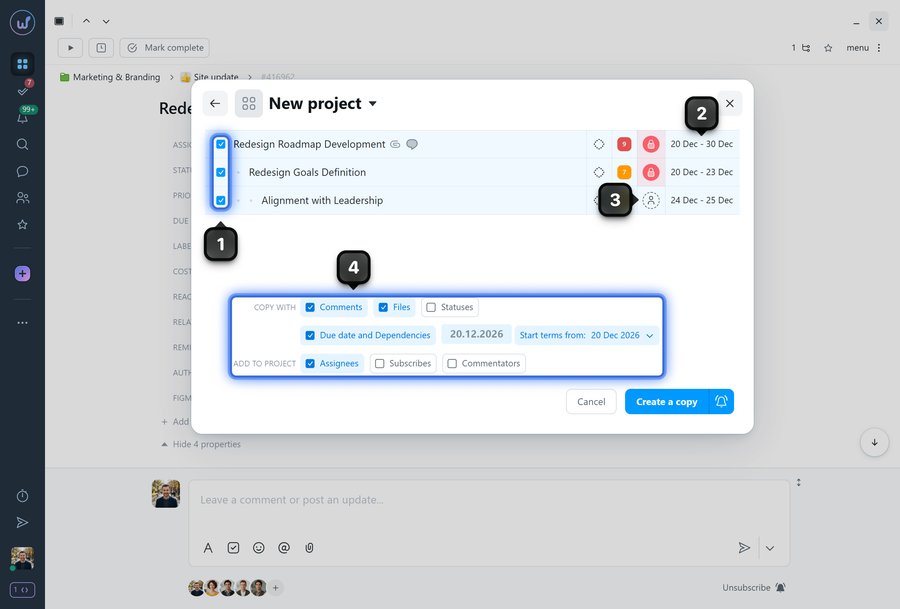
After clicking the "Create Copy" button, the task will be copied to the selected project.
Note A red lock instead of the assignee's avatar means that they are not a member of the project the task is being copied to.
Please note! If there are not enough nesting levels, subtasks are moved one level up and prefixed with the name of their previous parent task.
Leave your review
Did this article help you?
Glad we could help! What was helpful?
Sorry this didn't help. What went wrong?

