Solutions
worksection
beta
help
How to change task parameters?
Task parameters (properties) are fields that describe and control execution: assignee, deadlines, status, priority, labels, reminders, etc.
Permission to change parameters belongs to:
- Account owner
- Account administrator with the "Allow admin to edit everything" permission
- Team administrator with the "Allow admin to edit everything" permission (for tasks where a member of their team is the author or assignee)
- Department administrator with the "Allow admin to edit everything" permission (for tasks where a member of their department is the author or assignee)
- Project manager
- Task author
- Assignee (optionally, only certain parameters)
To change the main parameters:
1. Open the task.
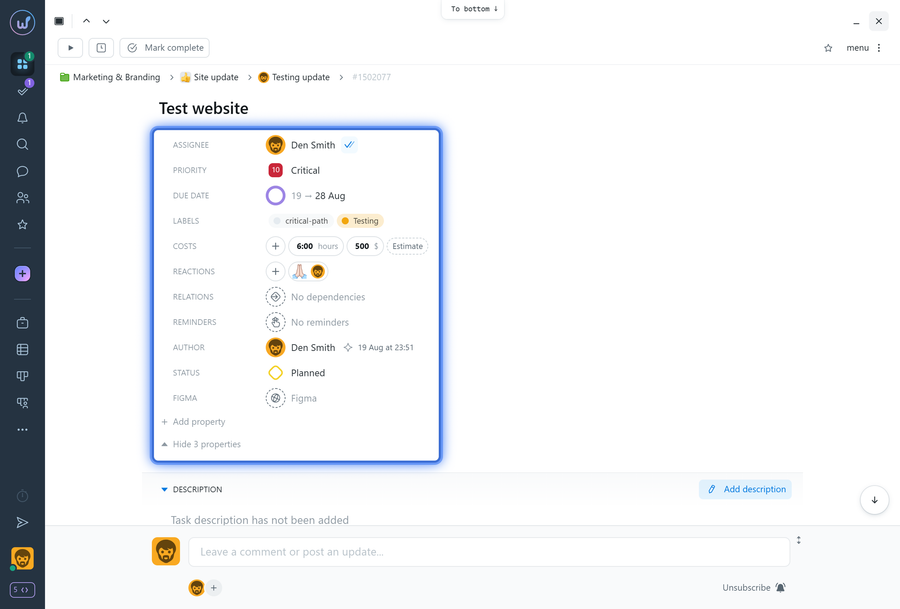
2. In the "Properties" block, click on the field of the required parameter:
- "Author" — to change the task author;
- "Assignee" — to change the person responsible;
- "Due date" — to change the date/time;
- "Status" — to move the task to another stage;
- "Priority" — to change the importance;
- "Labels" — to add/remove labels;
- "Reactions" — anyone can add their reaction to the task;
- "Costs" — to enter estimated costs and/or log actual costs;
- "Reminder" — to set up a reminder;
- "Relations" — to add/change task dependencies;
- other available fields — depending on account settings.
3. In the selection window, choose the new value.
4. Make sure the changes are saved (in most cases they are applied immediately).
Please note!
- If you don't see a certain parameter in "Properties", it may be hidden in your display settings or unavailable for your role.
- If you cannot change a parameter, it means your role and permissions in the system do not allow it.
Leave your review
Did this article help you?
Glad we could help! What was helpful?
Sorry this didn't help. What went wrong?
Previous
How to rename a task?

