Solutions
worksection
beta
help
How to close a task?
Closing a task indicates that the work has been completed. Once closed, the task is marked as completed (closed) in task lists and in “My Tasks”.
Permissions The following users can close a task:
- Account Owner
- Account Administrator with the “Allow editing everything” permission
- Team Administrator with the “Allow editing everything” permission (for tasks where the author or assignee belongs to their team)
- Department Administrator with the “Allow editing everything” permission (for tasks where the author or assignee belongs to their department)
- Project Manager
- Task Author
- Assignee (optional)
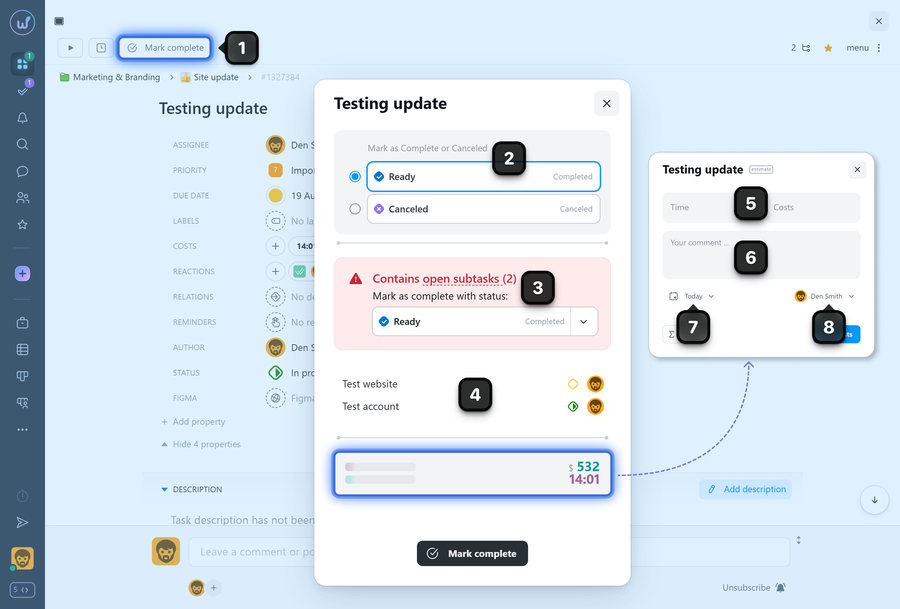
To close a task, click the “Mark complete”1 button in the task window. In the dialog that appears, choose the status2 to use when closing the task. If the task contains open subtasks, the dialog will display a warning along with the option to choose the status3 for closing the subtasks and view their list by clicking “open subtasks”4.
If needed, enter costs5 and a comment6 for those costs. You can also specify the date7 the costs were recorded and the user8 on whose behalf the costs were logged.
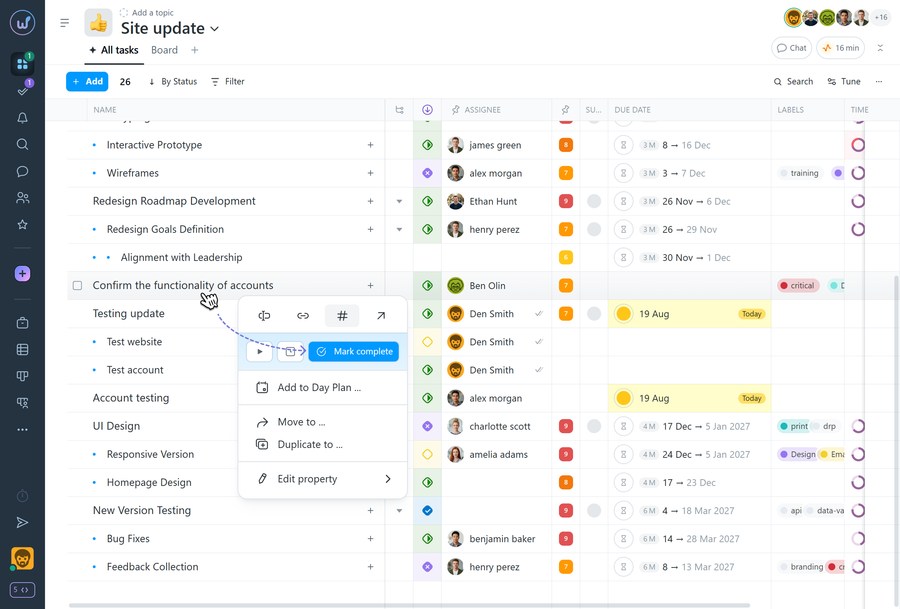
You can also close a task using the “Task Menu”. To open it, right-click the task and select “Mark completed”.
Please note!
- When closing a task, you can only select a status from the “Completed” or “Canceled” categories.
- A parent task can only be closed after all its subtasks have been closed, or by force-closing its subtasks when closing the parent task.
- A closed task is displayed as completed and can be identified in task lists by its strikethrough title.
Leave your review
Did this article help you?
Glad we could help! What was helpful?
Sorry this didn't help. What went wrong?

