If you’ve ever tried to find the right task among dozens and just scrolled down, down, down, then you know exactly how that feels. Spoiler: not great.
Interesting fact: researchers have calculated that the average office worker scrolls with a mouse or touchpad a distance equivalent to the height of a 20-story building each day. And a significant part of that is simply searching for the right row in spreadsheets.
We decided to save you time and sanity, so we updated the task list so you can manage processes without overwhelming yourself.
Your morning dashboard: what’s changed in the task list
Let’s be honest, the task list is the heart of the project, from which every manager’s morning and coffee begins. Here, the fate of deadlines and team peace is decided, whether everything is on track and whether tasks are not piling up for Friday.
Previously, it was massive and could be a bit intimidating. So now we’ve turned the task list into an interactive table.
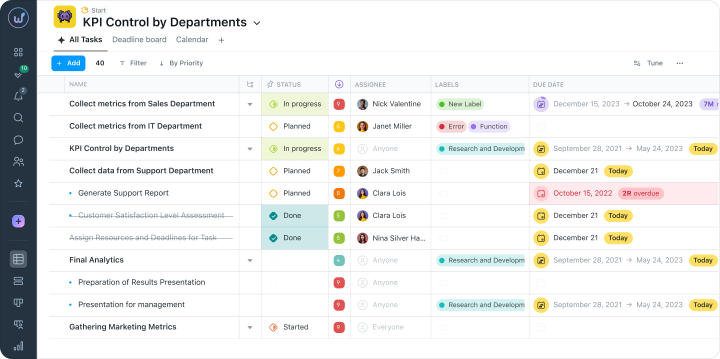
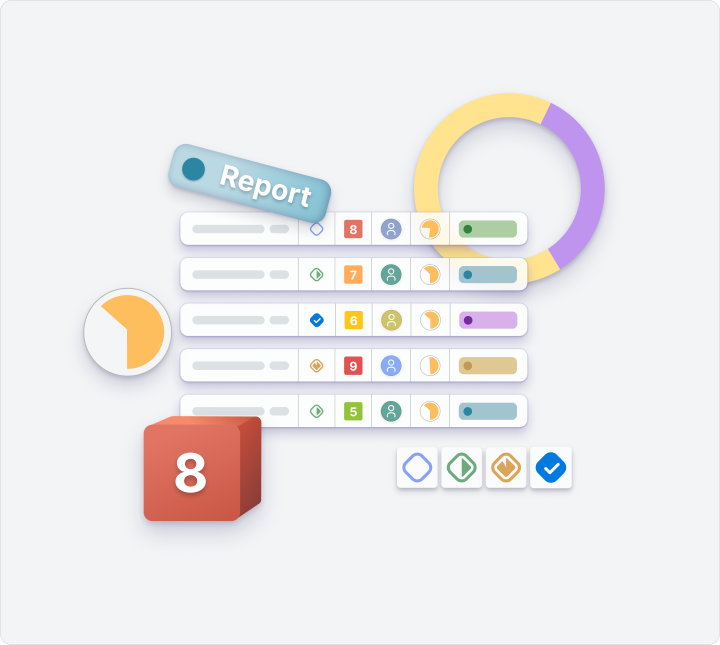
Task names, statuses, priorities, and deadlines are lined up in clear rows. Subtasks are neatly tucked inside main tasks, and flexible columns allow for immediate assessment of progress. And that’s it – pure focus on the main things.
Customizing columns and everything you need
Every team has its own set of what’s important to see in the list. Designers want to see deadlines and assignees, developers – priority and status, and managers – both, and ideally everything at once.
To ensure no one drowns in unnecessary data, we’ve put all the customization magic into one button “Tune” in the top right corner of the list. Click on it, and a convenient builder menu will open for you.
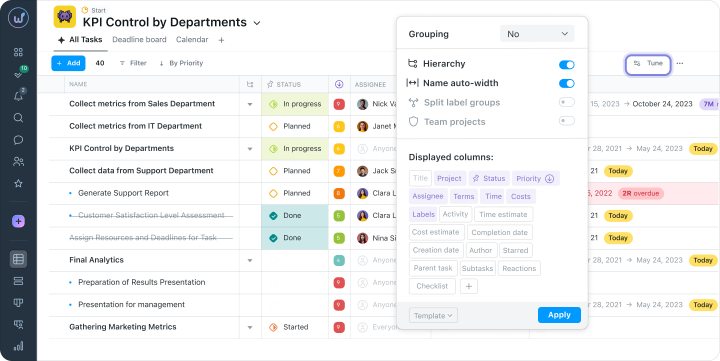
You need to remove the “Expenses” column because you are not working with budgets right now? Just deactivate that tag. Want to display “Checklist,” “Activity,” or “Time Estimate”? One click on the purple box in the “Displayed Columns” section and the new field is already in place. And if there aren’t enough standard tags, the button “+” will allow you to create custom fields instantly.
Say goodbye to routine! Manage dozens of tasks at once
Earlier, to change the status or assignee in five tasks, you had to go into each one separately. Five times. It’s okay when it’s five, but what if there are twenty-five tasks? That’s when workplace enthusiasm fades away. Why is that?
We decided that your time is too valuable for such routine, so we completely redesigned the logic of working with a group of tasks. Now everything works simpler and faster.
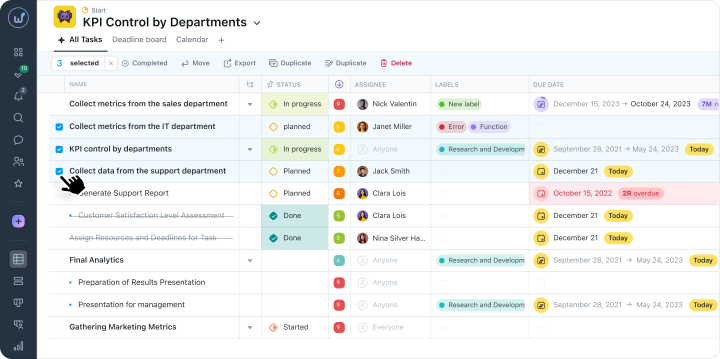
Just check the necessary tasks on the left of their names, and a convenient bulk action panel will pop up at the top. From this panel, you can perform any action for the entire pool of tasks in one click:
- Mark the entire batch of completed tasks as Done.
- Move them to another project or sprint.
- Quickly Export or Duplicate similar tasks.
- Bulk change deadlines, priorities, or assignees through Properties.
- Or simply Delete all unnecessary ones.
What used to take several minutes of monotonous clicking now takes exactly two seconds. Select a group, hit the necessary button and move on!
Why suffer through an endless list of tasks when you can group them?
Remember that classic Monday: in five minutes, the whole team call starts, and you have fifty open tasks hanging on your list. They all go in a continuous stream, mixed up together.
We think that basic sorting is no longer enough for complex projects, so we’ve added something like a “double order” in Worksection. Now tasks can be grouped based on two criteria at once.
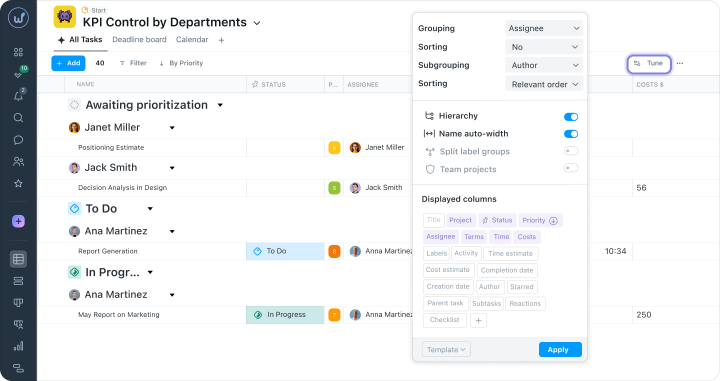
- First, you set the main Grouping (for example, by Status) and choose the Sorting logic (say, Backlog at the top).
- Then you turn on the additional Subgrouping (by Author or Responsible) and set sorting within that.
Color will tell the status
Now the statuses, deadlines, and priorities of tasks are highlighted in colors. Therefore, you won’t have to read through, click, or search, as the overall picture of the project is clearly visible even out of the corner of your eye.
Saving filters as templates – our everything
And finally, you’ve built a great working structure: selected the necessary columns, set up two-level grouping, sorted tasks, etc. Everything is convenient, but what if you need to do this again the next day? That would be disappointing.
But we thought of that too and added a cool feature – saving personal templates for the task list.
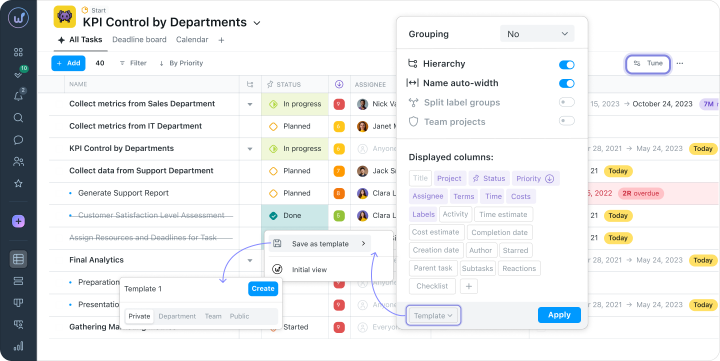
You set all the necessary display parameters, columns, and filters once.Click the button “Apply”. In the bottom left corner of the settings window, open the dropdown menu “Template” and press “Save as Template”. And if you want to return to the standard system table, there’s a button “Initial View”.
Now the task list in Worksection plays exclusively by your rules and adapts to any role in the team. The updates are already live and waiting for you in the system. All that’s left is to log in, click the “Tune” button and see how much easier and nicer your daily management can be. Wishing you successful projects!