Solutions
worksection
beta
help
How do I import tasks from a file into a project?
Each project allows you to import data in CSV or XML format after preparing the file in the required format.
Access available to:
- Owner
- Account administrator with the "Allow project management" permission
- Project author
- Project lead
To import tasks from a file, open the project window and click "More actions"1, select "Import"2, and choose the required format: MS Project XML or CSV3.
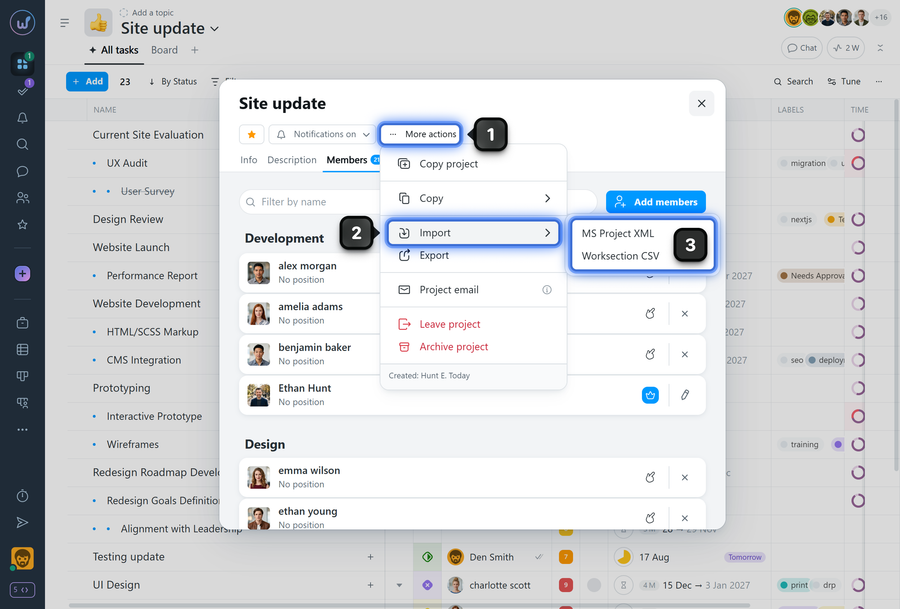
Importing from MS Project XML
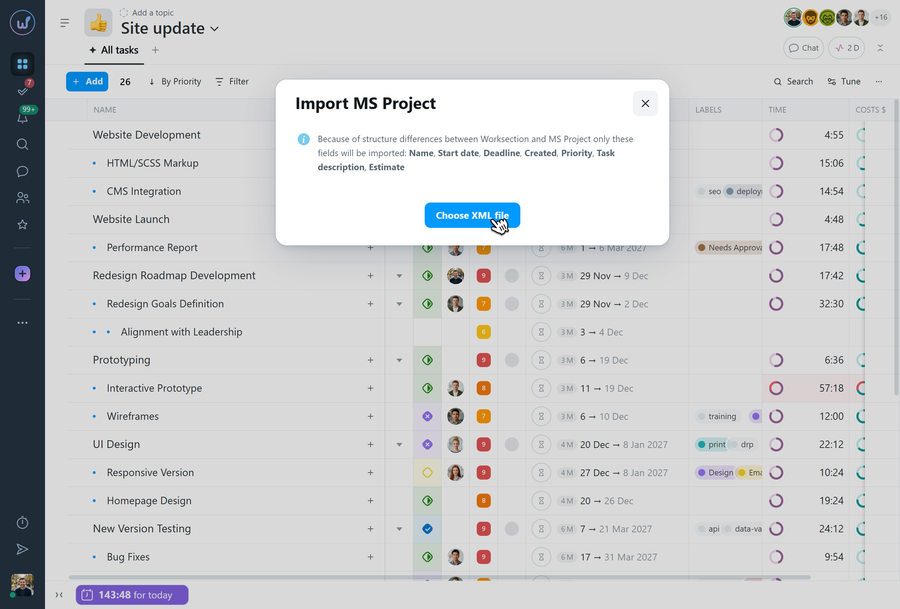
When you select MS Project XML, a window will open where you can select a file to import from your device.
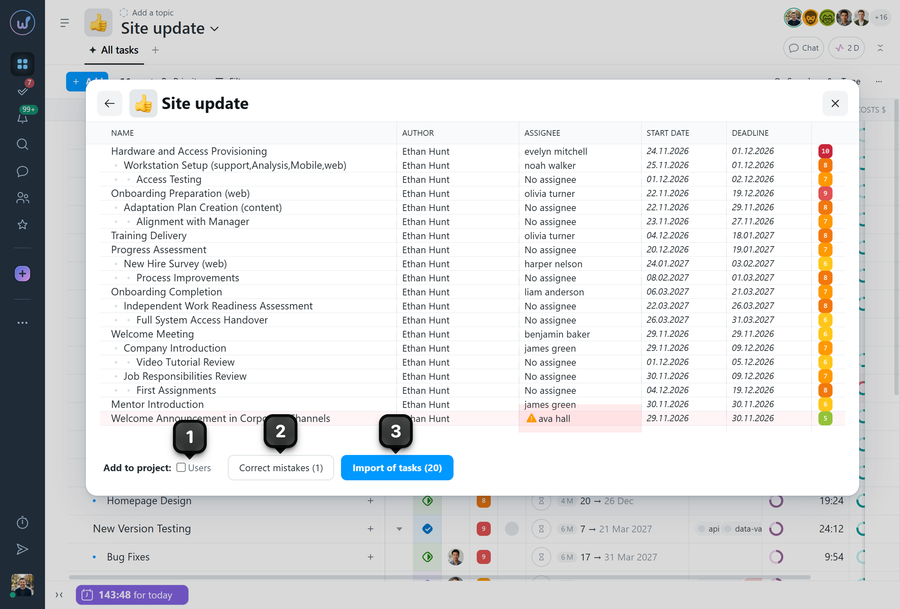
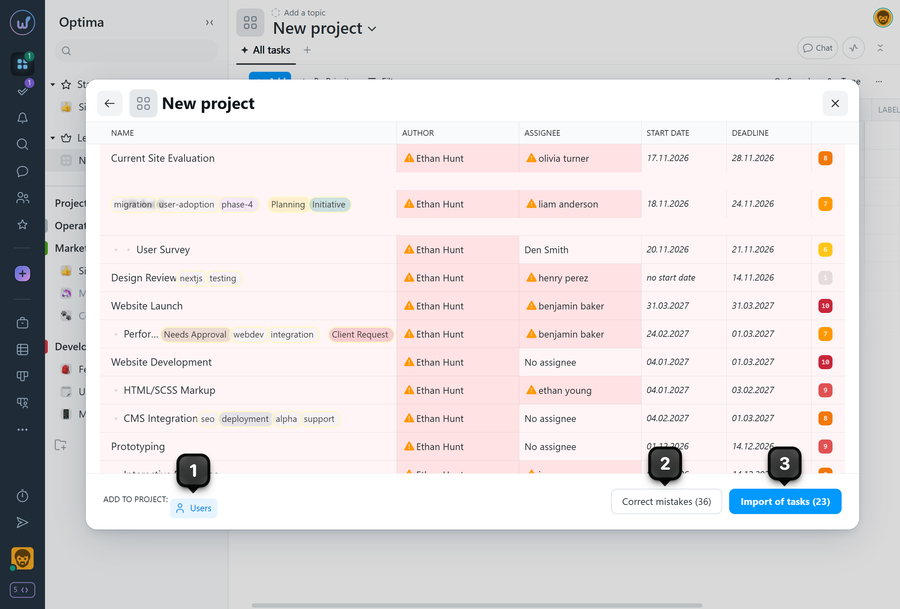
After adding the file, a preview window of the imported tasks will open. Here, you can change the task name, author, assignee, priority, start and end dates. You can also add users to the project1 if they are registered in the account and correct mistakes2 - for example, if an assignee is not found in the account. Once everything is ready, click "Import tasks"3.
Note! Due to structural differences between Worksection and MS Project, only the following fields will be imported: Name, Start date, End date, Creation date, Priority, and Task description.
Importing CSV
When you select CSV, a window will open where you can select a file to import from your device.
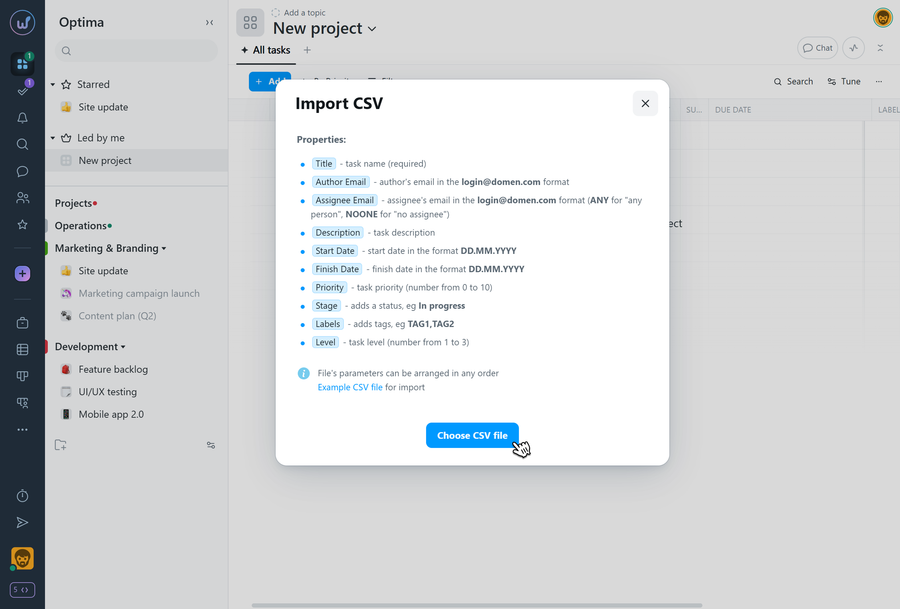
After adding the file, a preview window of the imported tasks will open. Here, you can change the task name, author, assignee, priority, start and end dates. You can also add users to the project1 if they are registered in the account and correct mistakes2 - for example, if an assignee is not found in the account. Once everything is ready, click "Import tasks"3.
Note! The member performing the import will automatically be set as the author of the tasks.
Leave your review
Did this article help you?
Glad we could help! What was helpful?
Sorry this didn't help. What went wrong?

