Solutions
worksection
beta
help
How do I remove members from a project?
Permissions available to
- Owner
- Account Administrator with the "Allow managing projects" permission
- Project author
- Project Lead
To remove a member or group of members, open the project window and on the "Members" tab1, click the "X" button2 on the member's card and confirm the action3.
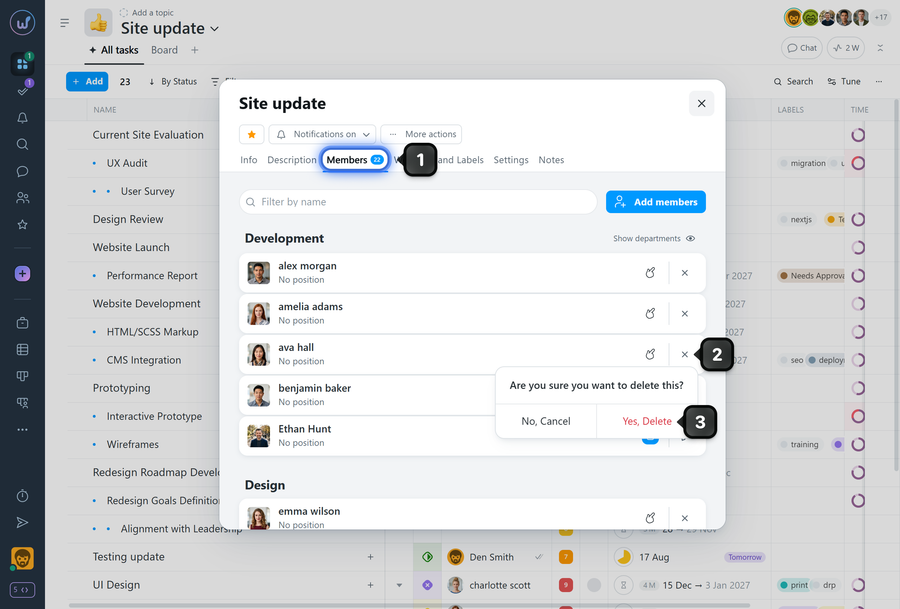
After removal, the user loses access and will no longer receive notifications within this project.
Access can be restored at any time by adding the member to the project again.
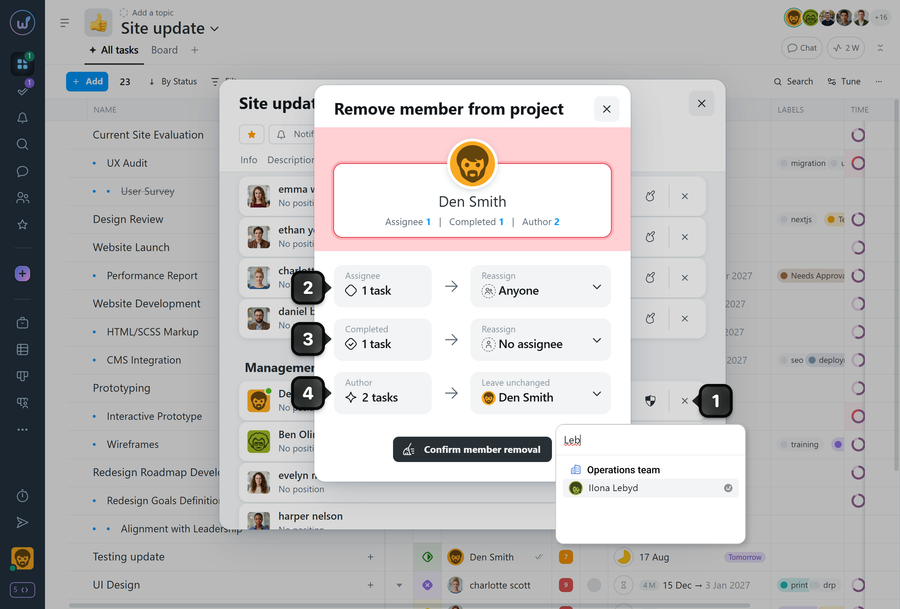
If there are tasks in this project where the member is the assignee, author, or has closed a task, clicking the "X" button1 will open a handover window before removing the member. In it, you can choose who to assign as the responsible for that member's open tasks2, change the assignee for closed tasks3, and transfer task authorship to another member4.
Leave your review
Did this article help you?
Glad we could help! What was helpful?
Sorry this didn't help. What went wrong?

