Constantly switching between tasks may seem trivial, but it actually “eats” a significant portion of work time imperceptibly. Research from the American Psychological Association shows that this can cost up to 40% of productivity — and over the course of a week, it turns into nearly a full lost workday.
In Worksection 2.0, we have gathered tools to help reduce these losses. Dashboards and saved views eliminate the need to constantly search for and configure information again. The daily plan and tab panel help maintain focus on what is important right now. Next, we will show how this works in daily operations.
Custom Dashboard 2.0
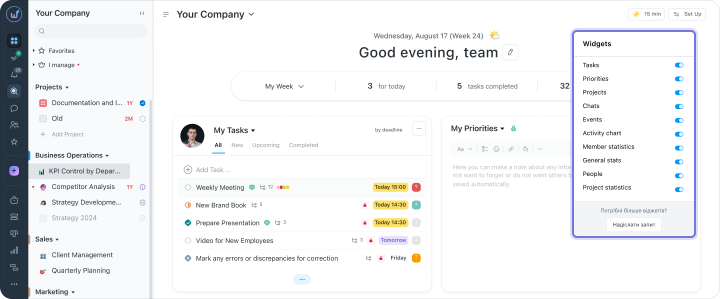
To understand what is happening in projects, one previously had to open several sections and gather the picture manually. In Worksection 2.0, the main page has become a single dashboard that can be customized to fit your role and work style.
It consists of widgets — separate blocks with key data: tasks, team activity, project progress, chats, events. You shape this panel yourself: add what you need, remove the extra, and arrange everything as it is convenient for you.
In fact, each dashboard is an individual workspace that immediately shows the essentials.
How It Looks in Practice:
- Add, delete, and move widgets. Customize your own panel so that all key information is always at hand.
- Clone and hide widgets. Create several copies of a widget with different filters or hide unnecessary ones — the dashboard adapts to your working style.
- Analyze data in real-time. Team activity, task distribution, project progress — everything updates automatically without reloading the page.
- Color coding of important information. The priority widget marks tasks by urgency — it’s immediately clear what needs attention.
- Dive into details. Interactive graphs, visual diagrams for agile teams, task data, and activity of each participant.
- Use from any device. Dashboards are adapted for smartphones, laptops, or large monitors.
Daily Plan
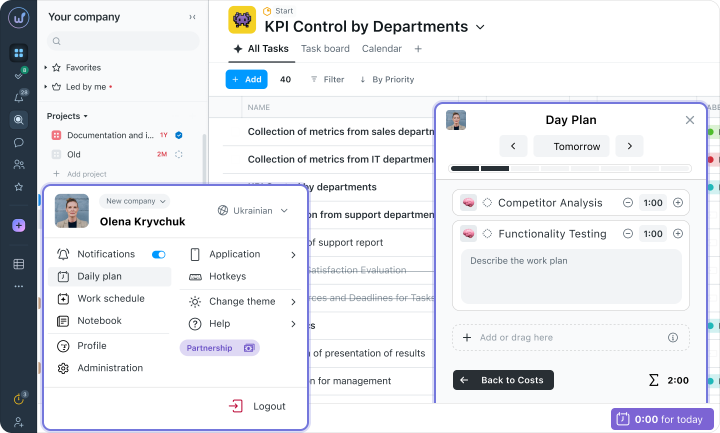
The daily plan in Worksection 2.0 helps gather all tasks for the day in one place and immediately understand where to start. You see not just a list, but also time estimates — making it easier to distribute the workload and not take on more than you can realistically accomplish.
Personal Planner Features:
- All tasks for the day in one window — with time estimates for each task and a visual load scale.
- Drag&Drop editing — simply drag and drop tasks to change the order and priorities.
- View team workload — managers see each participant’s daily plan to assess who can take on a new task.
If the day is overloaded — it’s immediately clear what should be postponed. And if there’s a need to assign someone an urgent task — the manager can see who has free slots and assigns it without extra questions.
Tray — Open Tabs Panel
When you are working on several tasks simultaneously, it is easy to lose track of where you stopped. You opened a task, switched to a chat, then to another task — and it’s challenging to remember where you left off.
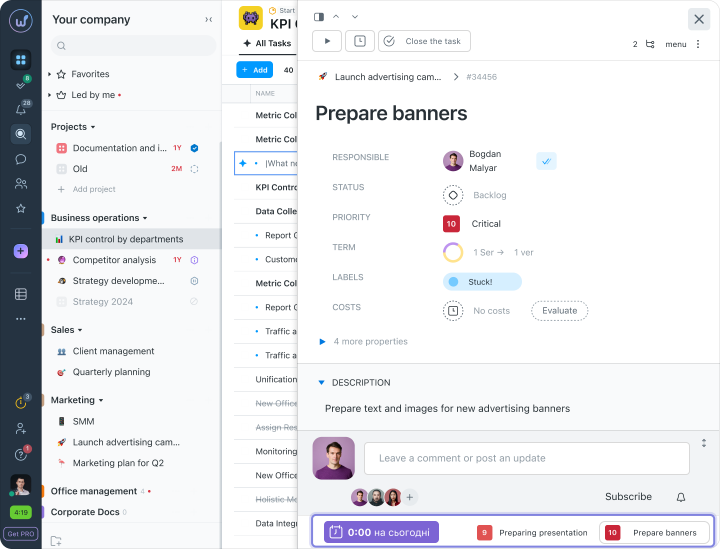
In Worksection 2.0, a tray has appeared — a bottom panel that stores minimized tasks, chats, and the daily plan window. It allows you to:
- Instantly switch between tasks, chats, and drafts.
- Keep key tasks at hand without searching for them in lists.
- Track progress and stay focused on priorities.
- Participant statuses — everyone can set their status, so colleagues see it in the “People” widget and participant card.
- Chats in the tray — minimize an active chat to the bottom panel and return to it with one click.
- Change notifications — updates on your active tasks come automatically.
Saved Views
Everyone has their own way of working with tasks: some start with deadlines, some with priorities, and others view tasks by assignees. And setting up filters again and again takes time that could be spent on work.
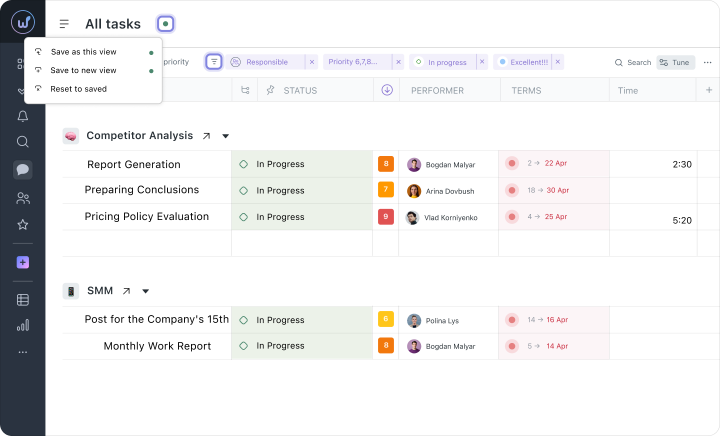
Saved views solve this problem. You create the desired task list view once — and return to it with one click. For example:
- “My tasks for today” — all tasks with deadlines today and high priority.
- “Critical bugs” — unresolved issues with maximum priority.
- “Team at Work” — active tasks for all subordinate employees.
How It Works:
- Create your filters and save settings — columns, sorting, grouping, and color codes remain as convenient for you.
- Switch between filters with one click — quickly change the work context without losing focus.
- Track important matters — tasks with deadlines, priorities, and team progress.
- Share with the team — send colleagues a link to a saved view, and they will open the same table with the same filters.
Quick Start in 5 Minutes
The new tools do not require long setup. For most teams, it literally takes a few minutes — without separate setups for each scenario.
How to Quickly Start Working with New Tools:
- Start with a ready set of widgets on the dashboard. The standard set already contains blocks with key indicators — modify, add, or remove to suit yourself.
- Customize widgets to yourself. Arrange elements so that the panel shows exactly what is important for your work.
- Create and save task views. Use filters to see only relevant tasks in seconds and set clear priorities.
- Set up the daily plan. Schedule tasks for the current day, distribute them in the timeline — and you will immediately see whether your plan for today is realistic.
- Use the task tab tray. Minimize your current tasks and active chats to the bottom panel — and switch between them with one click.
How New Tools Help Teamwork
When everyone in the team works differently, it is hard to see the big picture. Some manage tasks in spreadsheets, some on the task board, and some rely solely on chats. Tools Worksection 2.0 provide everyone the freedom to customize their workspace — but maintain a unified structure for collaboration.
What This Gives the Team as a Whole:
- Fewer questions like “what about that project?” — tasks, deadlines, and progress are visible at once, the team synchronizes through the system, not through meetings.
- Quicker decisions — the manager opens the dashboard and sees the whole picture in a minute: who is occupied, what is urgent, where are the risks.
- Less micromanagement — when everyone sees their plan and priorities, there is less need to remind and manually control.
- Works for any format — distributed team, hybrid schedule, or fully office-based model — Worksection is equally convenient in every scenario.
Worksection 2.0 — Planning without Extra Steps
In Worksection 2.0, we did not change the approach to work — we simplified what you are already doing every day. Dashboards, daily plans, saved views, and tab panels help find what you need faster, keep the context, and spend less time on routine.
As a result, simple tasks take less time: reviewing tasks, setting priorities, checking the project status, or understanding who is currently overloaded. Without constant transitions between sections and without manually “gathering” the picture.
Try the new Worksection 2.0 tools and see how daily work changes when everything you need is at hand.
Try Worksection 2.0 for free for 14 days via this link 