
Friends!
We promised to share new features, and today we have one for you. Worksection can now be connected to an AI assistant: Claude, ChatGPT, Grok, or any other that supports MCP. After this, the assistant sees your projects and tasks and can work with them on your behalf.

What is MCP in simple terms
MCP stands for Model Context Protocol. It is an open standard that describes how an AI assistant communicates with external services.
Imagine you hired a capable assistant. He understands perfectly what you want from him, but he doesn’t have the keys to the office. He can’t enter the room, open the cabinet with documents, or place a folder on a colleague’s desk.
MCP is that key. You give it to your assistant once, and then he can enter your Worksection by himself: he looks at what’s there, creates tasks, writes comments, and starts timers. No more copying texts back and forth and no open tabs.
How it works
Previously, for the AI to learn something about your projects, you had to copy a list of tasks into the chat. And for it to make changes, you had to manually transfer its response into Worksection.
Now the assistant does this on its own. You write in plain language: “what tasks do I have due this week?”. The assistant queries the MCP server of Worksection, retrieves data from your account, and you receive the response already in the chat.
The same goes for changes. “Create a task for Olena: prepare a presentation by Friday” becomes a real task in your project, with a responsible person and a deadline.
What the assistant can do
| Direction | Examples |
|---|---|
| View | projects, tasks, comments, files, activity over the period, team work schedule |
| Create and modify | tasks and sub-tasks, projects, comments with checklists, deadlines, assignees, priorities, tags |
| Time tracking | start and stop timer, record spent time and expenses, view project budget |
| Team | project participants, groups, contacts, task subscriptions |
In total, there are over 50 actions covering daily work in Worksection.
How to connect
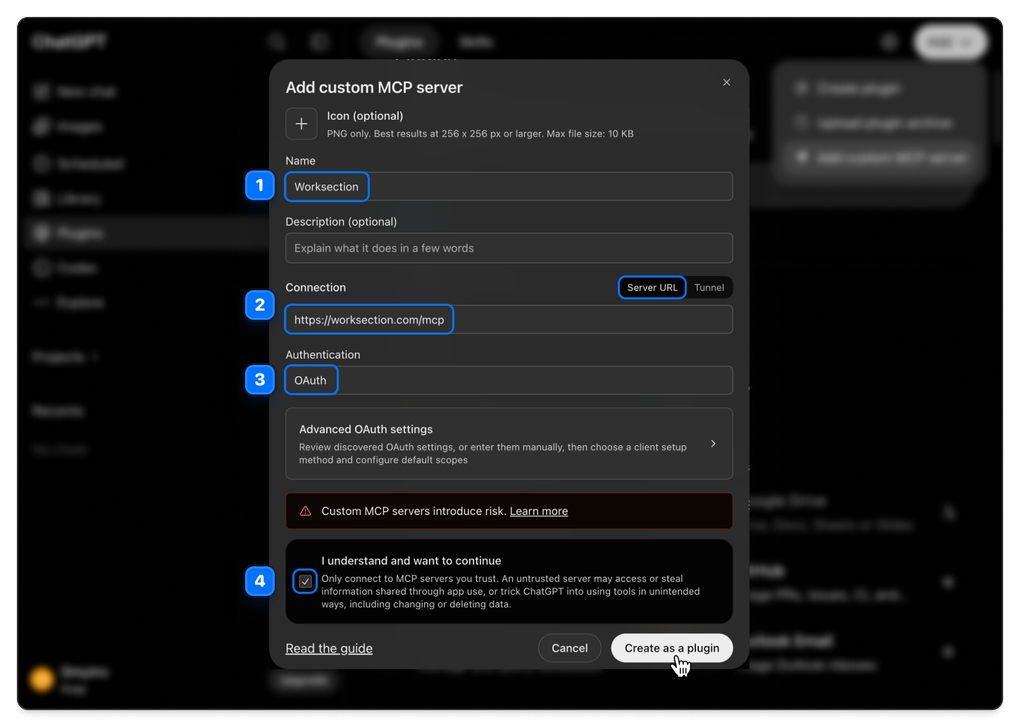
 The server address is the same for all clients: https://worksection.com/mcp
Below are the connection steps in Claude and ChatGPT. In Grok (on paid plans) and in other clients with MCP support, the steps are the same: find the section with connectors, add the server address, log into Worksection.
Claude
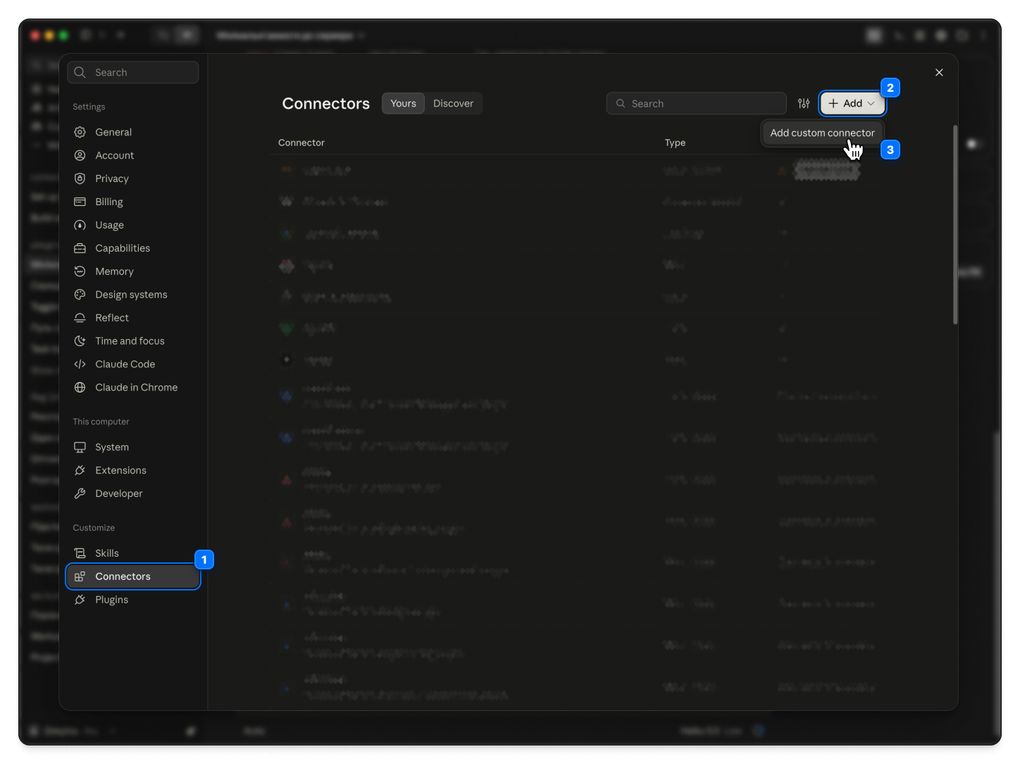
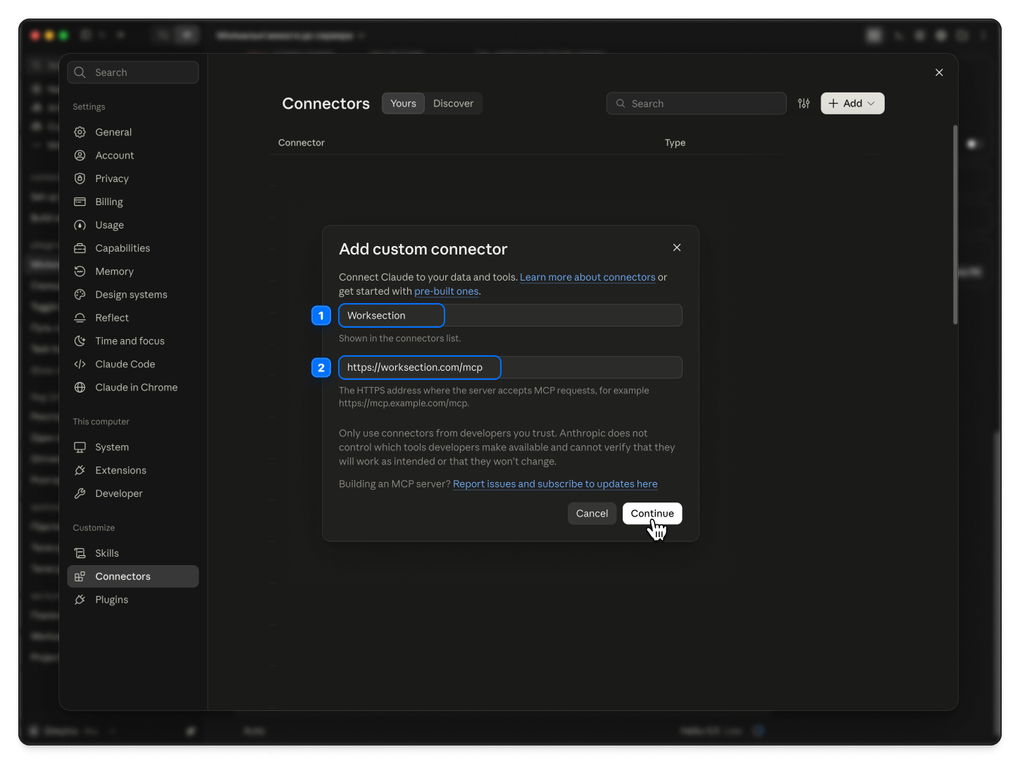
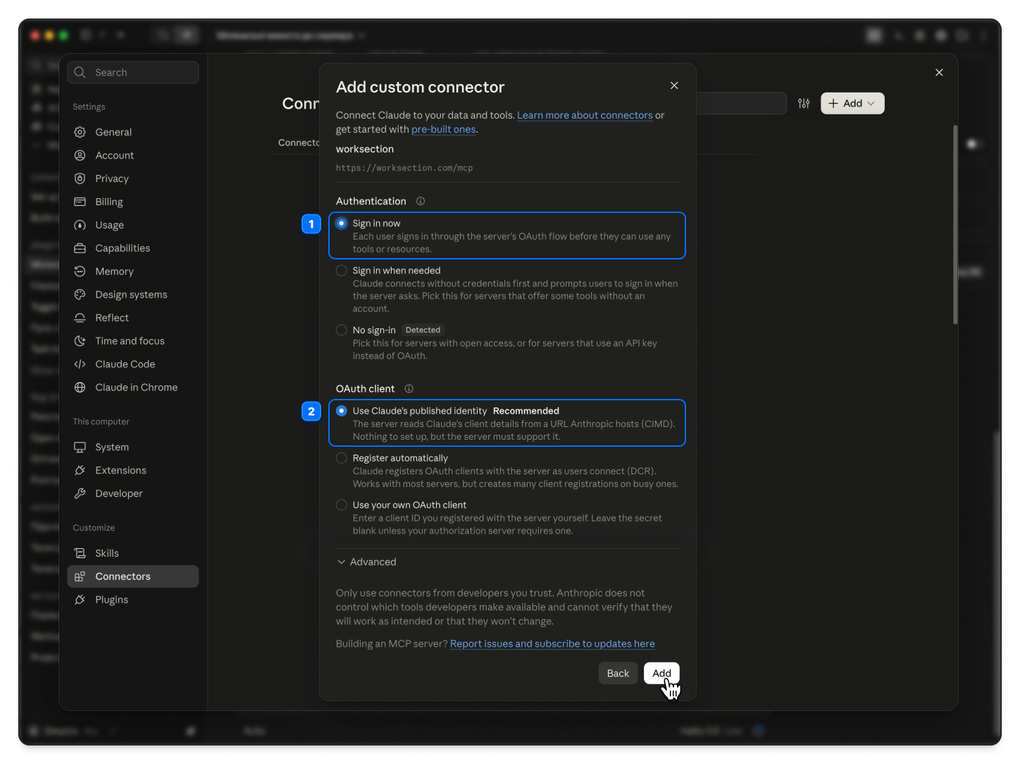
1 Settings → Connectors → «Add custom connector», paste the server address and click «Add».
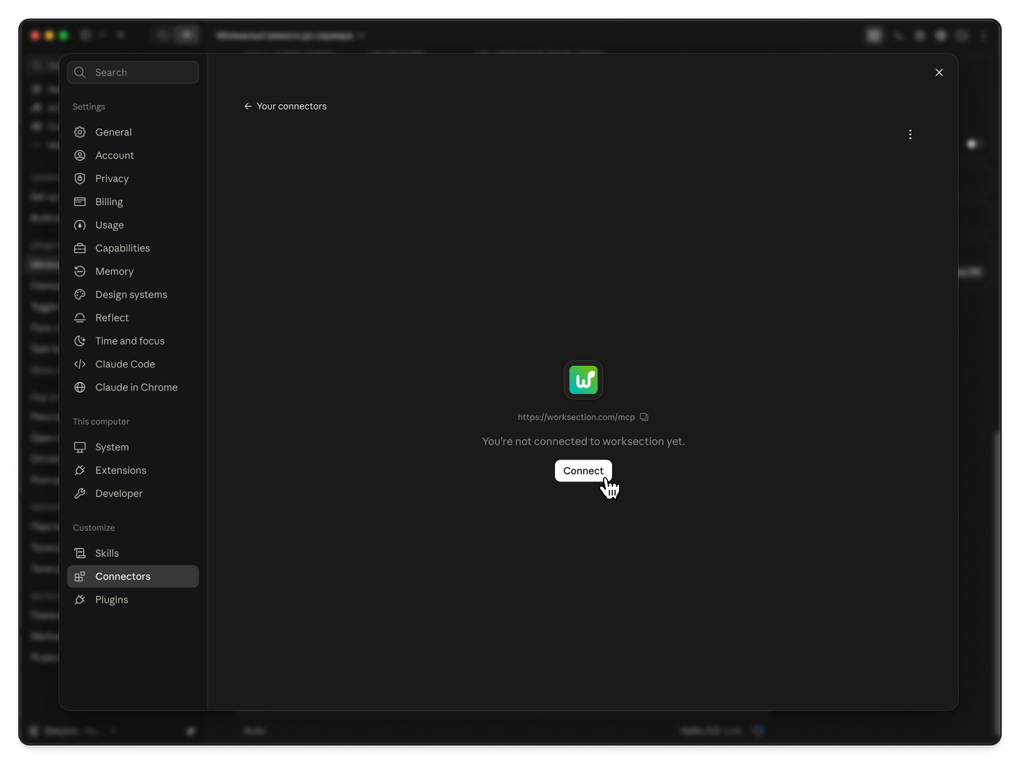
2 Next to the new connector, click “Connect,” and the Worksection login window will open.
ChatGPT
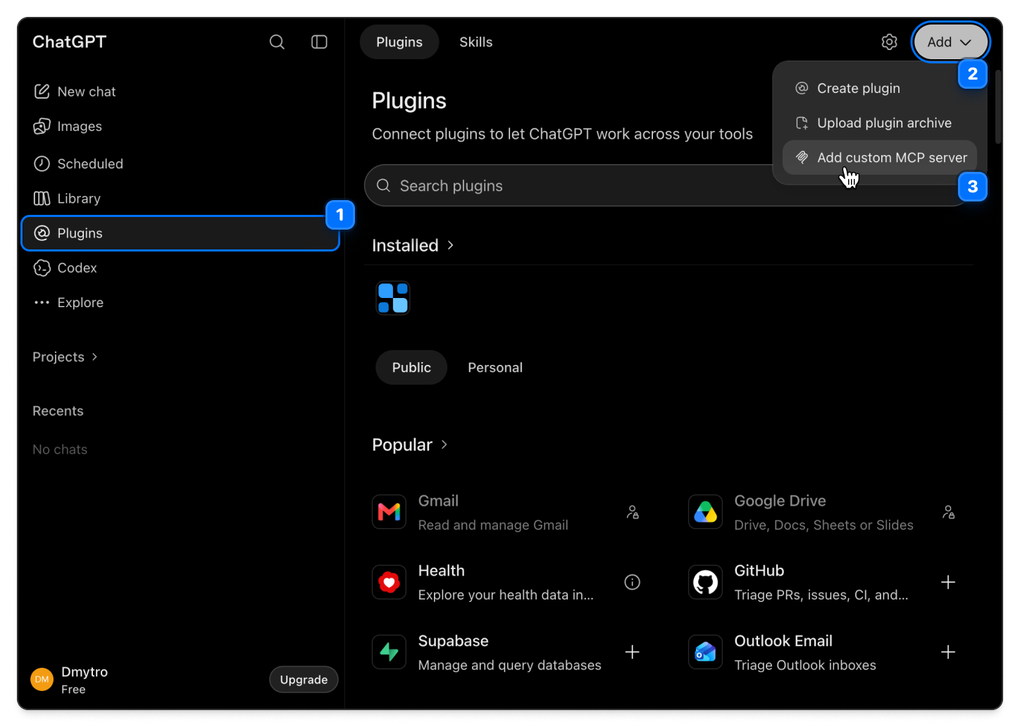
Settings → Plugins → «+» → «Add custom MCP server»: name, server address, OAuth authentication, confirm the warning, and click “Create as a plugin.”
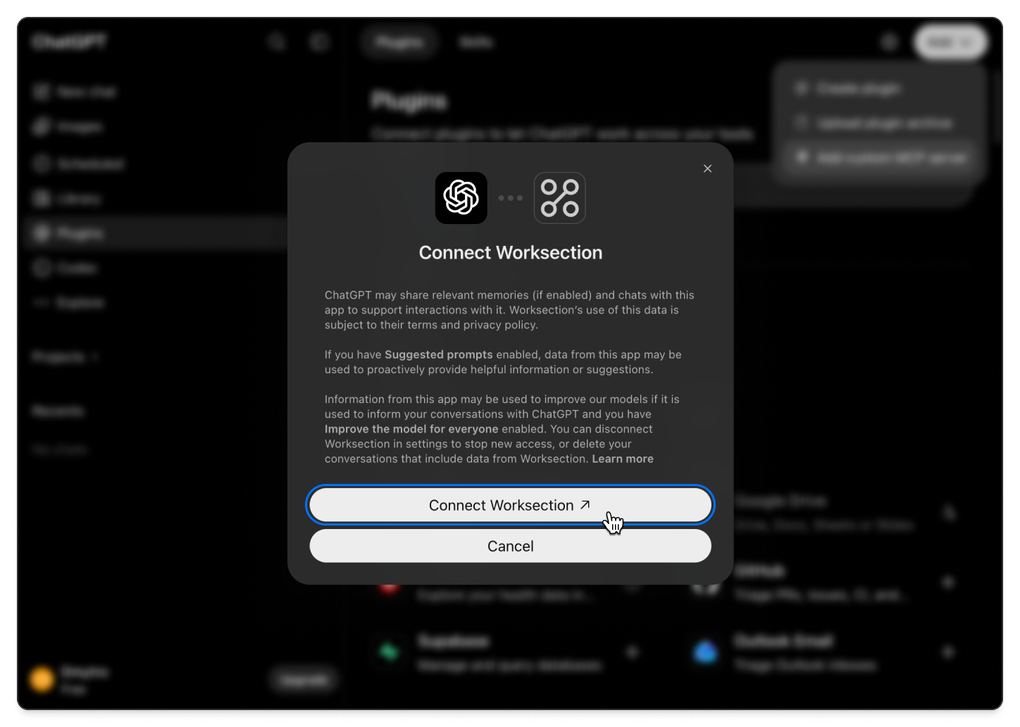
Confirmation. Worksection displays which account the assistant will gain access to and with what permissions. Click “Allow.”
Done. No API keys, tokens, or server configurations. The entire connection takes about a minute.
What you can ask
A few queries to start with:
- “What do I have for today in Worksection?”
- “Show all overdue tasks in the project “Website” and who is responsible for them”
- “Create task “Update Price” in the project “Marketing”, assignee Andrii, deadline October 20”
- “Add a comment with a checklist to task №1245: check texts, replace banner, send for approval”
- “How much time did the team log for the project “Mobile App” over the last month?”
- “Start a timer on the task I’m currently working on”
About security
The assistant works on your behalf and sees exactly what you see. If you don’t have access to a project, the assistant won’t have it either.
Administrative functions, such as managing the plan or deleting the account, are completely unavailable through MCP.
Most assistants show you an action that changes something before proceeding and wait for your confirmation. You can revoke access at any time in the settings of your AI client.
In conclusion
MCP brings Worksection one step closer to you: now you can simply talk to the system. Try it out and let us know which queries you found most useful. We will expand the assistant’s capabilities based on your experience.
Thank you for choosing Worksection!