Solutions
worksection
beta
help
How to create a personal task list?
A personal task list is a collection of tasks that you display according to your own conditions (for example: “my tasks in this project”, “tasks for today”, “tasks with label X and incomplete checklists”).
This method is useful when you need to create a separate tab with your own set of filters.
This approach can be used with different task views: Gantt, Kanban, and others. In this example, we will look at the setup for the table view of tasks.
Step 2. Customize the list to your needs:
- Choose sorting
- Customize the table columns for your workflow
- If needed, apply task grouping
- If needed, set up a filter
Step 3. Save the settings as a personal “view”
After applying the filters, a green indicator1 will appear on the tab. Click it and select “Save to new view”2.
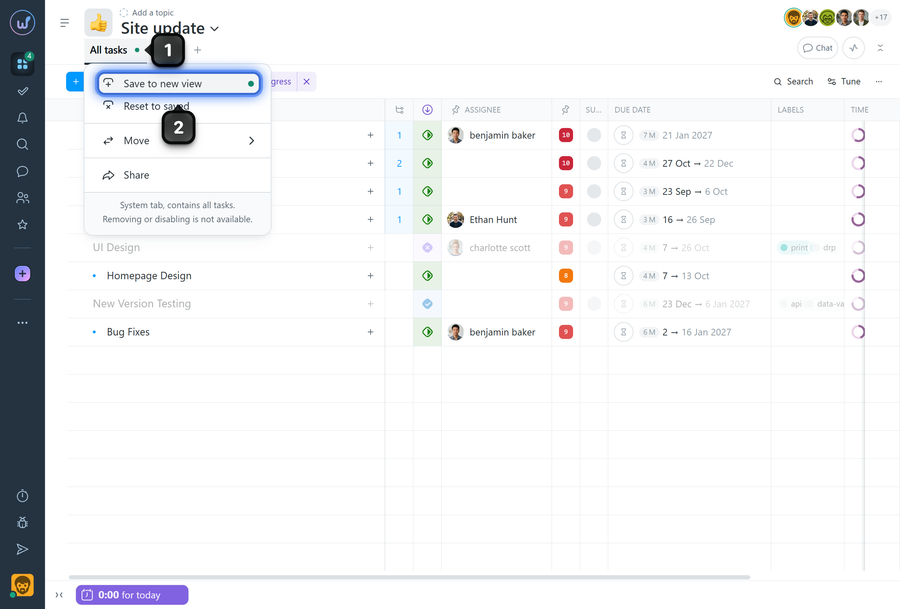
A new tab with the applied filters will then be created. Enter a name for this tab and press Enter.
Done: you now have a separate tab with your personal task list (that is, with saved filters and view settings).
How to update or reset a saved view
If you change the filters on a saved tab, click the green indicator and choose:
- save to this view
- save to new view, or
- reset to saved view (discard the new filters).
Leave your review
Did this article help you?
Glad we could help! What was helpful?
Sorry this didn't help. What went wrong?

