Solutions
worksection
beta
help
How to bulk change subscribers in project tasks?
Subscribers receive notifications about task events. If you need to quickly add or remove subscribers from several tasks at once, use bulk actions in the task list.
Permission to change task subscribers belongs to:
- Account owner
- Account administrator with the "Allow admin to edit everything" permission
- Team administrator with the "Allow admin to edit everything" permission (for tasks where a member of their team is the author or assignee)
- Department administrator with the "Allow admin to edit everything" permission (for tasks where a member of their department is the author or assignee)
- Project lead
- Task author
To bulk change subscribers:
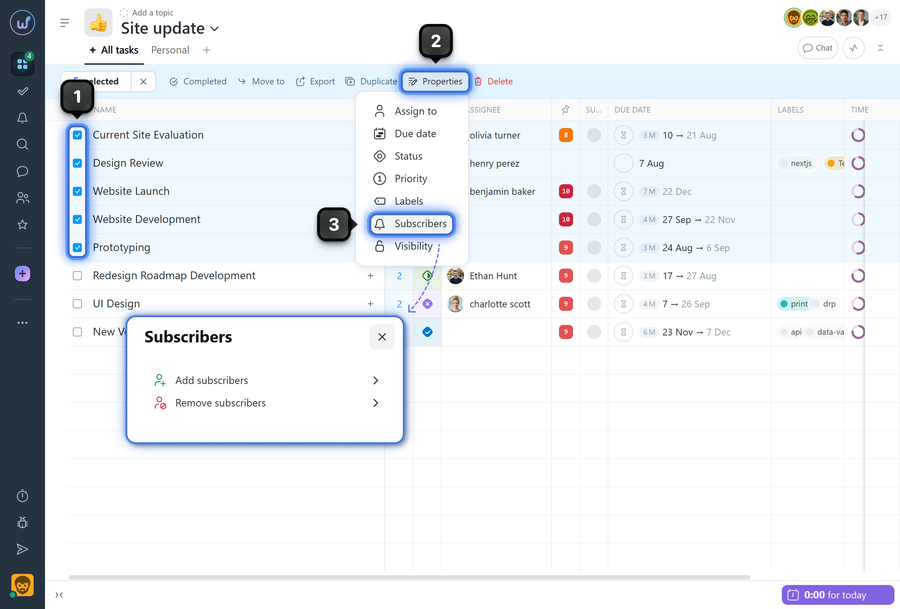
- Select tasks using the checkboxes next to the name1.
- In the bulk actions panel, open "Properties"2 → "Subscribers"3 and select "Add subscribers" or "Remove subscribers" depending on your scenario.
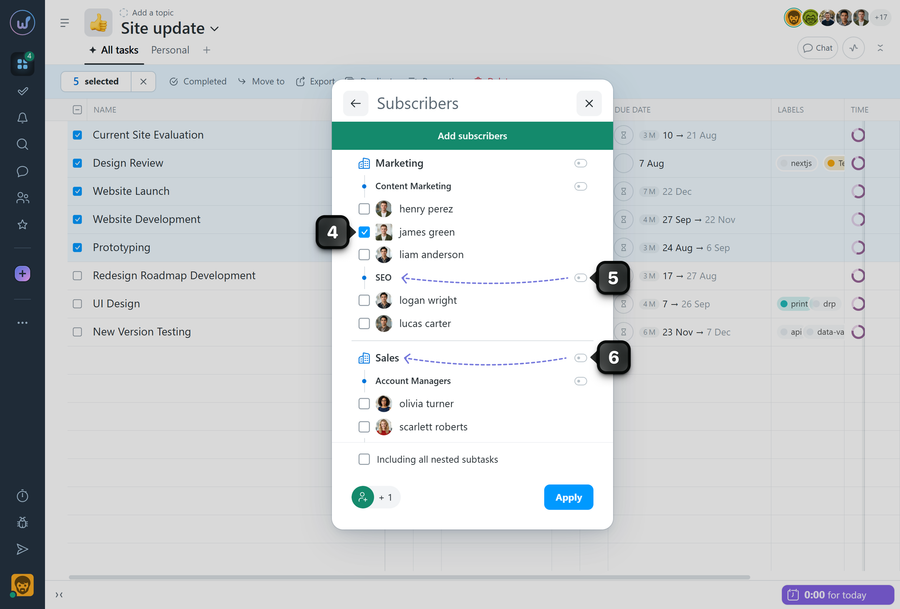
Select the required member from the list4. You can also select an entire department by clicking its name5 or an entire team by clicking the team name6, then confirm the action.
Note The "Assignees" option means that the assignee of each selected task will be added to (or removed from, if you are removing subscribers) the subscribers of that task. In other words, the member assigned as the responsible person in each task will be added as a subscriber to that specific task.
Leave your review
Did this article help you?
Glad we could help! What was helpful?
Sorry this didn't help. What went wrong?

