Solutions
worksection
beta
help
How to configure columns on the "All tasks" page?
The "All tasks" page in a project is a table with columns that can be enabled/disabled, reordered, pinned, collapsed, and resized.
The "Name" column is always displayed and cannot be disabled. If the list contains subtasks, a collapse/expand button or a numeric indicator of subtask count may appear next to the parent task.
To enable or disable columns, click "Tune"1 — a menu will open where you can enable the required columns or disable unnecessary ones by clicking on the column name2.
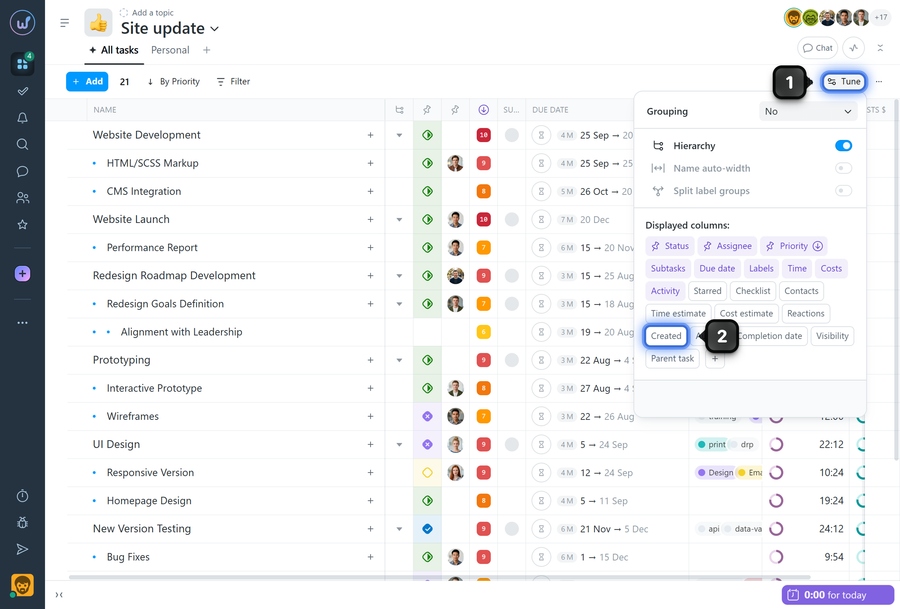
Note In the "Tune" menu, columns that are already enabled are highlighted in purple.
What columns display and quick actions when clicking a field in the column:
- Assignee — who is assigned as the executor; click to change the assignee (if you have permissions).
- Priority — current task priority; click to change (if you have permissions).
- Due date — task start and finish; click to change (if you have permissions).
- Time — logged time costs; if planned costs are set, a ratio indicator of actual vs. planned costs is shown; click to add costs, delete/edit them, and/or add a comment (if you have permissions).
- Costs — logged financial costs; if planned costs are set, a ratio indicator is shown; click to add/edit (if you have permissions).
- Labels — task labels; click to add or remove labels (if you have permissions).
- Status — current task status; click to change (if you have permissions).
- Activity — date/time of the last activity in the task.
- Time estimate — planned time costs; click to change (if you have permissions).
- Cost estimate — planned financial costs; click to change (if you have permissions).
- Completion date — date when the task was closed; if closed after the deadline, a late-close indicator is shown.
- Created — date when the task was created.
- Author — task author; click to change the author (if you have permissions).
- Starred — shows whether the task is bookmarked; click the star to add/remove.
- Parent task — shows the parent task name; click to open it.
- Subtasks — subtask completion progress indicator; hover to see details; click to open the task with the subtasks block.
- Reactions — allows adding reactions (emoji) as additional markers.
- Checklist — checklist progress indicator; hover to see the number of completed items.
- Visibility — a red lock icon indicates that the task has restricted visibility; hover to see details.
Please note! This list is supplemented with custom fields created in your account.
Managing columns from the table header
1. Click the arrow/menu button on the right side of the column name to open its menu.
2. Select an action:
- Pin — the column will always appear right after the "Name" column or after other pinned columns.
- Move — change the column's position relative to others.
- Collapse — temporarily hide the content; clicking the column name again expands it.
- Hide — completely disable the column display.
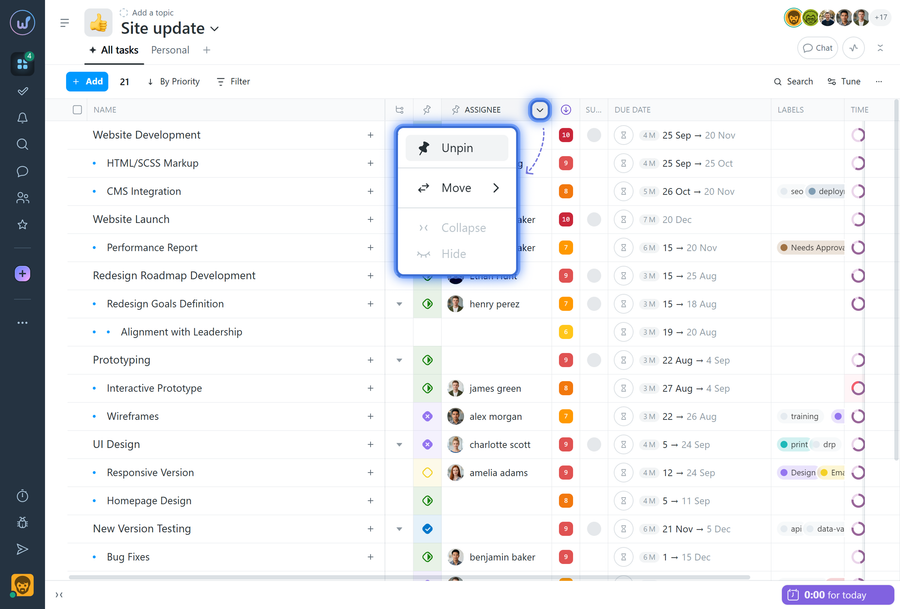
Please note! Pinned columns cannot be collapsed or hidden this way.
Note To resize a column — hover over the border between columns and drag it.
Please note! Column widths and the set of columns displayed on the "All tasks" page are configured separately for each project and separately for each user.
Leave your review
Did this article help you?
Glad we could help! What was helpful?
Sorry this didn't help. What went wrong?

