Solutions
worksection
beta
help
How to bulk change task visibility settings?
You can manage task access in bulk:
- grant access to selected users
- revoke access
- remove restrictions.
By default, all project members (except the "Guest" role) can see all project tasks ("Guests" only see tasks they are subscribed to or assigned for).
Permission to change task visibility settings belongs to:
- Account owner
- Account administrator with the "Allow admin to edit everything" permission
- Team administrator with the "Allow admin to edit everything" permission (for tasks where a member of their team is the author or assignee)
- Department administrator with the "Allow admin to edit everything" permission (for tasks where a member of their department is the author or assignee)
- Project lead
- Task author
To open bulk visibility management
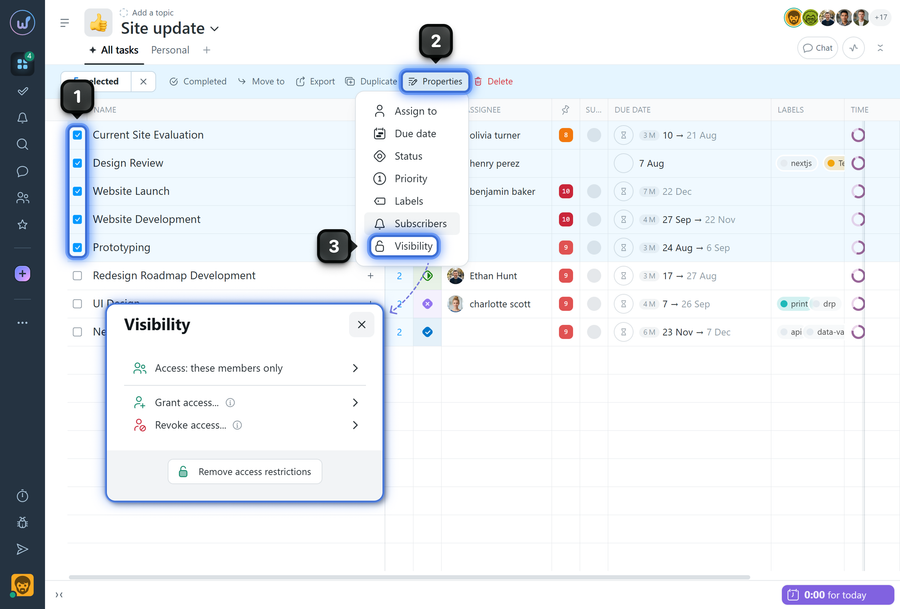
- Check the tasks using the checkboxes next to the name1.
- Click "Properties"2 → "Visibility"3.
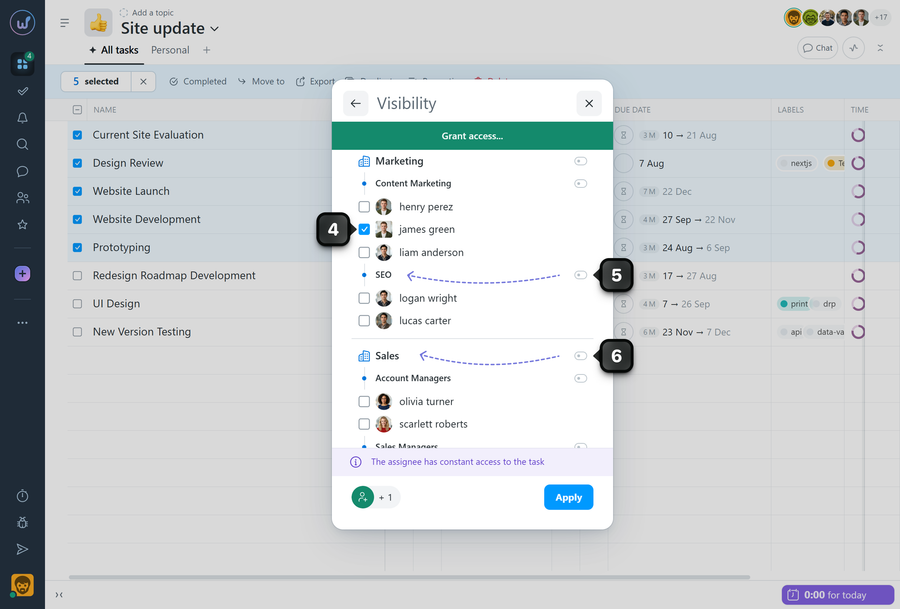
Select the required action according to your scenario and check the required members4. You can also select an entire department by clicking its name5 or an entire team by clicking the team name6, then confirm the action.
Available actions in «Visibility»
- Access: these members only — grant access to the selected tasks for specific members.
Please note! The following options are only shown if some of the selected tasks have restricted visibility.
- Grant access — additionally grant access to tasks with restricted visibility to selected members. Tasks without visibility restrictions that are checked in the selection will be ignored.
- Revoke access — revoke access to tasks with restricted visibility from selected members. Tasks without visibility restrictions that are checked in the selection will be ignored.
- Remove access restrictions — make the selected tasks visible to all members who have access to the project.
Why might an action not apply to all selected tasks?
Sometimes the bulk actions indicator shows that the action applies to fewer tasks than selected (e.g., "14/15"). This means that the selected action is not available for some tasks — usually due to access permissions or role restrictions.
Please note! If you create a task, you cannot make it invisible to yourself. Additionally, you cannot make a task invisible to the assignee. Also, a hidden task will be visible to the owner and administrators with the "Allow admin to read private tasks and comments" permission.
Leave your review
Did this article help you?
Glad we could help! What was helpful?
Sorry this didn't help. What went wrong?

