Solutions
worksection
beta
help
How to filter tasks?
Filtering is available on various task view pages (e.g., "All tasks", Kanban, Gantt, etc.), but the set of options may differ depending on the page.
How to apply filters using the «All tasks» page as an example:
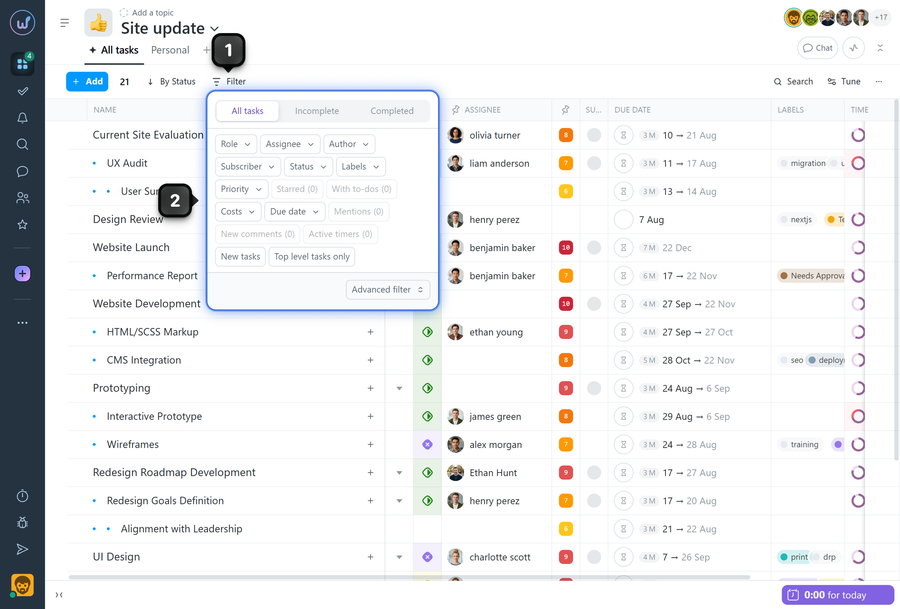
Click “Filter”1 and select the required conditions2 — the task list will update immediately.
Basic filters
- All tasks
- Incomplete
- Completed
Filters by roles and members
- Role (your role in tasks): assignee / author / subscriber.
- Assignee: select a specific assignee.
- Author: select a specific author.
- Subscriber: select a specific subscriber.
Other basic filters
- Status — show tasks with selected statuses.
- Labels — show tasks with selected labels.
- Priority — show tasks with selected priority.
- Starred — tasks added to saved.
- With to-dos — tasks that have checklists with uncompleted items.
- Costs:
- tasks with exceeded costs (costs > planned/expected)
- only tasks with costs (where costs have been logged)
- tasks without costs
- tasks with planned costs
"More" (additional filters)
The "More" block contains additional conditions:
- Due date: overdue / upcoming / today / tomorrow / this week / this month / started / awaiting start / no due date / recurring.
- Mentions — tasks where you were mentioned.
- New comments.
- Active timers.
- New tasks.
- Top-level tasks only — hides subtasks and nested tasks.
Combining filters
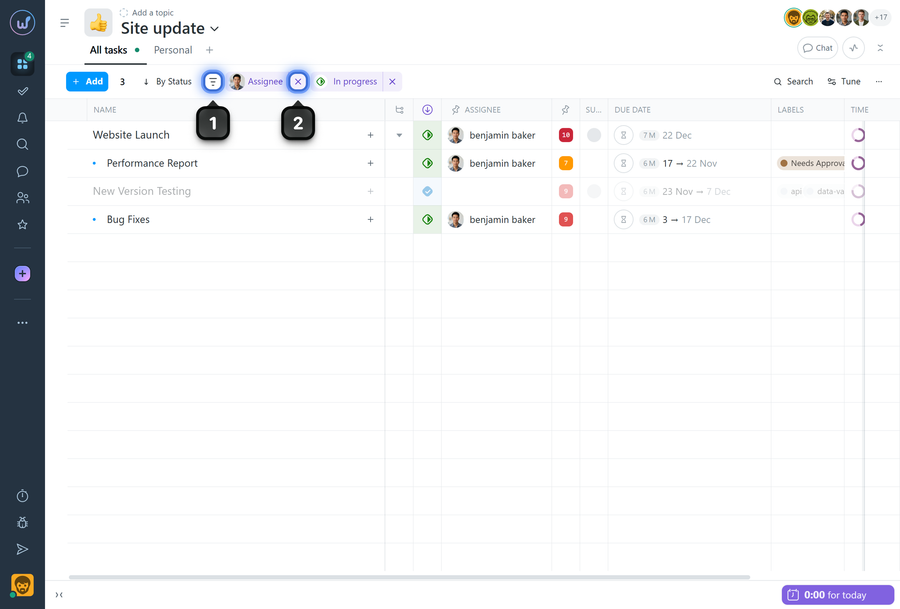
Filters can be combined. After applying a filter, you can click "Filter"1 again and select an additional filter condition. To reset a filter, simply click "X"2 next to the corresponding filter.
Advanced filter
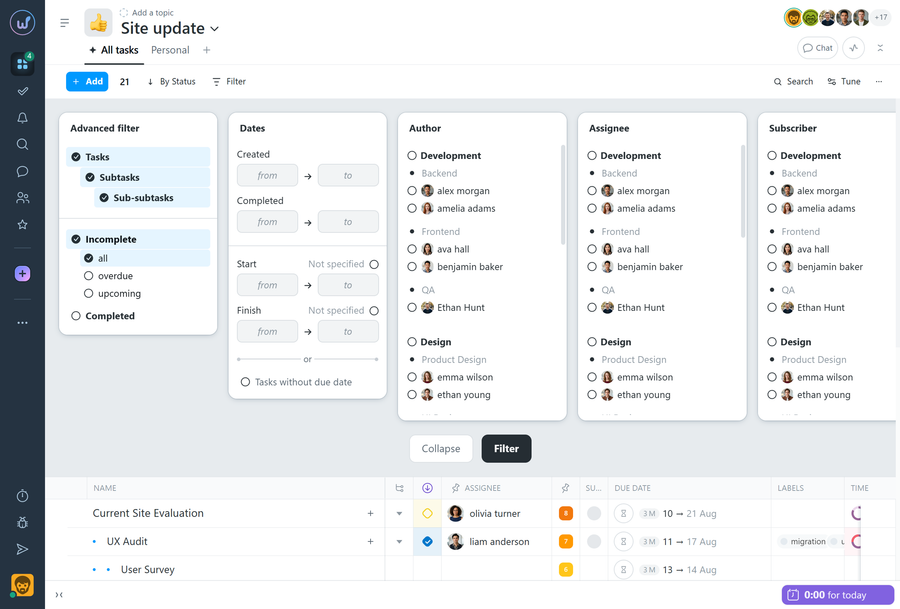
The "Filter" button includes an "Advanced filter" option, which allows you to configure in more detail exactly which tasks should be displayed.
Leave your review
Did this article help you?
Glad we could help! What was helpful?
Sorry this didn't help. What went wrong?

