Solutions
worksection
beta
help
How to group tasks?
Grouping helps organize the task list by key criteria and navigate quickly through a large number of records.
By default, tasks in a project are displayed without grouping. To configure task grouping on the "All tasks" page, click "Customize"1 and in the "Grouping" parameter2 select the required option and apply3 the changes.
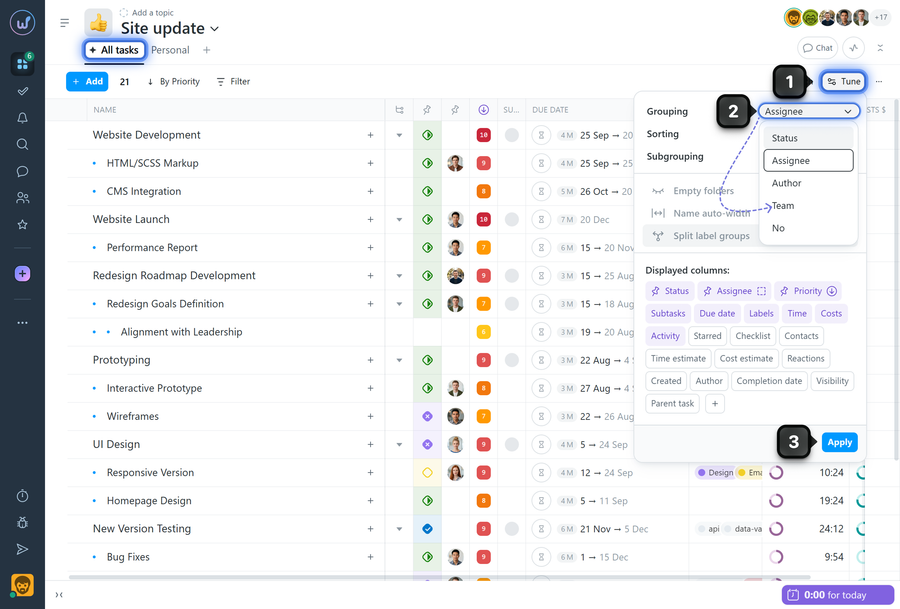
Task grouping options
- By status — tasks are grouped by status.
- By assignee — grouped by the assigned person.
- By author — grouped by task author.
- By team — grouped by team/department (if used in your account).
- None — all tasks in a single list.
Subgrouping
An additional subgrouping can be enabled. To do this, in the "Customize" menu1 click the "Subgrouping" dropdown2, select a second criterion within the main group, and apply3 the changes.
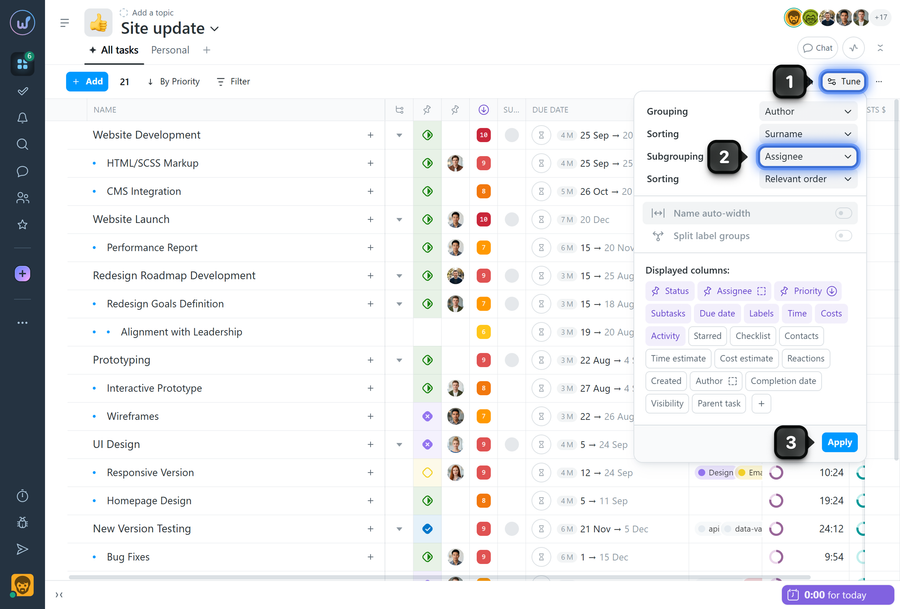
Collapsing and expanding groups
Any group or subgroup on the page can be collapsed1 or expanded2 to hide part of the tasks and focus on the ones you need.
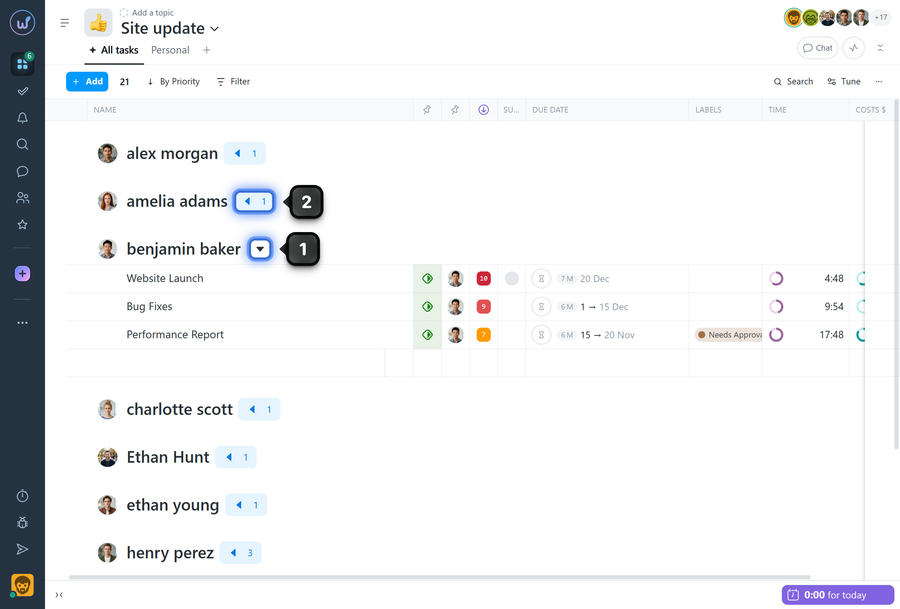
Please note! Grouping settings are individual for each member and project.
Leave your review
Did this article help you?
Glad we could help! What was helpful?
Sorry this didn't help. What went wrong?

