Solutions
worksection
beta
help
How to perform bulk operations on tasks?
Bulk operations allow you to apply an action to several tasks at once: complete or reopen tasks, move, duplicate, export, and make bulk changes to properties (assignee, due dates, status, etc.). The set of available actions depends on the user's role and permissions in the project.
How to enable the bulk actions panel
- Hover over the task name — a checkbox1 will appear next to the name.
- Select the checkbox for the required tasks — the bulk actions panel2 will appear after you make a selection.
- To select all tasks, click the checkbox in the table header3: the first click selects all top-level tasks, and the second selects all tasks on the page.
- If necessary, cancel the selection — click the cross in the selected tasks counter4.
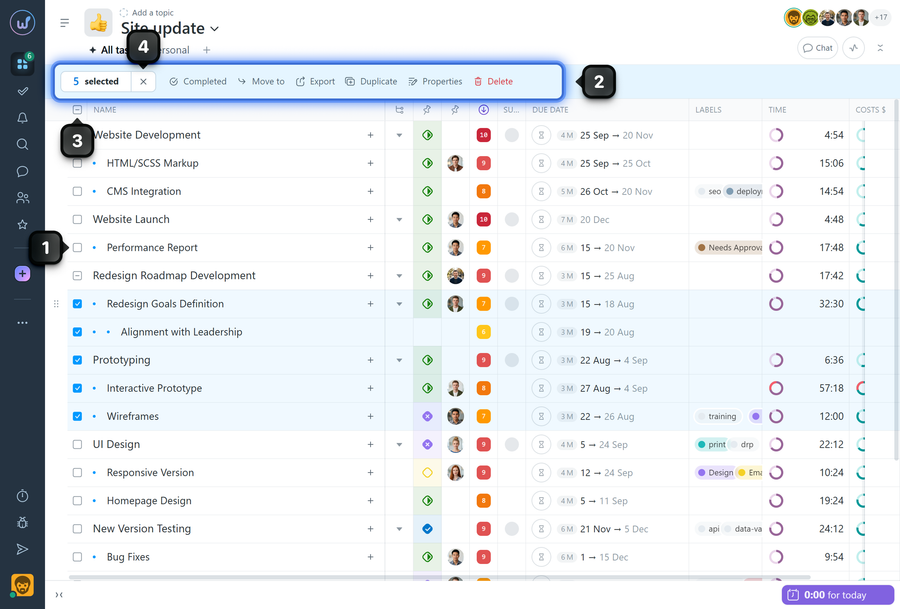
Common bulk actions
- Completed — mark the selected tasks as completed.
- Reopen — bulk reopen tasks.
- Move — move tasks to another project or make the selected tasks subtasks of another task.
- Export — export the selected tasks to CSV or XLS.
- Duplicate — create duplicates of tasks in this or another project; if necessary, you can change the nesting level (for example, make duplicates into subtasks).
Bulk editing of properties
Open «Properties» in the bulk actions panel — here you can make bulk changes to:
- assignee
- due date
- status
- priority
- labels
- subscribers (add or remove)
- visibility
Why an action may not be applied to all selected tasks
After selecting tasks, the system displays a counter showing the total number of selected items. In some cases, it may indicate that the action will not be applied to all tasks. For example, the value «4/19» means that the action can only be performed for 4 of the 19 selected tasks.
This means that the selected action is unavailable for some of the tasks — usually because of the user's access permissions or role restrictions.
Leave your review
Did this article help you?
Glad we could help! What was helpful?
Sorry this didn't help. What went wrong?

