Solutions
worksection
beta
help
How to bulk shift task deadlines in a project?
If you need to shift deadlines in a project (e.g., due to plan changes), task due dates can be changed in bulk through the task list.
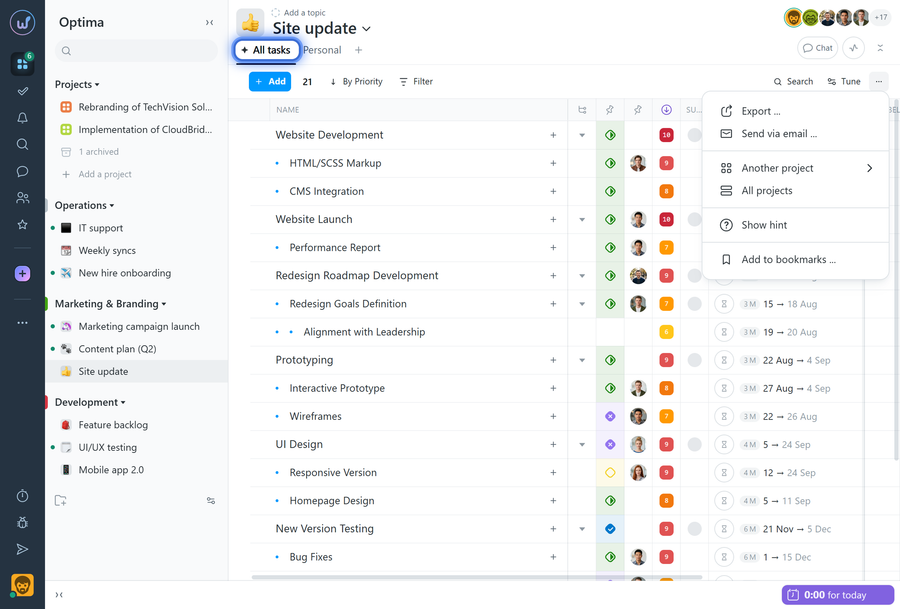
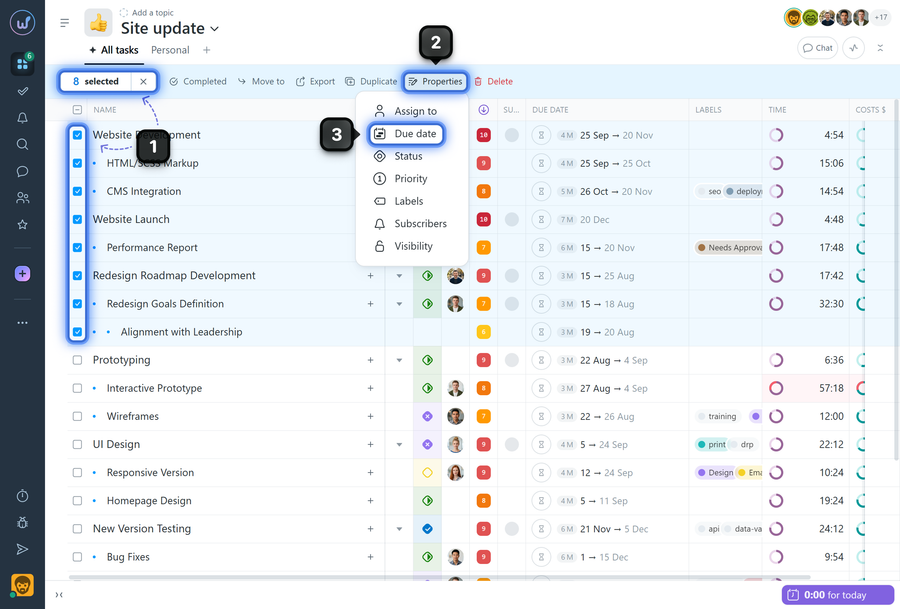
To shift the deadlines of selected tasks:
- Check the boxes for the tasks whose deadlines need to be changed1.
- In the bulk actions panel, open "Properties"2 → "Due date"3.
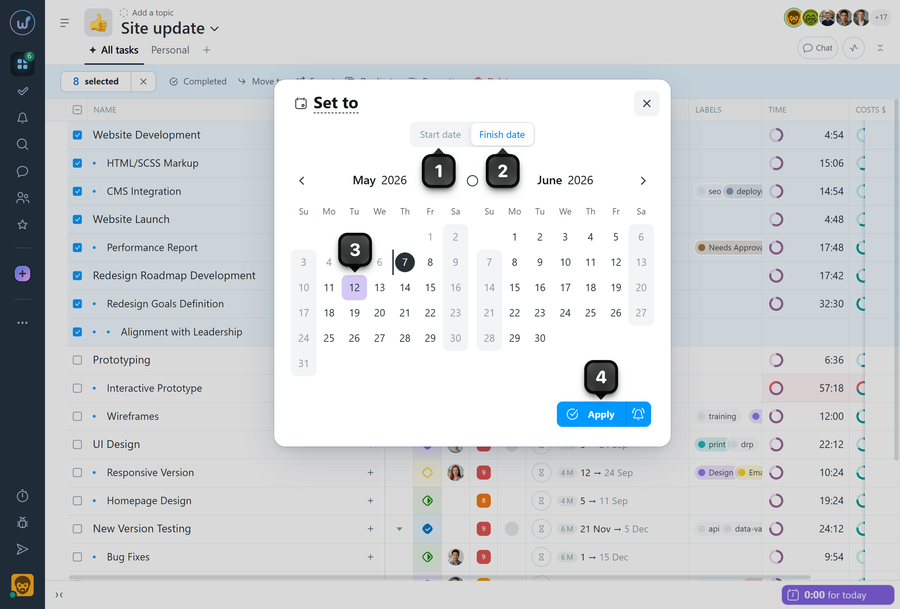
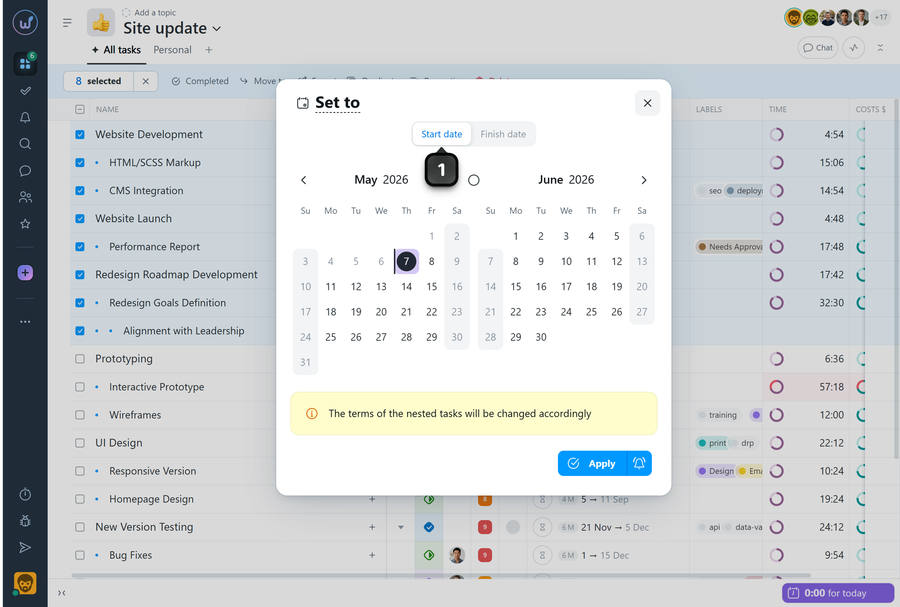
Choose what you are changing: "Start date"1 or "Finish date"2 (depending on your scenario).
Make changes on the calendar3 and click "Apply"4.
How the «Deadline» window options work
In the deadline change window, you can not only select a date but also shift it forward/backward by a number of working days or clear it. The options are located in the window header and open when you click "Set to":
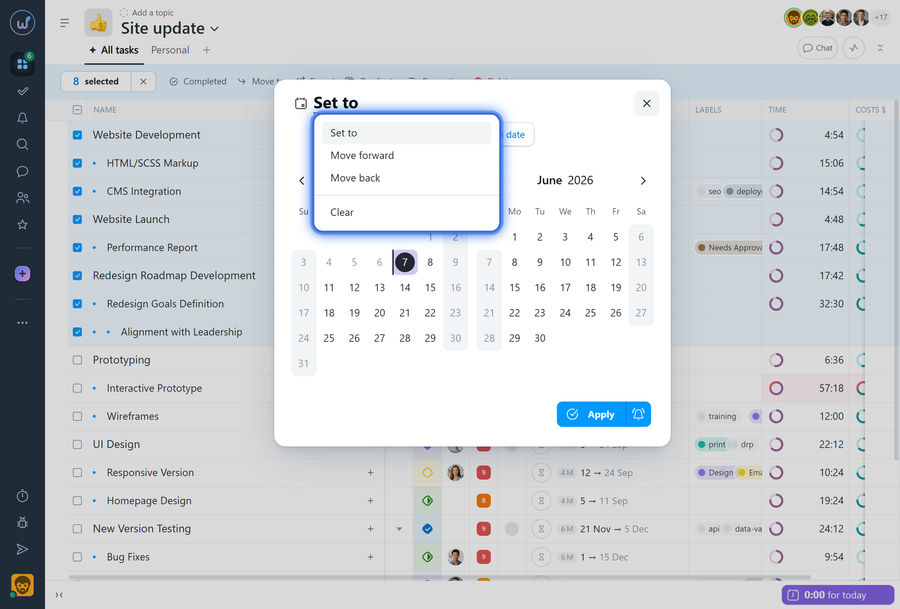
- "Set" — select a new date on the calendar.
- "Move forward" — shift the task into the future by a specified number of working days.
- "Move back" — shift the task into the past by a specified number of working days.
- "Clear" — remove the date (the deadline will be undefined).
How to shift child task deadlines via the parent task
If you need to shift the deadlines of an entire block of work, simply change the "Start"1 of the parent task — its subtasks will shift automatically. Task dependencies and their duration will be preserved.
Where this is especially useful
Shifting deadlines is helpful when working with template projects: when a process is already broken into tasks with deadlines and a sequence, you copy the tasks to a new project and then shift the deadlines to the required start date.
Leave your review
Did this article help you?
Glad we could help! What was helpful?
Sorry this didn't help. What went wrong?

