Solutions
worksection
beta
help
How to apply the current task list view to another project or to "All tasks" in the account?
The current task list view is how your task list page is currently configured: filters, sorting, grouping, and the table layout (columns, their order, and width).
This method is useful when you have configured a list once to suit your needs and want to quickly get the same view:
- in another project;
- when viewing tasks across the entire account.
This approach can be used with different types of task views, such as Gantt and Kanban. In this example, we will use the table view.
Step 1: Customize the current view
- Choose sorting.
- Customize the table columns to suit your workflow.
- If needed, apply task grouping.
- If needed, configure a filter.
Step 2: Transfer the current view to another project
- Click the “three dots”1.
- Select “Another project”2.
- Click the required project3 in the list of projects.
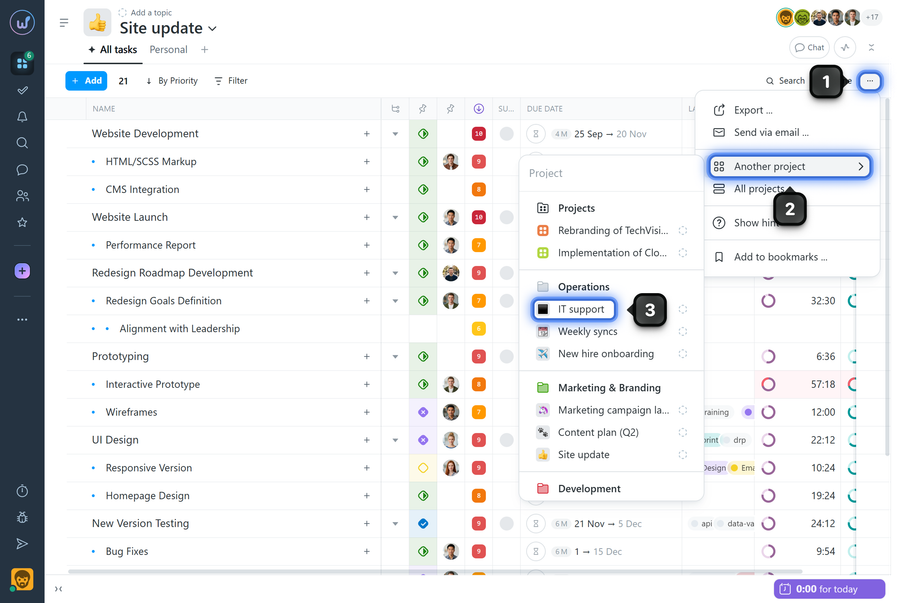
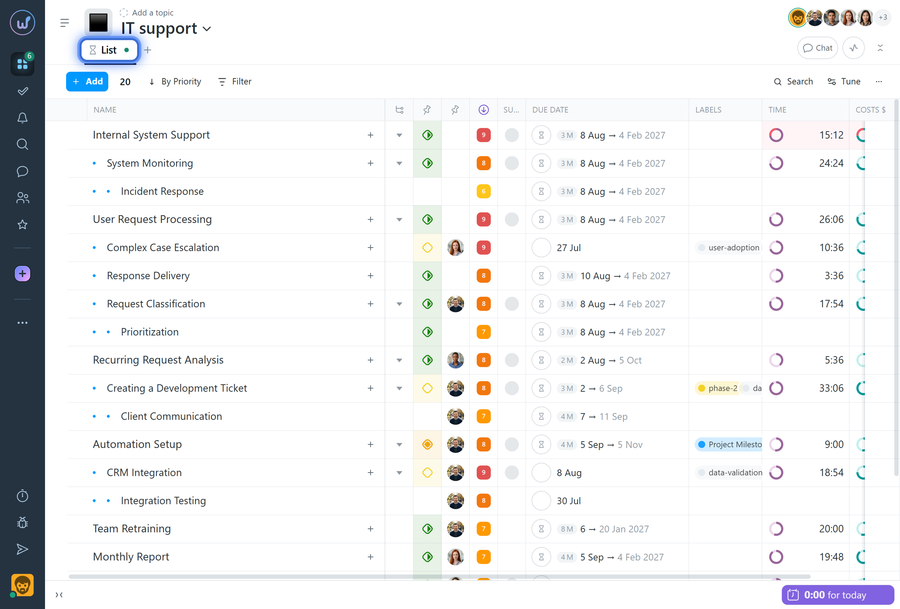
As a result, the selected project page will open with a new temporary tab. It will have the same settings as the previous one: filters, sorting, grouping, and table settings. At the same time, the tab content will be updated according to the selected project.
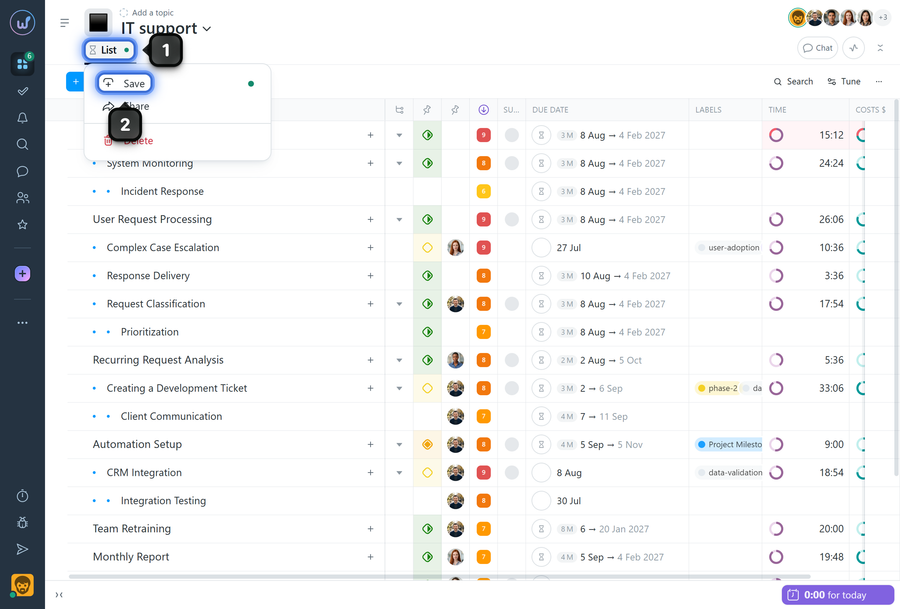
How to save the tab
Since the tab is temporary, it will disappear if you switch to another tab, project, or account page. To save it, click the tab name1 and select “Save”2.
To transfer the current view to the entire account:
- Click the “three dots”1.
- Select “All projects”2.
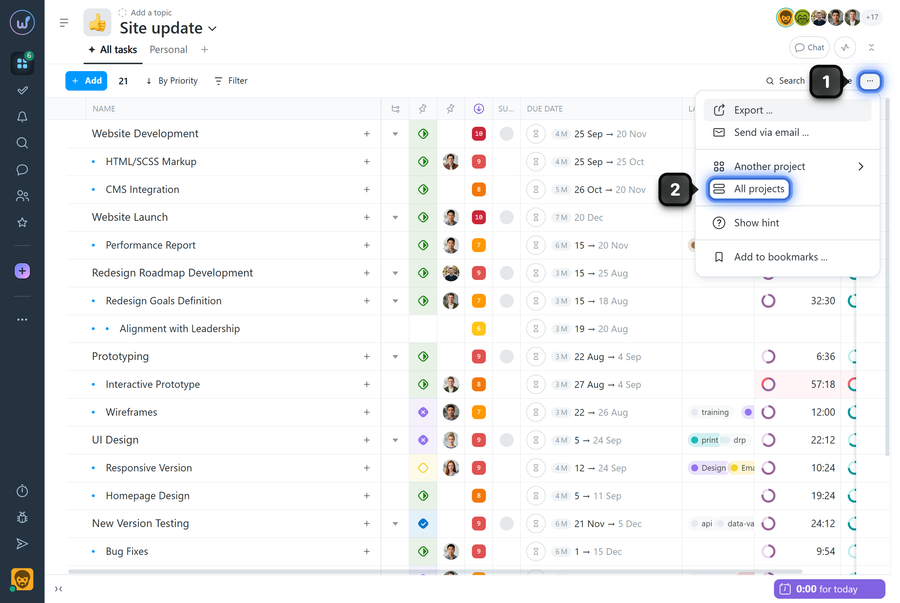
The “All Tasks” page will open within the account with a temporary tab and the same settings. You can also save it so that it remains available in your account.
Leave your review
Did this article help you?
Glad we could help! What was helpful?
Sorry this didn't help. What went wrong?
Previous
How to export a task list?

