Solutions
worksection
beta
help
How do I set task due dates?
Task due dates help you plan work and track overdue tasks. Due dates can be set when creating a task or updated later in the task window.
There are two types of task dates in the system: “Due Date” and “Start–Finish”.
- “Due Date” - for tasks that do not have a start date but do have a deadline (the date/time by which the task must be completed). This uses a single date.
- “Start–Finish” - for tasks where both the start and end dates are important.
Examples:
- If a task must be completed by Monday, June 24 (but work can begin at any time before then), use “Due Date”.
- If work should start on Thursday, June 20 and finish after 3 working days on Monday, June 24, use “Start–Finish”.
To set task dates when creating a task, click “Due Date”1. Select the date type - “Due Date”2 or “Start–Finish”3, then specify the date4 (and time5, if needed).
For the “Start–Finish” type, you need to specify two dates: the start date and the finish date.
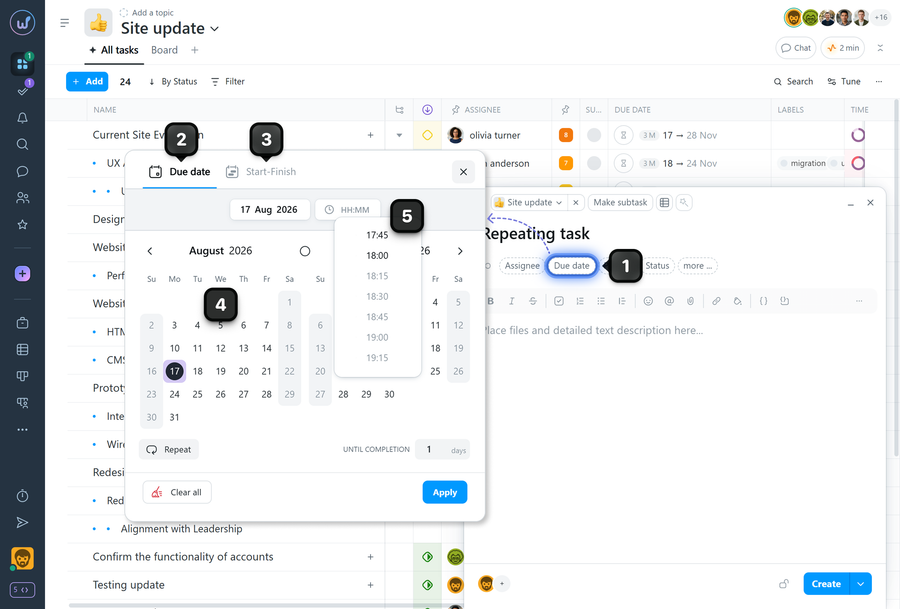
Note If you create a task from the Calendar (using the “+” button in a day cell), the date is filled in automatically based on the selected day.
Leave your review
Did this article help you?
Glad we could help! What was helpful?
Sorry this didn't help. What went wrong?
Previous
How do I assign a task assignee?

