Solutions
worksection
beta
help
How can I customize the display of task parameters?
In the task window, you can customize the parameters to suit your needs: change their order, hide unnecessary ones, and control when each parameter is displayed. This allows you to keep only the fields you need in view.
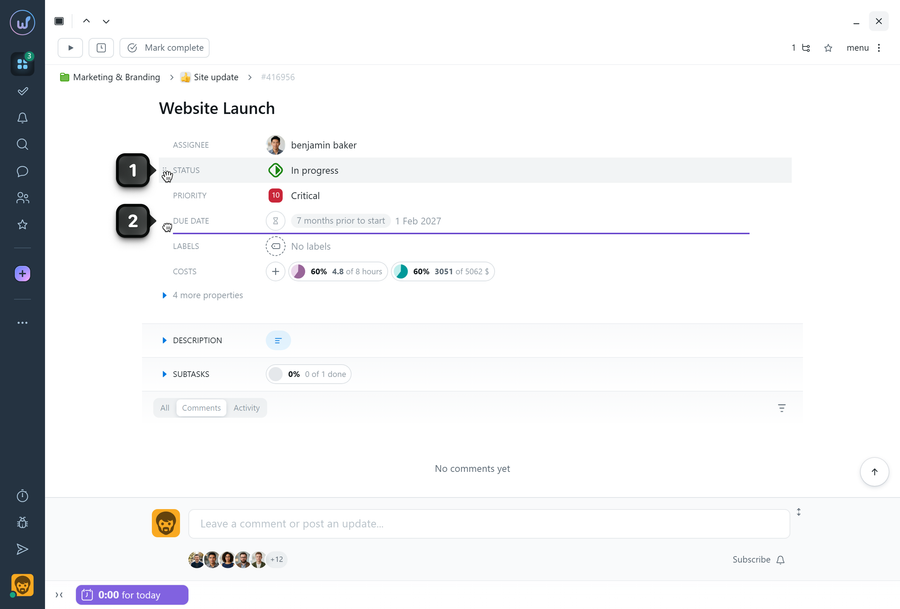
To change the order of the parameters, open any task. In the "Properties" section, hover over the drag handle next to the required parameter1. When the cursor changes to a hand, hold down the left mouse button and drag the parameter to the desired position. The new position will be highlighted with a purple bar2. Release the button to save the new order.
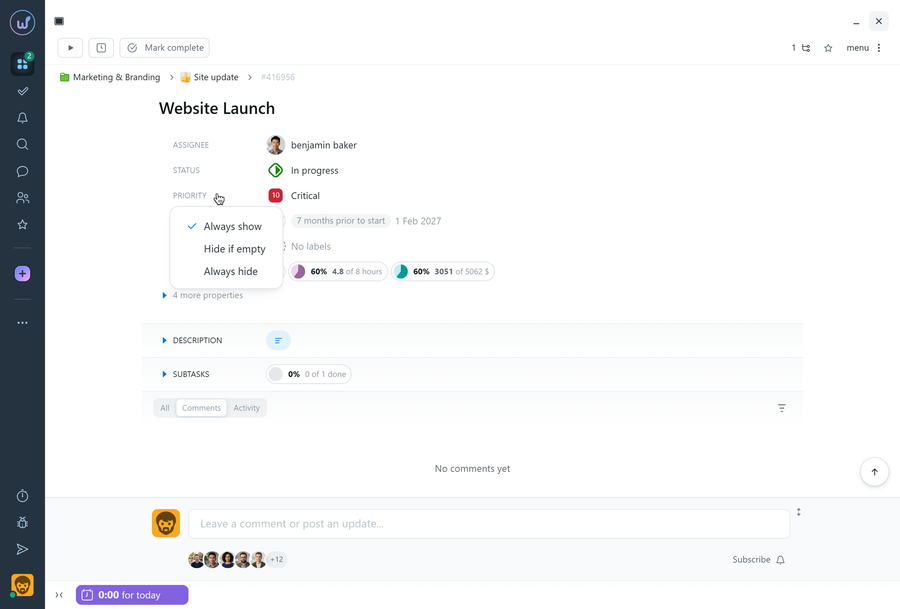
For each parameter, you can select one of the following modes:
- Always show
- Hide if empty
- Always hide
To change the mode, click the name of the required parameter in the "Properties" section and select the display mode.
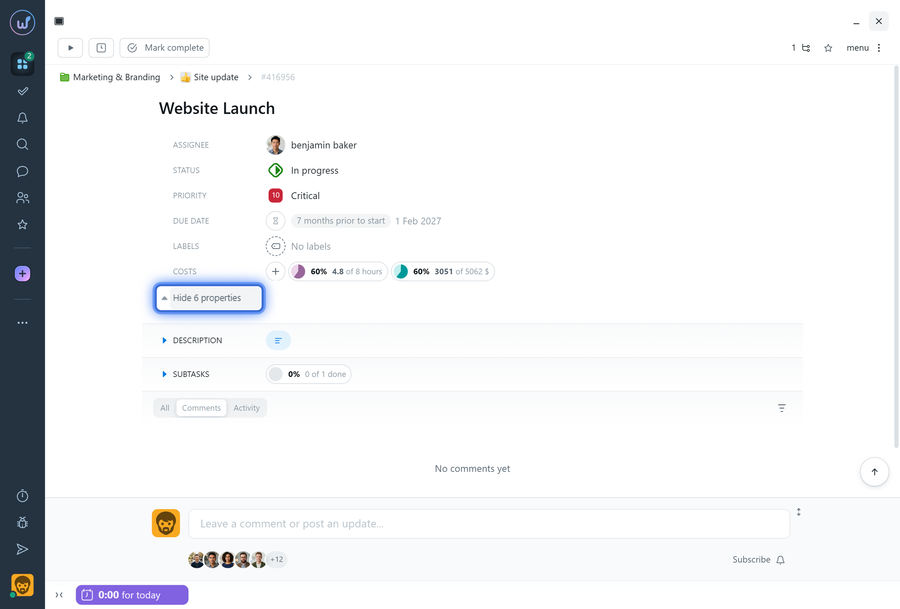
If you don't need to see all parameters at all times, you can collapse the extra properties to keep only the main elements on screen (those set to "Always show") and expand the additional ones when needed.
Please note! The order applies to all tasks and is saved as your personal setting.
Leave your review
Did this article help you?
Glad we could help! What was helpful?
Sorry this didn't help. What went wrong?

