Solutions
worksection
beta
help
How do I create a task?
There are several ways to add a new task. Below are the fastest options, so you can create tasks directly from the page you need, using the method that suits you best.
Permissions All account members can create tasks, except for:
- Users - if they lack the "Can create new tasks" permission
- Guests - if they lack the "Allow this Guest to create new tasks" permission
- Readers
Ways to create a task:
1. Via the plus icon in the left sidebar
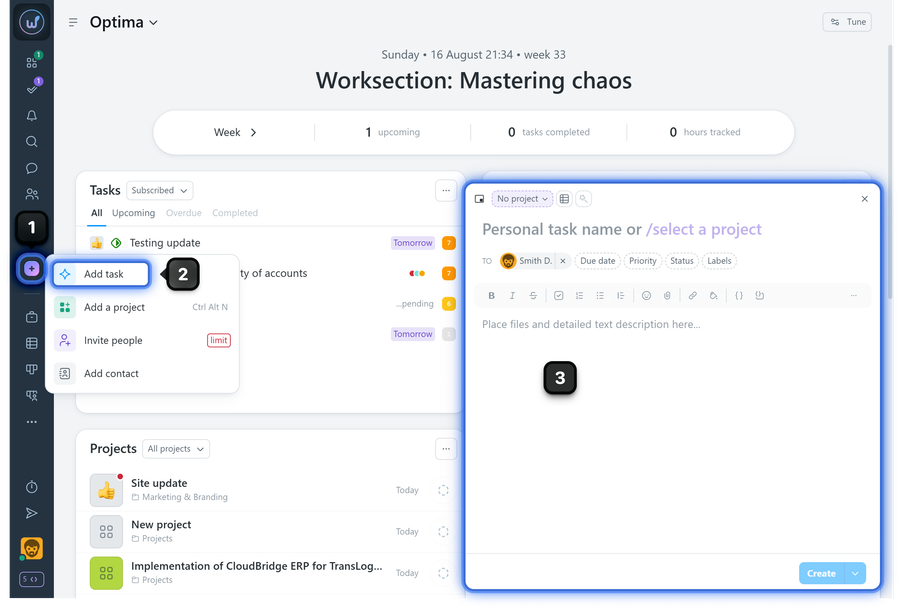
Click the purple plus1 in the left sidebar and select "Add task"2. The task creation window will open3.
2. On any project task view page (Kanban board view pages, Gantt chart, Calendar)
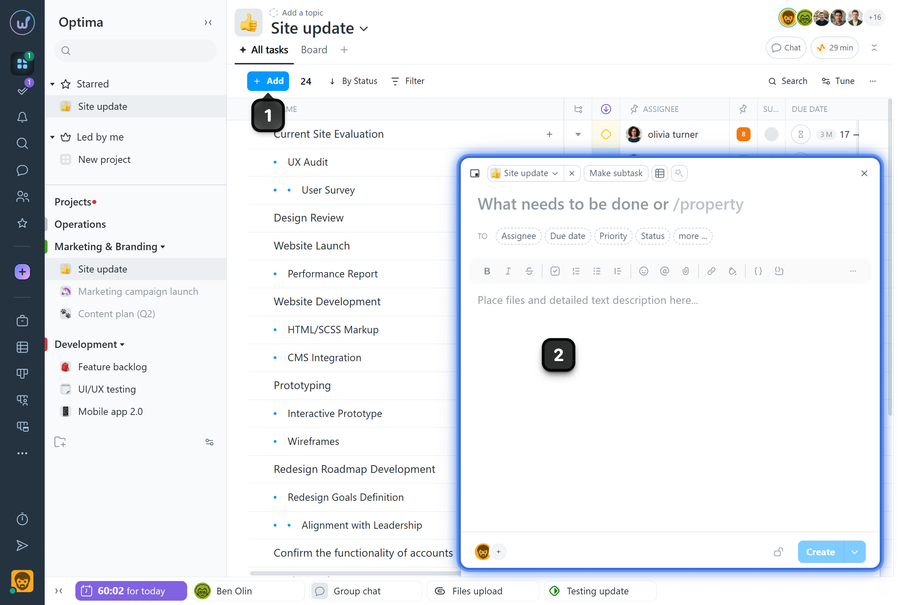
Open any of the listed project pages and click the blue "Add" button1. The task creation window will open2.
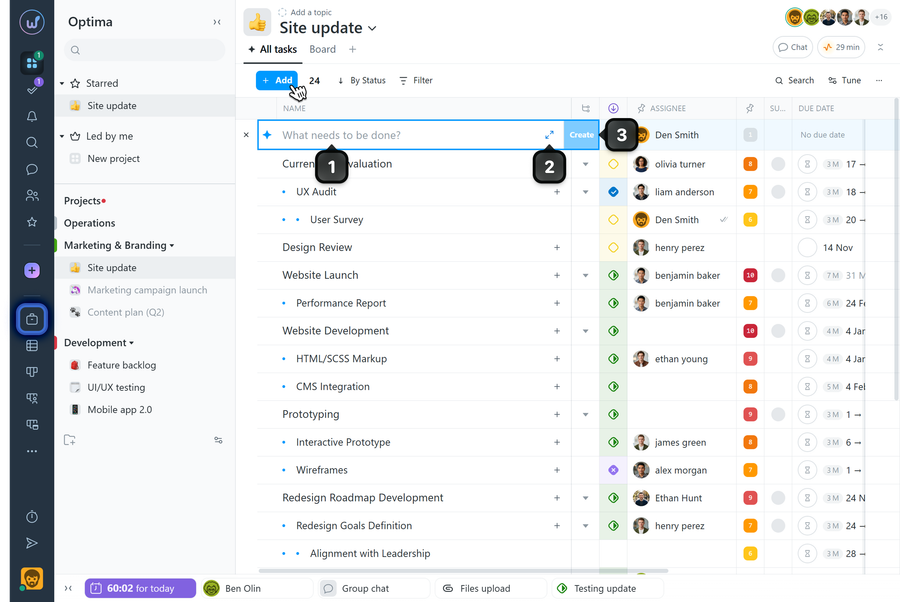
Please note! On the project's "List" task page, clicking the "Add" button triggers a so-called "one-click task creation." A task creation field will appear in the task list, where you only need to enter the "task name"1 and click the "create" button3. If needed, you can click the button2 to open the full task creation window.
3. On the Calendar
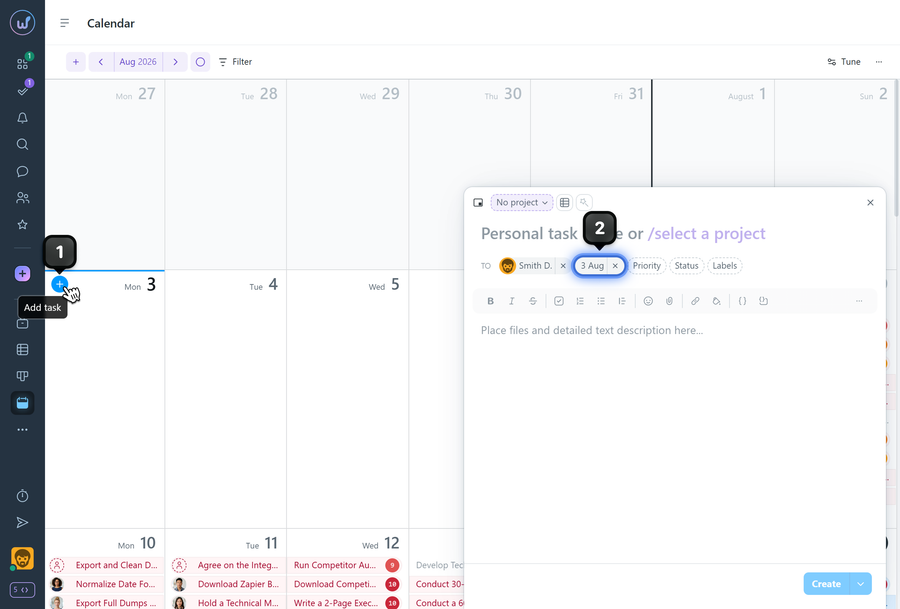
On the desired day, click the plus1 in the top-left corner of the cell. The creation window will open with the due date2 already set to the selected date.
4. On Kanban board
On Kanban board pages, click the plus1 in the desired column to quickly add a task, enter its name2, and press "Enter", or click the button3 to open the task creation window.
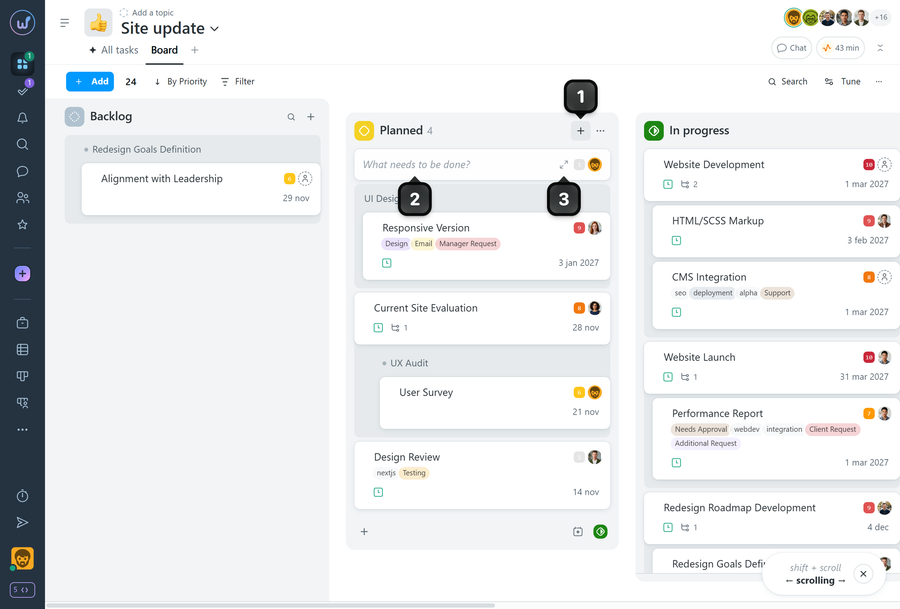
Note The task will automatically receive the corresponding status (if it's a Kanban board page), assignee (if it's the Team board), or due date (if it's the Deadline board).
5. Via the «Projects panel»
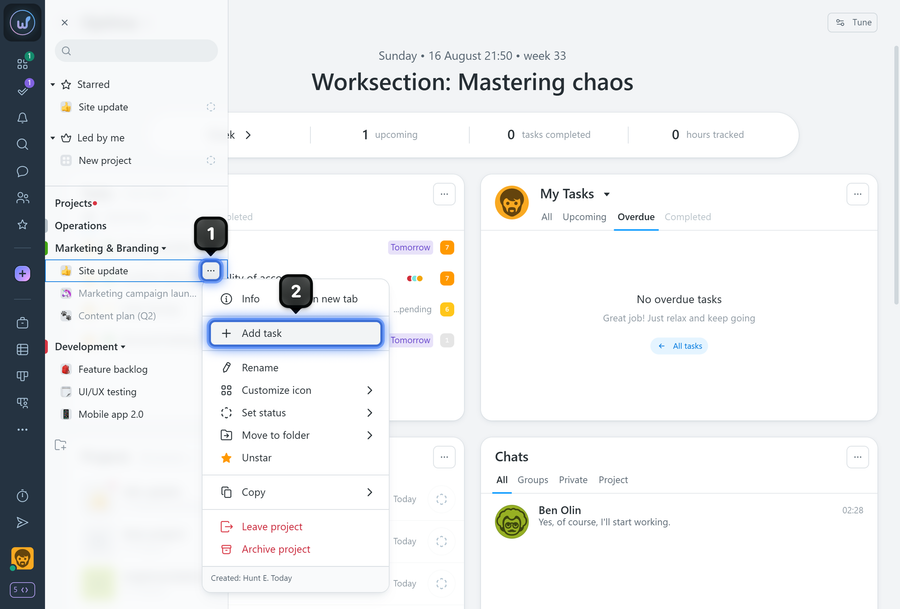
Open the "Projects panel" - in the project list, open the menu of the desired project1 and select "Add task"2. The task creation window will open.
6. From a member's card (including from a chat or the «People» page)
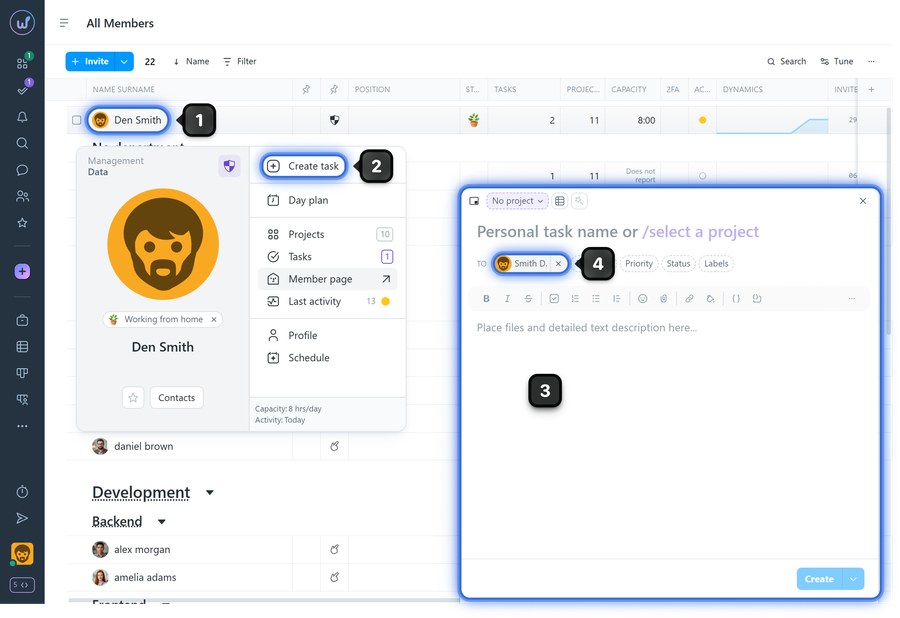
Right-click a member's avatar1 to open their card. In the menu, select "Create task"2. This opens the task creation window3, where the "Assignee" field will be filled in automatically4.
7. From the «People» window
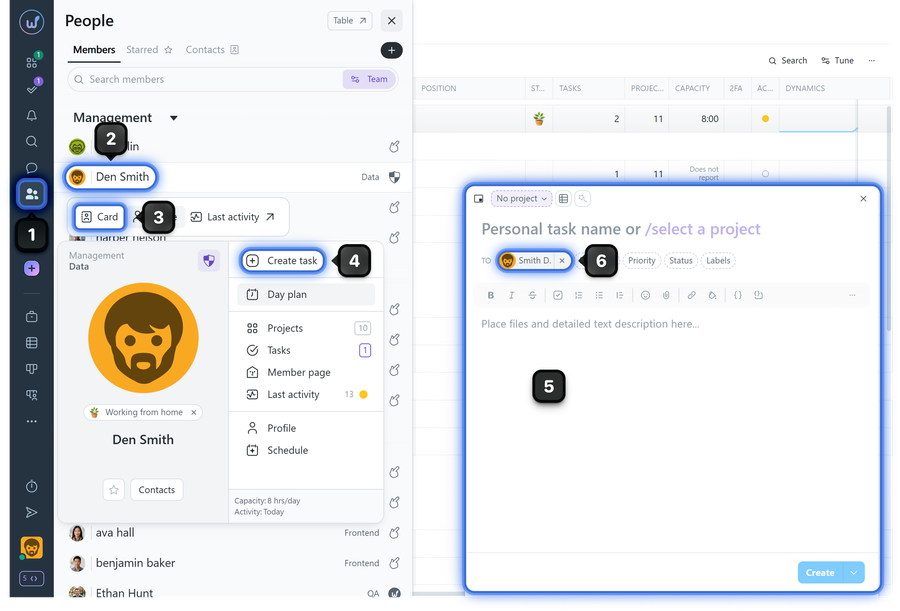
Open the "People" menu1 and left-click the desired member2. Open their card3. In the member card menu, select "Create task"4. The task creation window will open5, where the "Assignee" field will be filled in automatically6.
Leave your review
Did this article help you?
Glad we could help! What was helpful?
Sorry this didn't help. What went wrong?

