Solutions
worksection
beta
help
How do I create identical tasks in multiple projects at once?
This functionality is available on the Premium plan
To create identical tasks in several projects, at the top of the task creation window click "Select project"1. Turn on "Multiple selection"2 and mark all the projects in which you want to create the task. Fill in the task name. If needed, add a description, assignee, due dates, status, priority, tags, or estimates.
Click "Create"3. The system will create an identical task in each of the selected projects.
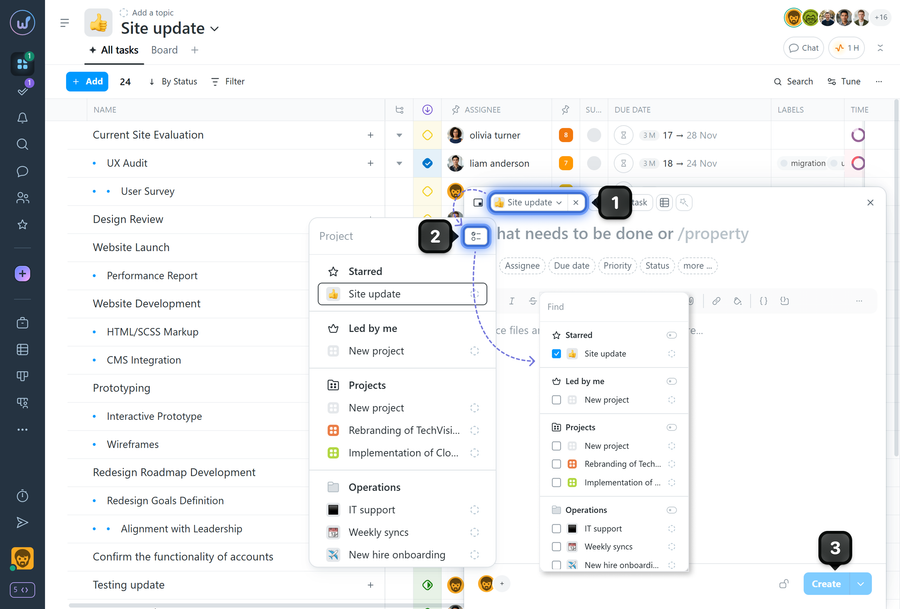
How it works
- One creation form applies to all marked projects; the task fields are copied.
- The minimum requirement for creating a task is a filled-in name.
- Visibility and followers can be added after the tasks are created. These parameters are not available at the creation stage.
Please note!
- Once created, tasks are edited independently in each project.
- If individual projects have restrictions configured for task creation (for example, a mandatory due date), these restrictions are ignored during multiple creation, and the task will be created in that project even without the required fields filled in.
Leave your review
Did this article help you?
Glad we could help! What was helpful?
Sorry this didn't help. What went wrong?

