Solutions
worksection
beta
help
How do I create a group of tasks?
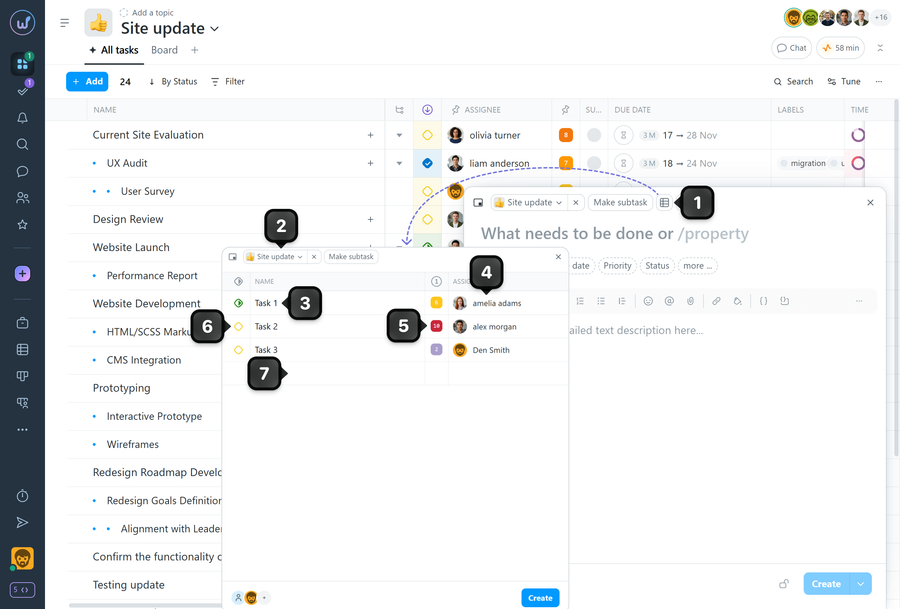
When you need to quickly add several tasks at once, use bulk task creation. This lets you form a group of tasks within the selected project.
Click the "create task group" button1. Select the project2 in which the tasks will be created. For each row, enter the task name3. If needed, set the assignee4, priority5, and status6. To add a new task, click on an empty row7. To delete a task, click into its name field and delete the text completely. Then press Backspace once more.
Check the data and click "Create" to add all the tasks from the list.
How it works
- Each row in the bulk creation form is a separate task within the selected project.
- The minimum requirement for creation is a filled-in task name; a task without a name will not be created — only rows with a filled name field will be created.
- Bulk creation is designed for quickly adding the main parameters. Details such as an extended description or attachments can be added after creation.
Leave your review
Did this article help you?
Glad we could help! What was helpful?
Sorry this didn't help. What went wrong?

