Solutions
worksection
beta
help
How do I create a task via email?
If you collect inquiries from your website or receive requests from clients/colleagues by email, you can automatically turn them into tasks in Worksection. To do this, send an email to the project's Email address — and the system will create a task inside the selected project.
Preparation (if needed)
If you want all inquiries to land in a single dedicated place, create a project for incoming requests (for example, "Inbox") and set up its statuses/tags in advance to match your process.
Access The project Email address can be copied by:
- Owner
- Administrators (account, team, and department)
- Project lead
To get the project's Email address, open the project window and click "More actions"1. In the menu, click "Project email"2 — the project's email address will be automatically copied to the clipboard.
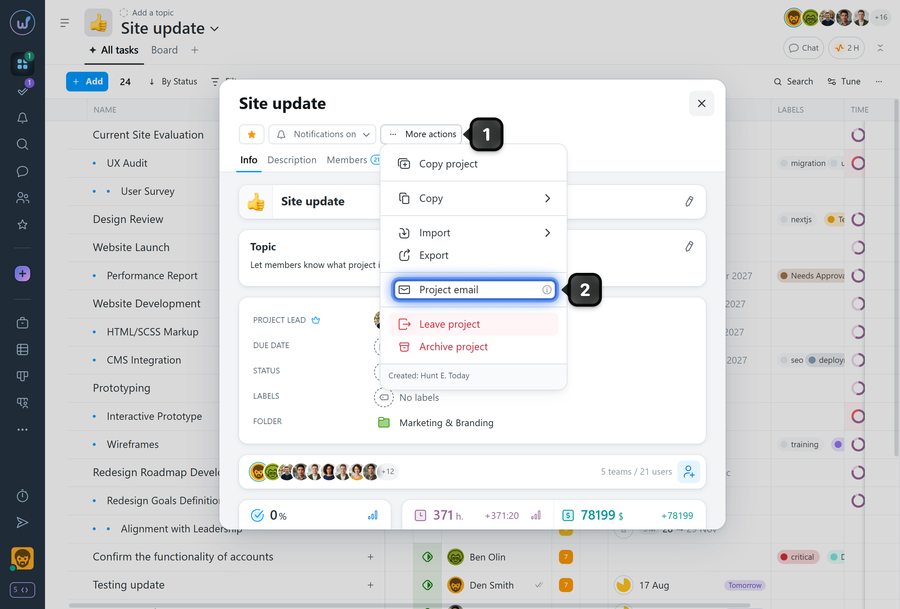
To create a task by email, send a message to the project's Email address.
Fill in the subject and body of the email:
- the email subject becomes the task name;
- the email body becomes the task description;
- attachments become task files.
How it works
- Every email sent to the project's Email address creates a new task in that project.
Additional options in the email subject
- Assign a person in charge: add the member's email in angle brackets, for example, <[email protected]>.
- Set a priority: specify a number in square brackets, for example, [5].
- Specify a duration in days: write the duration in parentheses, for example, (5 days), (5d), or (5д).
Email subject example
If you send an email with the subject `Create the website mockup <[email protected]> [9] (1 day)`, Worksection will create a task with:
- assignee — the member with the email `[email protected]`;
- priority — `9`;
- duration — `1 day`.
Usage examples
- Website inquiries: a form on your website sends emails to the project's Email address, and each submission automatically appears as a separate task in the "Inbox" project.
- Client support/inquiries: a client writes to your email, and you forward the email to the project's Email address so the inquiry becomes a task for the team.
- Internal requests: colleagues send emails to the project's Email address (or you forward them) to quickly create tasks without manual entry.
- Assigning tasks by person in charge: specify the assignee's `<email>` directly in the email subject — the task is assigned automatically.
Please note! By default, tasks can only be created from email addresses that belong to project members. In other words, you cannot create a task from just any email address. To make this possible, enable the "Support" option in the account settings.
Leave your review
Did this article help you?
Glad we could help! What was helpful?
Sorry this didn't help. What went wrong?
Previous
How do I create a subtask?

