Solutions
worksection
beta
help
What actions are available for a project in the project panel?
Permissions - the "project menu" in the project panel is available to all account members.
To use the "project menu", open the "Project panel" and hover over the desired project — a "three dots" button1 will appear. Click it to open the project menu. You can also right-click on the project.
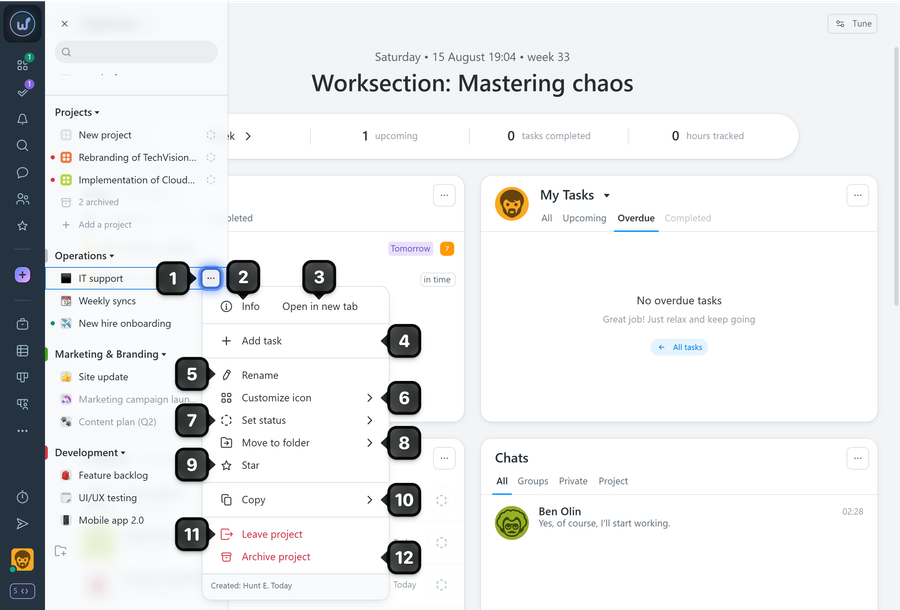
Available actions:
2 Info — opens the project window
3 Open in new tab
4 Add task — available to all account members (except Readers and Guests without task creation rights)
5 Rename — available to the Owner, administrators with project management permissions, and the project author and lead.
6 Customize icon — available to the Owner, administrators with project management permissions, and the project author and lead.
7 Set status — PRO feature — available to the Owner, administrators with project management permissions, and the project author and lead.
8 Move to folder — available to the Owner, administrators with project management permissions, and the project author and lead.
9 Star — add the project to favorites.
10 Copy — copy a link to the project, its name, or project topic.
11 Leave project — leave the project and stop participating in it.
12 Archive project — available to the Owner, administrators with project management permissions, and the project author and lead.
Leave your review
Did this article help you?
Glad we could help! What was helpful?
Sorry this didn't help. What went wrong?

