Solutions
worksection
beta
help
Where is the panel "Settings" and what actions are available there?
The "Settings" menu in the "Project panel" lets you quickly manage the display and ordering of the folder and project list.
Permissions available to
- Account Owner
- Administrators with the "Allow creating projects" permission
Open the "Project panel". Click the "Three dots" button1 on the default "Projects" folder, or scroll to the bottom of the list and click the "Settings" button2.
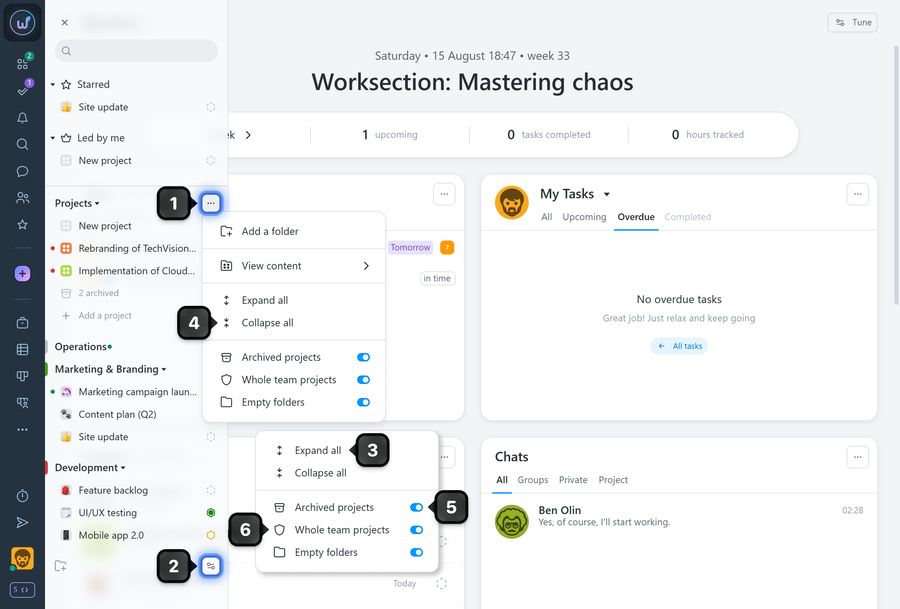
3 Expand all — instantly expands all collapsed folders.
4 Collapse all — instantly collapses all expanded folders for a compact list view.
5 Archived projects — toggles the display of the number of archived projects within folders.
6 Whole team projects — with the "Can see all projects in the account/team/department" permission, shows projects you are not a member of but which belong to the account/team/department.
Leave your review
Did this article help you?
Glad we could help! What was helpful?
Sorry this didn't help. What went wrong?

