Solutions
worksection
beta
help
What are the workflow status categories and what do they mean?
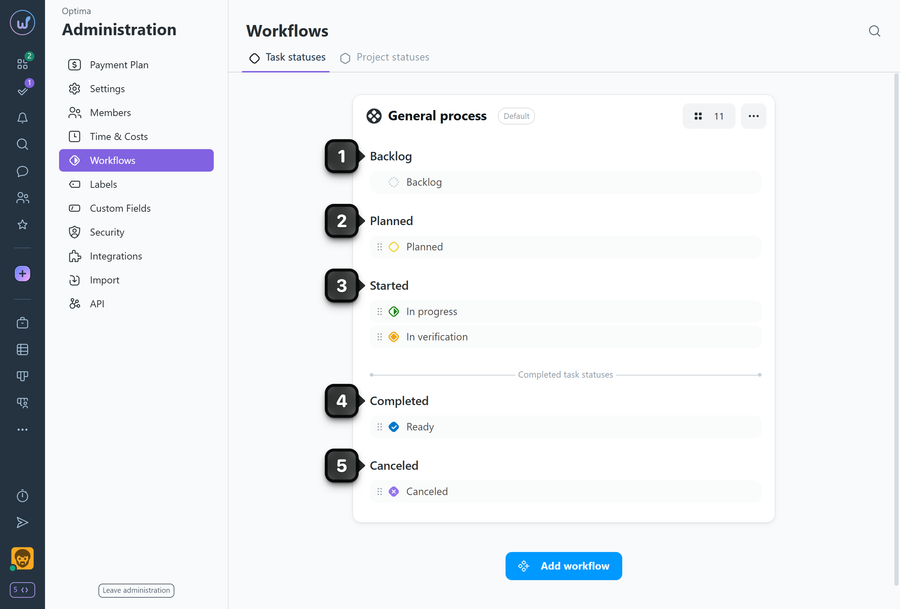
In each workflow, statuses are grouped into categories that reflect the task lifecycle — from appearing in the backlog to completion or cancellation. This grouping determines the order of columns in the Kanban view and helps the team interpret work stages consistently.
Permissions The following have access to workflow settings:
- Owner
- Account Administrator with permission: "Access to account settings".
Default categories, their meaning, and color display principle
- Backlog — incoming tasks not yet in progress. New tasks without an assigned status automatically go into this category; tasks without a status are shown in the Backlog column in the Kanban view.
Status indicator icon as a dashed line colored with the selected color. - Planned — statuses for tasks being prepared for execution: clarified, prioritized, and queued.
Status indicator icon as a solid line colored with the selected color. - Started — statuses for tasks with active work underway; statuses in this group reflect the current state of execution.
Status indicator icon colored with the selected color. - Completed — statuses for tasks closed as completed; use to mark finished results.
Status indicator icon colored with the selected color and has a checkmark inside. - Cancelled — statuses for tasks closed as irrelevant or cancelled.
Status indicator icon colored with the selected color and has an "X" inside.
Please note!
- The order of statuses determines the order of columns in the project's Kanban task view.
- An unlimited number of custom statuses can be created in each category with custom colors.
- Statuses can be dragged within a category and between categories.
- Changes to the workflow apply to all projects where this workflow is active.
Leave your review
Did this article help you?
Glad we could help! What was helpful?
Sorry this didn't help. What went wrong?

