Solutions
worksection
beta
help
How do I configure columns on the project list page?
The "Projects" page in list view is a table with columns that can be enabled/disabled, reordered, pinned, and resized.
To enable or disable columns, click "Tune"1 and turn on the columns you need or turn off unused ones by clicking their name2, then apply3 the changes.
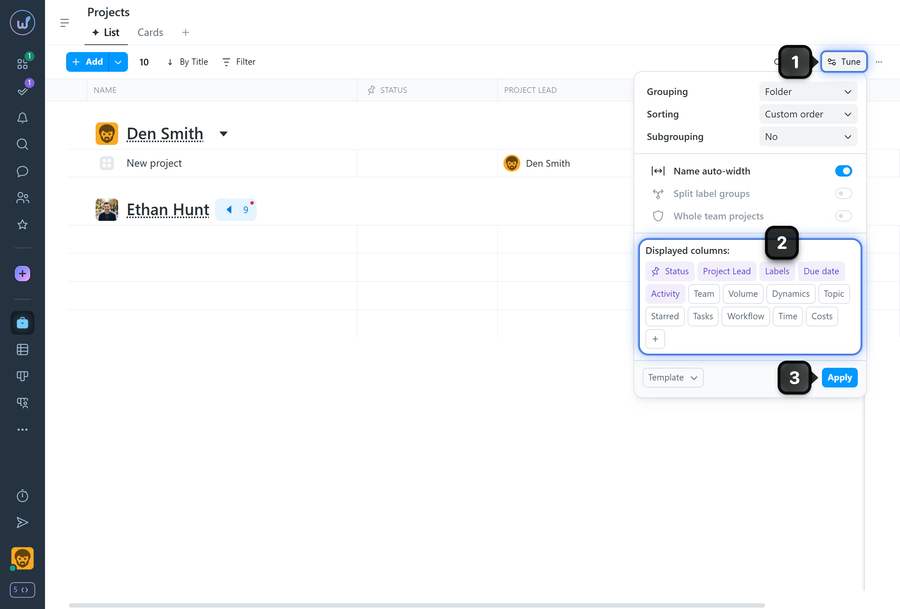
Note Enabled columns are highlighted in purple in the settings.
What the columns show and quick actions when clicking a field in the column:
- Status — current project status; click to change status (for members with project management permissions) — available on Premium plan and above.
- Project lead — assigned lead; click to change the lead (if you have project management permissions).
- Due dates — project dates; click to change deadlines (for members with project management permissions).
- Activity — date of the last action; click to open the activity window.
- Team — number of project members; click to open the project window on the "Members" tab.
- Volume — total size of files uploaded to the project and its tasks.
- Dynamics — mini activity chart for the project.
- Topic — short focus/note for the project; click to edit (if you have project management permissions).
- Starred — star/unstar the project (add to favorites).
- Tasks — a scale showing the ratio of overdue and completed tasks to the total number of tasks in the project; click to open the task list.
- Time — actual time spent; if planned values exist, shows the ratio of actual to planned.
- Costs — actual financial costs; if planned values exist, shows the ratio of actual to planned.
- Workflow — the name of the status set applied to the project.
- Labels — applied labels (can be shown by groups) — available on Premium plan and above.
Please note! This list is supplemented with custom fields created in your account.
Managing columns from the table header
1. Click the "Menu" button in the column header to open its menu.
2. Choose an action:
- Pin — the column will always appear right after the "Name" column or after other pinned columns.
- Move — change the column's position relative to others.
- Collapse — temporarily hide the content; clicking the column name again expands it.
- Hide — fully disable the column's display.
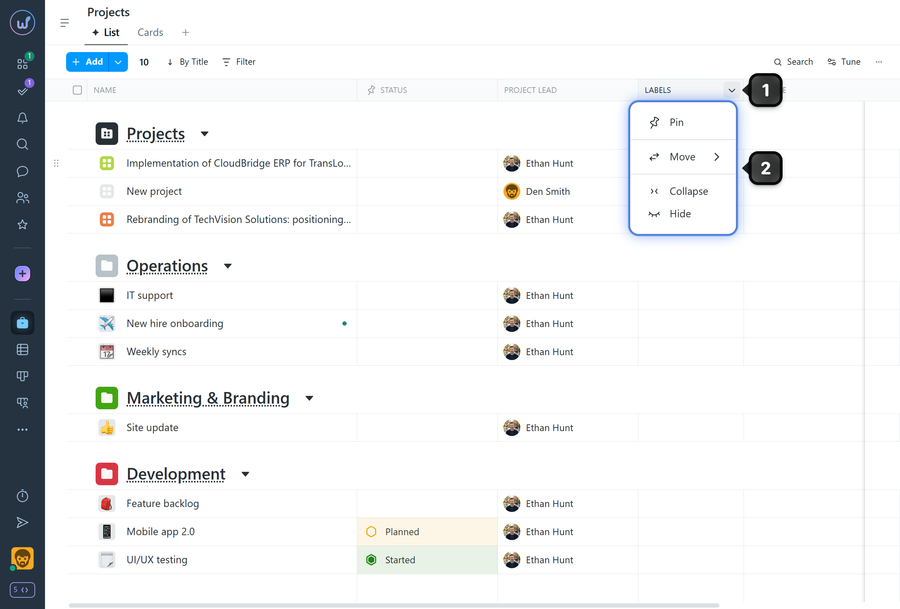
Note To resize a column — drag the column header border.
Please note! All of these settings are individual for each member.
Leave your review
Did this article help you?
Glad we could help! What was helpful?
Sorry this didn't help. What went wrong?

