Solutions
worksection
beta
help
How do I filter projects?
The "Projects" page offers flexible filtering that helps you quickly find the projects you need by various criteria. Filters can be combined and saved as separate pages (views).
To filter projects, open the "Projects" page and click "Filter"1.
Select the desired filter conditions (multiple can be applied at once). Apply the filters — the list will update according to the selected conditions.
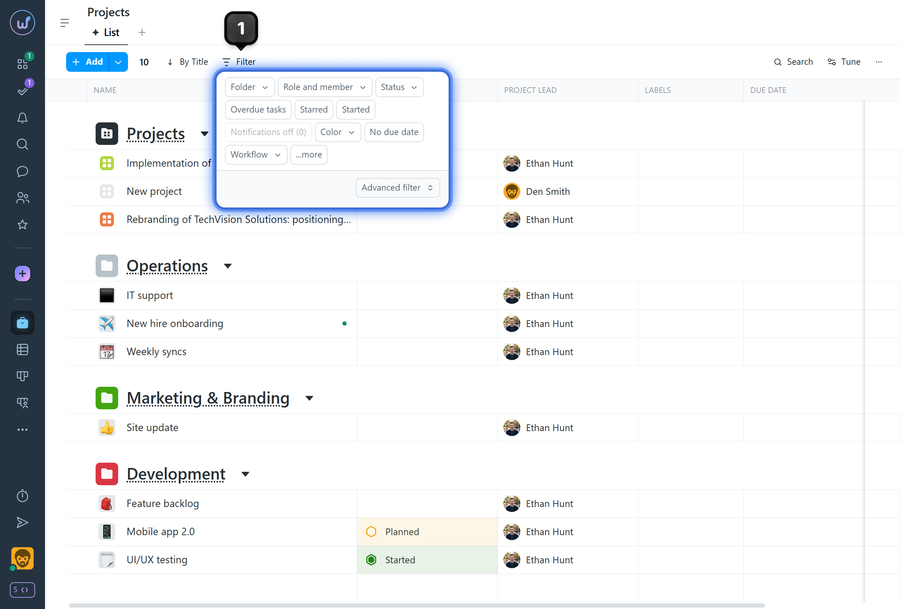
Available filters:
- Folder — show only projects from the selected folder.
- Role and member — "Project Lead", "Member", "Not a member"; you can also select "Another member" to view projects by their roles.
- Status — filter by status (available on Business plan and above).
- Labels — filter by labels (available on Business plan and above).
- Overdue tasks — show projects that have overdue tasks.
- Starred — show only starred (favorite) projects.
- Started — show projects whose deadlines have already begun.
- Notifications off — show projects with notifications disabled.
- Color — filter by color set to the project.
- No due date — show projects without set deadlines.
- Workflow — show projects with the selected workflow.
- Overdue projects — show projects with overdue deadlines.
- Costs overrun — show projects where actual costs exceed estimated.
- No activity — show projects with no activity for an extended period.
- Lead isn't assigned — show projects without an assigned lead.
Leave your review
Did this article help you?
Glad we could help! What was helpful?
Sorry this didn't help. What went wrong?

