Solutions
worksection
beta
help
How do I perform bulk operations on projects?
Bulk operations let you apply a single action to multiple projects at once on the "Projects" page.
Permissions available to
- Owner
- Account Administrator with the "Allow managing projects" permission
- Project author — for projects they created
- Project Lead — for projects where they are the lead
To perform a bulk operation, open the "Projects" page and select multiple projects in the list1. Choose the desired operation from the action panel2.
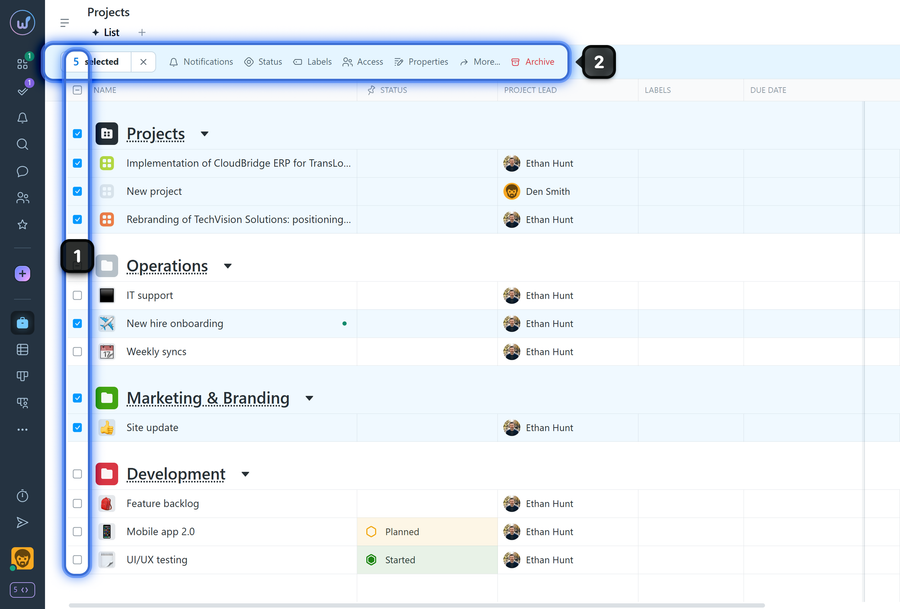
Available options:
- Notifications - set projects to "No notifications" or re-enable notifications.
- Status - bulk change the status of projects (available on the Business plan and above).
- Labels - bulk assign or remove labels (available on the Business plan and above).
- Access - grant or revoke user access to the selected projects.
- Properties - open project property editing:
Note You can leave any field set to "Do not change" to modify only the required properties.
- Project folder - bulk move projects to another folder;
- Project lead - change the project manager;
- Assignee by default - the user who will be automatically assigned to new project tasks;
- Workflow - select the status set (workflow) for the projects;
- Label groups - apply or remove label groups;
- Restrictions - bulk apply project permissions and restrictions;
- Archive - move the selected projects to the archive;
- More - quickly open Tasks, Reports, Calendar, or the Gantt chart for the selected projects.
Leave your review
Did this article help you?
Glad we could help! What was helpful?
Sorry this didn't help. What went wrong?
Previous
How do I filter projects?

