Solutions
worksection
beta
help
How do I save applied filters as a new page?
Saved views let you create separate project pages with pre-applied filters, so you can quickly return to the selections you need.
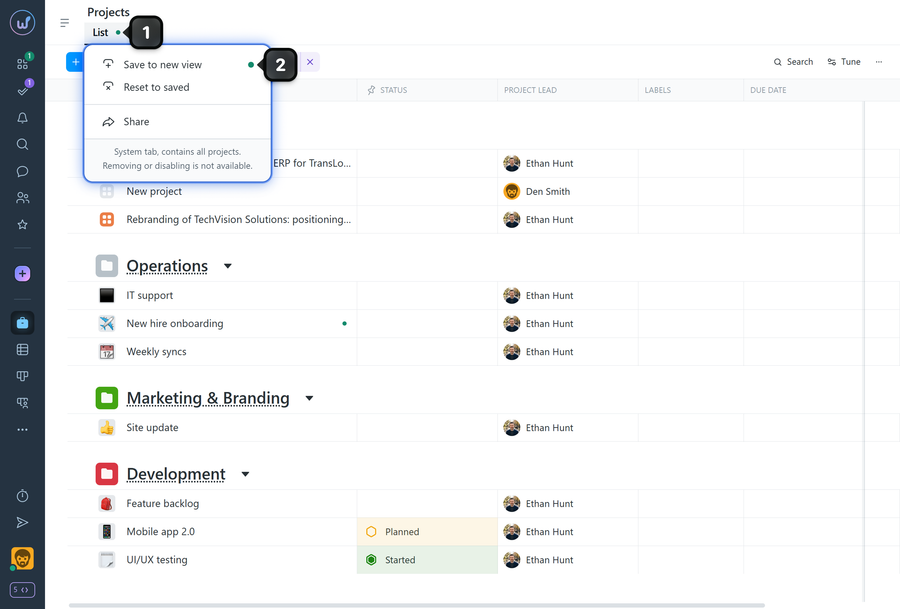
To save filters as a new page, open the "Projects" page and apply the desired filters. A green indicator1 will appear on the page — click it and select "Save to new view"2. A new page will be created with the saved filter.
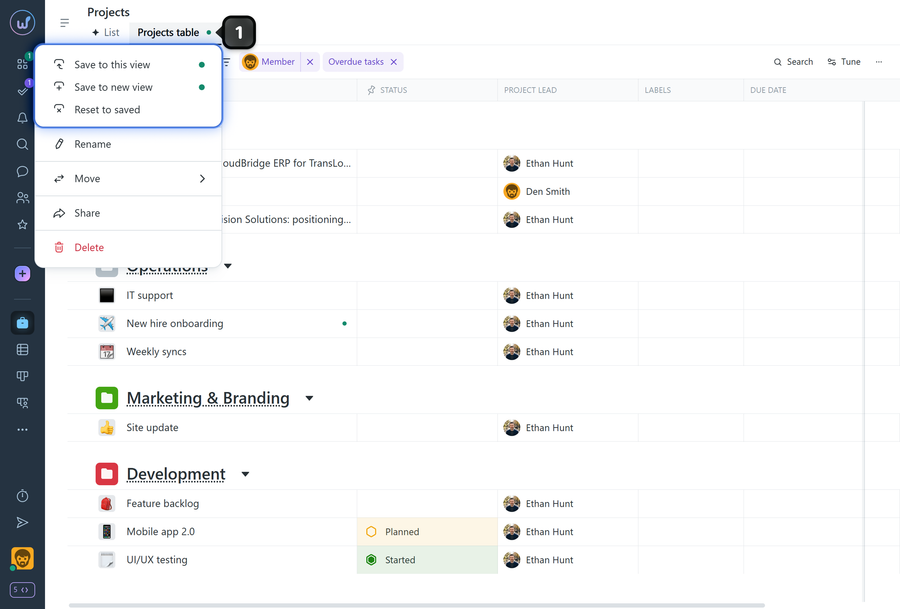
If you apply new filters on a saved page, the green indicator will appear again. Clicking it lets you:
- "Save to this view" — update the current page with the new filters;
- "Save to new view" — create a new page with the applied filters;
- "Reset to saved" — revert to the previously saved set of filters.
Leave your review
Did this article help you?
Glad we could help! What was helpful?
Sorry this didn't help. What went wrong?

