Solutions
worksection
beta
help
How do I group projects?
Grouping helps organize the project list by key criteria and makes it easier to navigate a large number of records.
By default, projects are grouped "by folder". To change or remove grouping, open the "Projects" page and click "Tune"1. In the menu, click the "Grouping" dropdown2, select the desired option, and apply3 the changes.
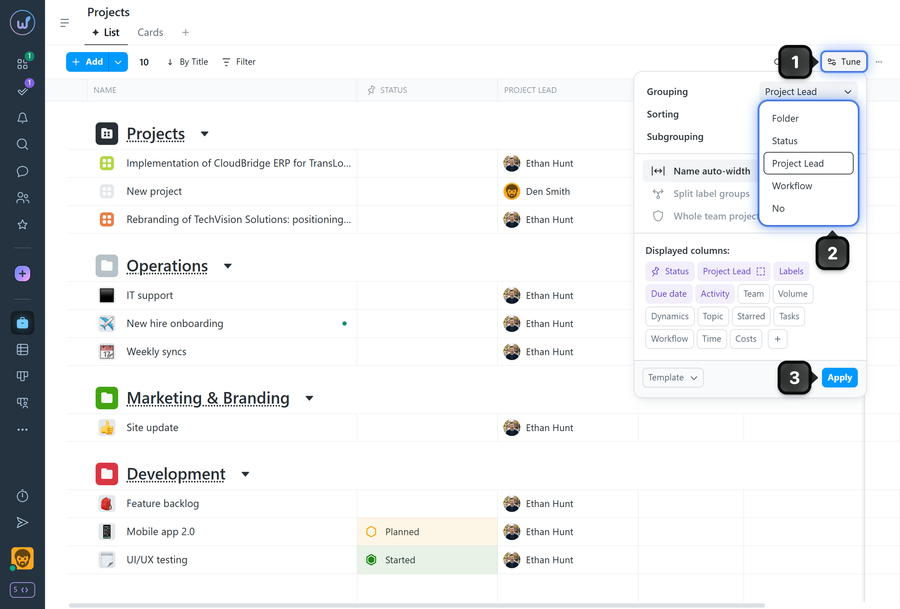
- By folder — projects are grouped by folder.
- By status — projects are grouped by status (available on Premium plans).
- By project lead — grouped by the assigned lead.
- By workflow — grouped by the name of the workflow applied to the project.
- No — all projects in a single list.
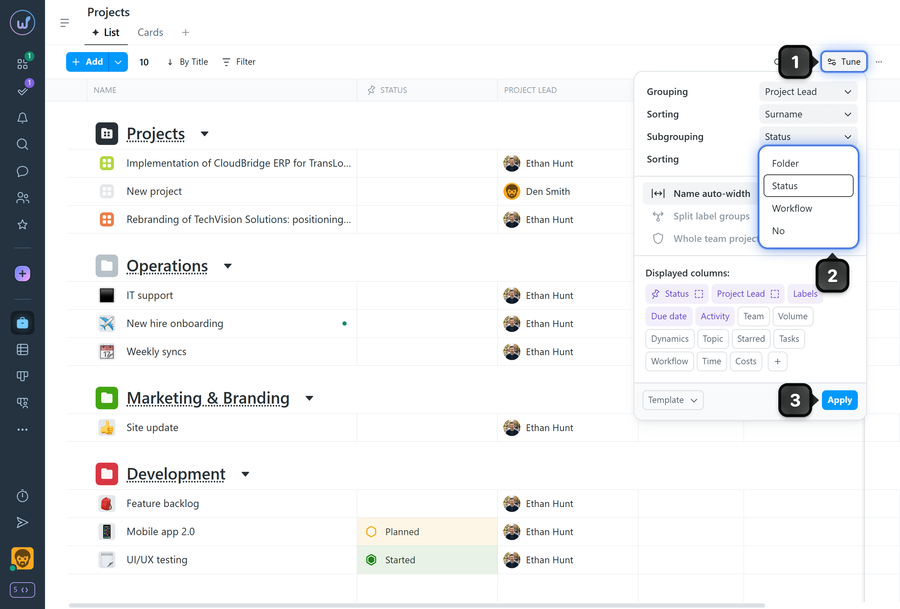
You can also enable sub-grouping. To do this, click "Tune"1, then click the "Sub-grouping" dropdown2 and select a second criterion within the main group (e.g., by folder → within by status or by project lead/workflow), and apply3 the changes.
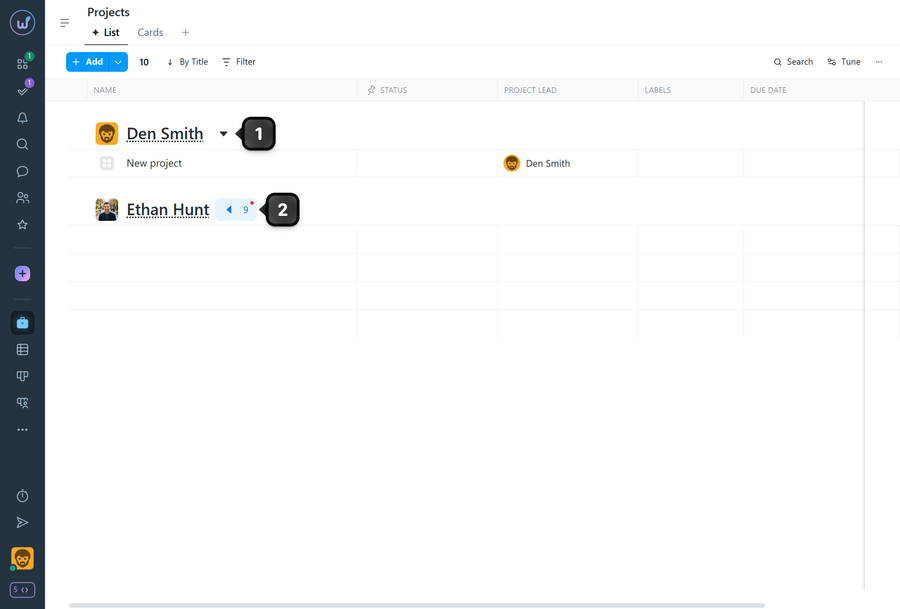
Any group or sub-group on the page can be collapsed1 or expanded2 to hide projects and focus on the ones you need.
Leave your review
Did this article help you?
Glad we could help! What was helpful?
Sorry this didn't help. What went wrong?

