My tasks
Your full list of tasks is available in the left sidebar under the My tasks: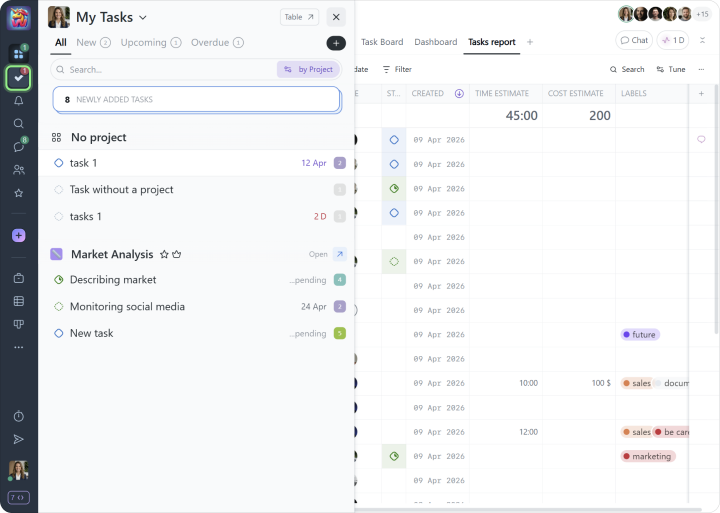
Tasks in Worksection can be organized into three levels: a task, a level 1 subtask, and a level 2 subtask. They can also include checklists for smaller action items. Every task has built-in comments for exchanging messages, files, and links with other team members.
An employee with the User role must first be invited to a project before they can create tasks for themselves or others.
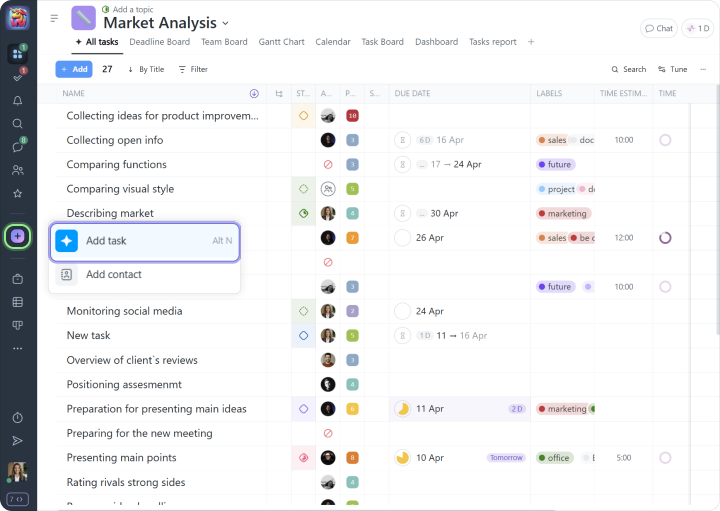
To add a new task, click the “+” button and select Add task:
In the new window, fill in the following fields:
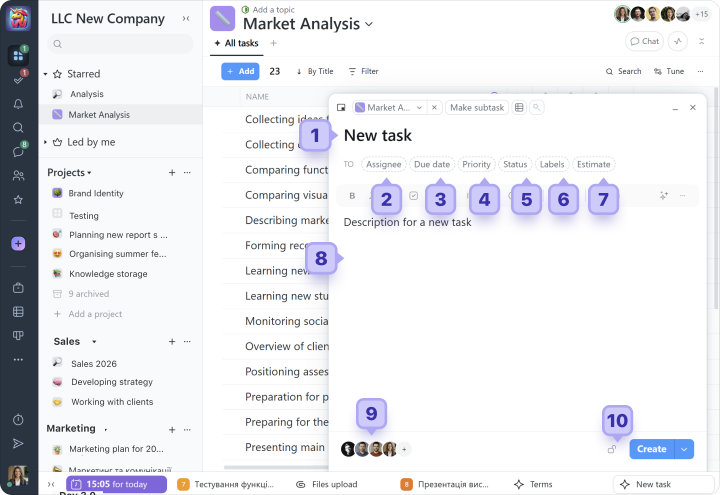
1 Enter the task title
When creating a task, we recommend following the five SMART principles.
Tip We recommend using one consistent naming approach for projects and tasks, so that any manager or team member can quickly understand a new project.
2 Choose the assignee
A task can only have one assignee. If several people need to be responsible, split the work into subtasks and assign the right person to each of them.
3 Set the dates
A task can have the following scheduling options:
- No date: the task has no defined start or end date;
- Deadline only: for example, due by Friday, February 13;
- Start and end dates: for example, starting on the 23rd and ending on the 27th;
You can also set up task recurrence: for example, “Monthly report every Friday of the new month.”
4 Set the task priority
You can choose a priority from 1 to 10, where 10 is the highest. There is also a zero priority, which appears as a pause.
5 Add a task status
Statuses help organize work and track progress. Use them to quickly see which tasks are in progress, need review, or have already been completed. This is especially useful when you are working with a large number of tasks.
6 Add task tags
Tags give you another way to structure tasks and quickly find the information you need. You can create your own tags for the account based on your team’s needs. You can also see how our customers use tags for time tracking in our blog.
7 Estimate
At the beginning, you can skip this field. It is used for the planned time and financial effort for the task.
8 Describe the task
In this field, you can add a task description (wiki), any useful information for everyone involved, and any necessary files or documents.
9 Subscribe project participants to the task
The people you subscribe to the task will receive notifications about certain actions, such as a due date change or a new comment. We recommend subscribing only those who are actually involved in the work.
10 Restrict visibility if needed
Using the privacy settings, you can make a task visible only to selected people. For example, this allows you to hide a task from a client. By default, the entire project team can see all project tasks.
If you need to add several tasks at once, use multi-add.
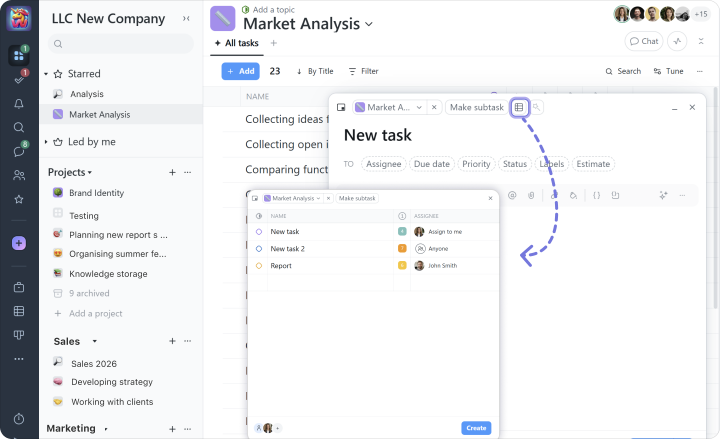
You can copy task titles from an Excel table and paste them into this field, or import tasks directly from an Excel file together with dates, descriptions, and other details.
Tip Make the top-level task something that clearly moves the whole project forward. Smaller and intermediate steps are better created as subtasks or checklists.
A project filled with tasks may look like this:
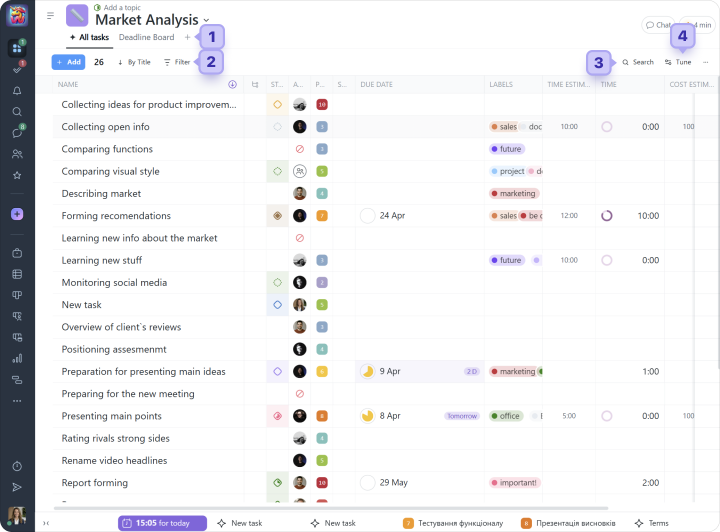
1 project page panel
2 filter panel
3 search
4 page content settings. Here you can choose which task information columns to display and which to hide.
Available task columns:
Note All columns except Task name can be hidden or collapsed. You can also change their width, reorder them, and pin them in place. Column settings are customized individually for each project and each employee.
Worksection includes a variety of built-in filters to help you work more efficiently, and you can also create your own. For example, you can filter all high-priority tasks with the “For review” tag, then save that list to your bookmarks or as a separate project page for quick access.
Like any list in Worksection, it can be exported to Excel:
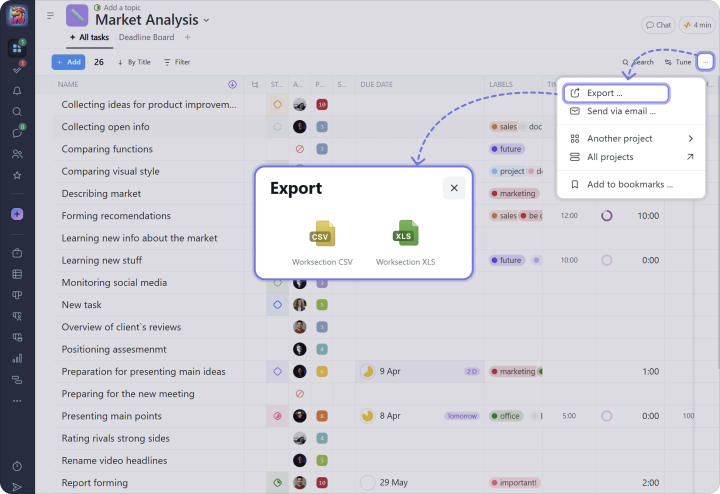
Note When you are inside a project, you only see that project’s tasks and participants. To view tasks across the entire account, use the Task list button and the different Kanban views in the left sidebar.
You can also switch to the Kanban by People task view, for example:
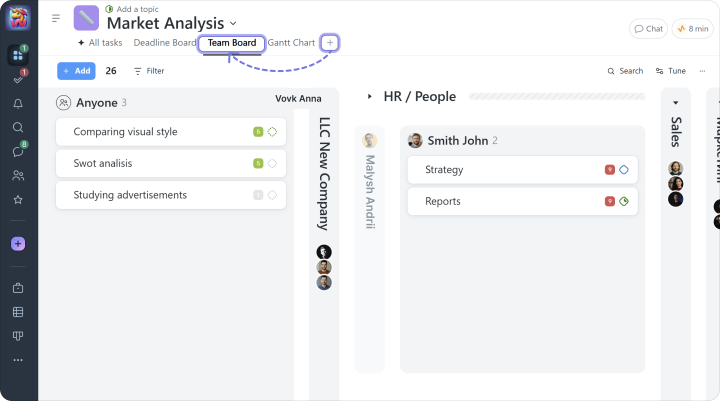
In the “Kanban by People” view, each person has their own column with assigned tasks. This page shows all tasks assigned to your employees.
Here you can also filter tasks by status or label, or review an employee’s workload, for example over a week, by setting the appropriate value in the “Due date” filter. You can also drag a task from one project participant column to another.
Fast, centralized communication helps teams move work forward more quickly, share updates right away, and keep everything in one place.
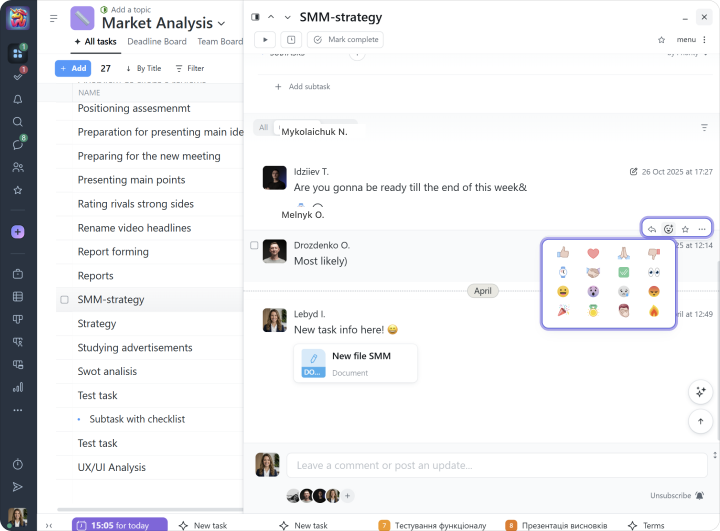
In Worksection, every task includes built-in comments that let you:
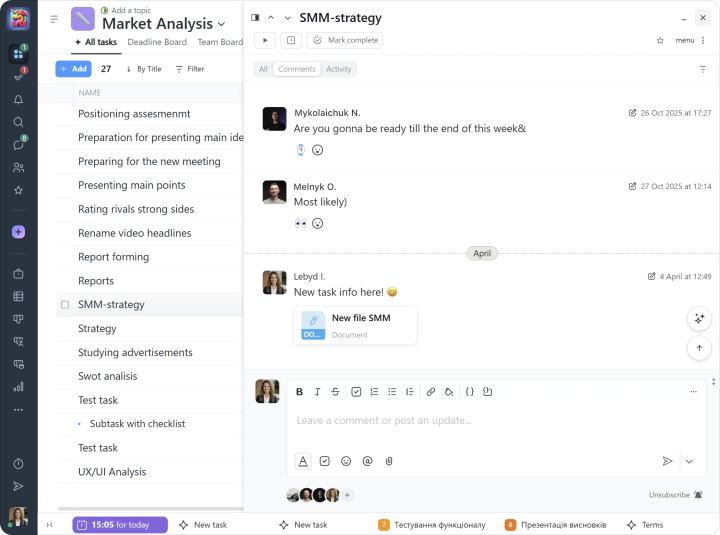
Tip Use task comments for discussions directly related to a specific task, such as clarifying requirements, sharing status updates, discussing files, decisions, and progress.
Once you post a comment, a notification will be sent to the task author, the assignee, and everyone subscribed to the task.
When discussing a task, there are many situations where a short response is enough: “I like it”, “Done, please review”, “Got it”, or simply “OK”. Reactions make this easy.
Worksection also includes chats. You can create private, group, and project chats to discuss any topics you need.
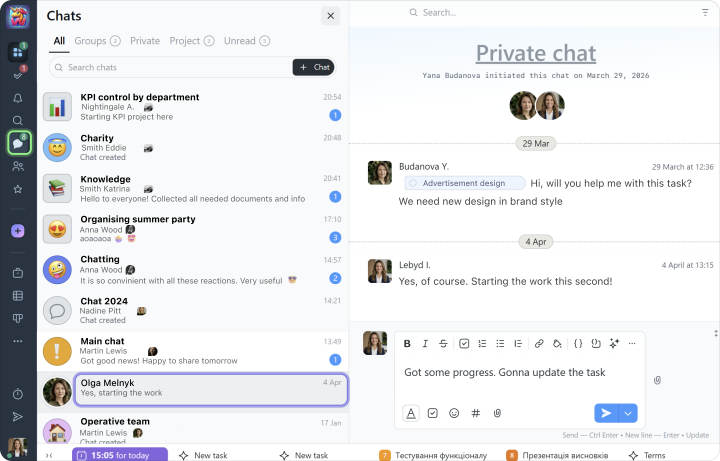
Tip Use chats for quick communication, general discussions, questions outside specific tasks, or team coordination.

