Worksection is a project management system that helps organize a team’s work on tasks. It is a great fit for all types of businesses:
Designers
Architects
Software Development (IT)
Lawyers
Marketing and PR
Education
Management
Digital agencies
An intuitive interface with a Gantt chart, Kanban boards, Dashboards, a built-in timer, integrations, internal chats, and other tools helps keep everything under control.
A quick overview of Worksection:
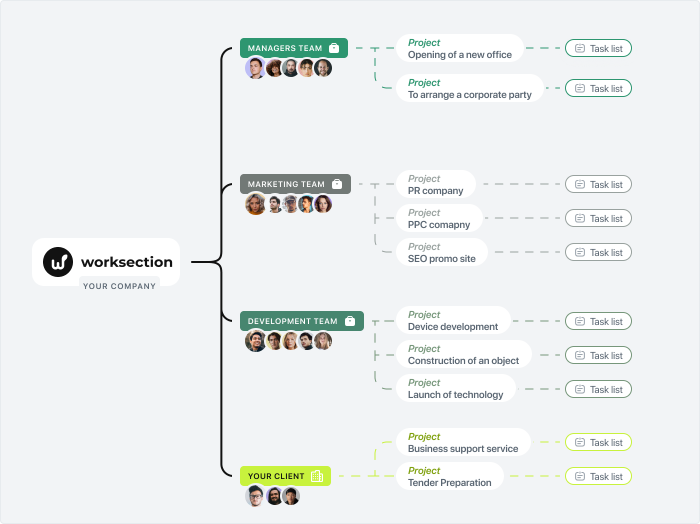
A Worksection account consists of departments and teams of employees, across which projects and tasks are distributed.
Projects can be created by employees with the roles of Owner and Administrator. Employees with the roles of User and Guest cannot create projects on their own and can only participate in projects they have been invited to.
A “project team” is formed from people added to the Worksection account.
An employee can participate in several projects at the same time. Depending on the permissions granted to them, they can only see the projects they are involved in.
You can invite a client into the system and give them access to the necessary projects.
Each project consists of tasks. Tasks can be divided into subtasks (2 levels of nesting) and include an assignee, deadlines, priorities, tags, files, and a discussion thread.
Tasks and comments can include checklists for minor to-dos that do not require a separate task.
A task can only have one Assignee, while the number of co-executors on the team is unlimited.
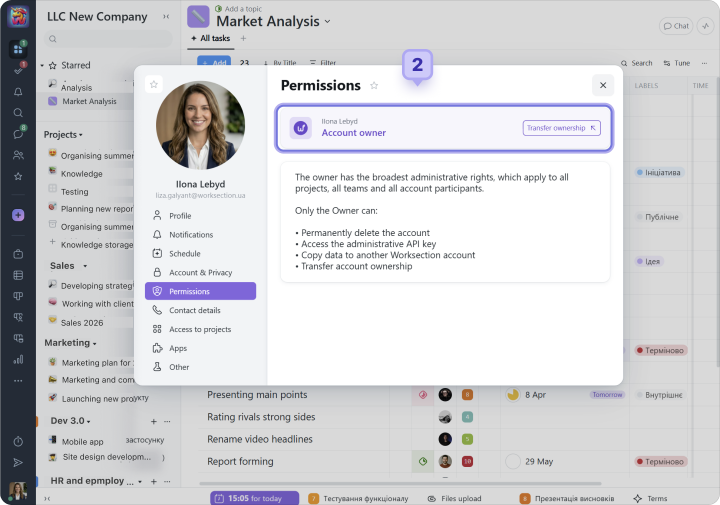
The main role in the account, with the highest level of permissions, belongs to the Owner. They create the account, after which other participants, client representatives, and partners can be invited. Permissions for all account members can be configured or changed in the system at any time.
Profile and account settings
Before getting started, we recommend reviewing and configuring your Profile and Account settings.
Profile
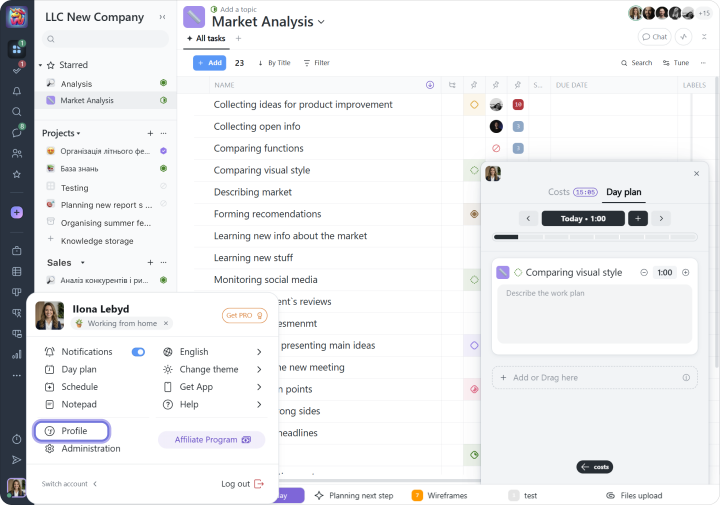
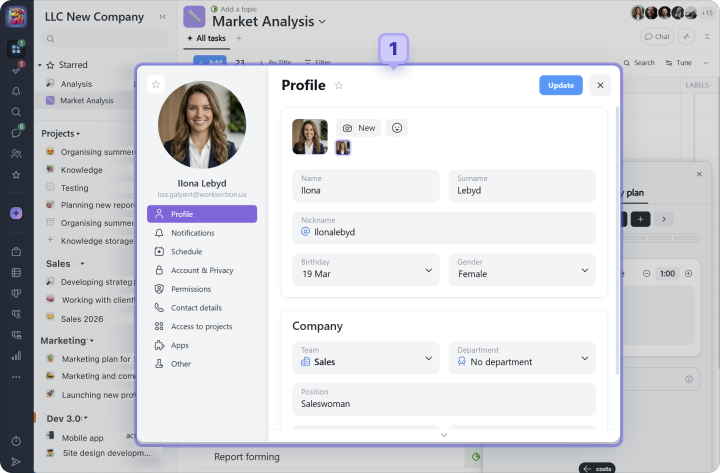
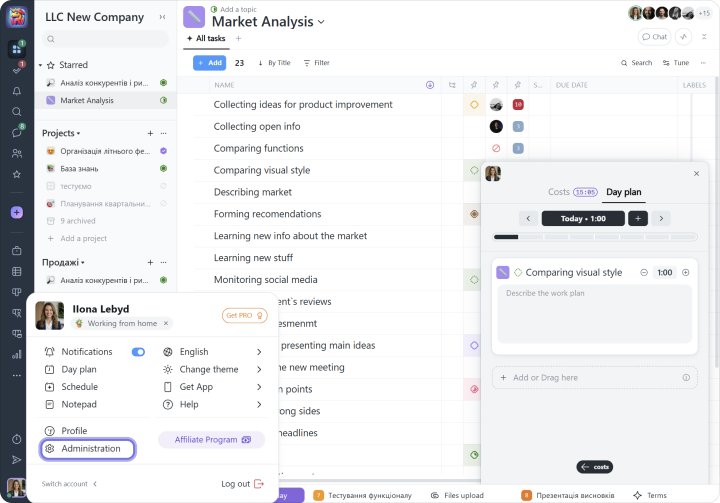
All employees have access to profile settings, regardless of their role in the account. To open the settings, click your avatar in the lower-left corner of the system screen and select the Profile section.
We recommend starting with the following:
1 add your contact details (First and Last Name, job title, and photo) so your colleagues can communicate with you more easily;
2 check which role you have in the account (Owner, Administrator, User, etc.);
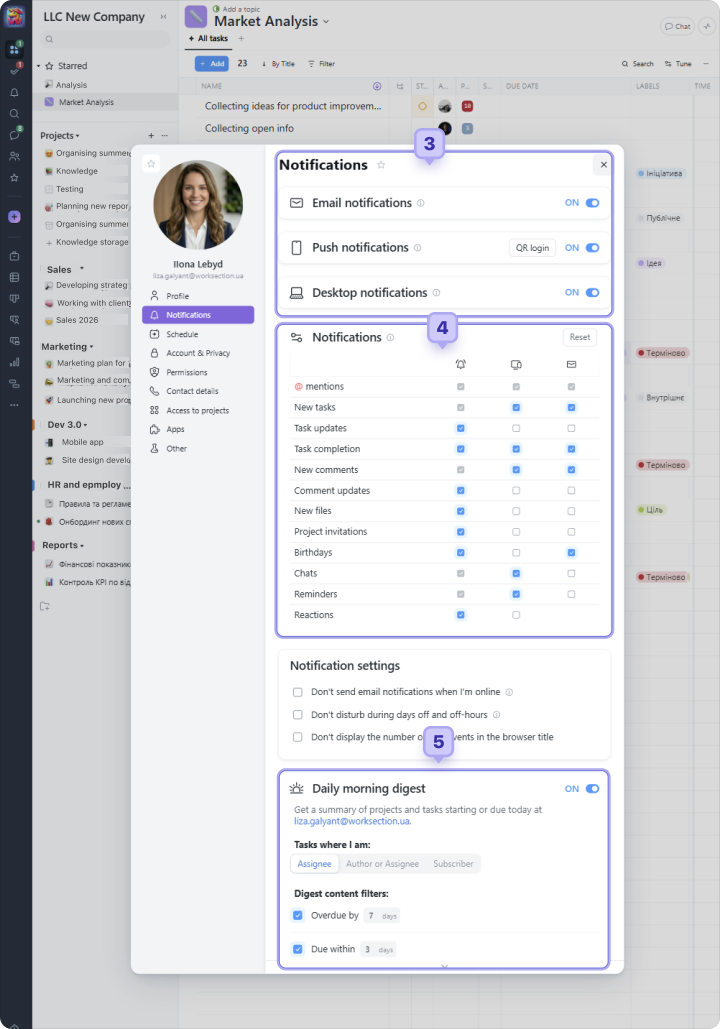
3 enable notifications through Email, Desktop, and Push channels;
4 configure the notification types for each channel;
5 enable or disable the Morning Digest (a daily overview of project and task statuses).
Account
Account settings are available only to the Owner and the account Administrator who has the "Access to account settings" permission.
Account settings can be found next to the Profile settings.
We recommend starting with the following:
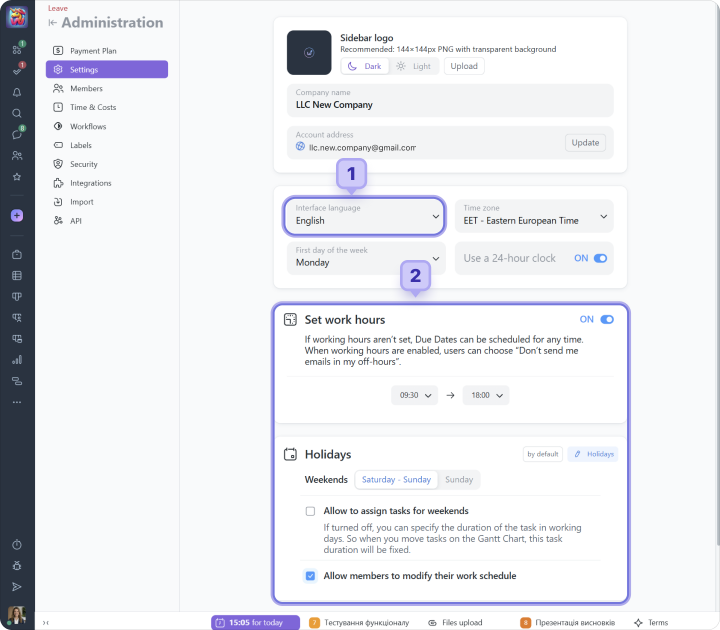
1 choose the default interface language (at the same time, each employee can select a different language for themselves);
2 set the company working hours and weekends (Saturday-Sunday or Sunday);
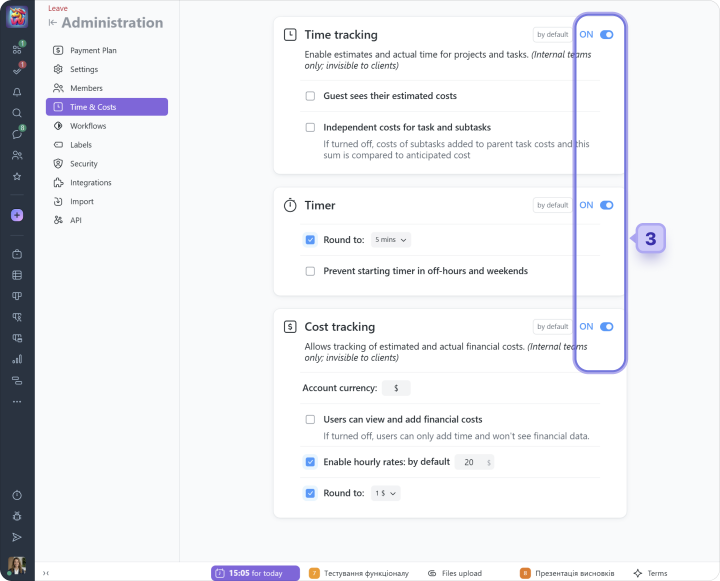
3 enable or disable Time Tracking, the Timer, and Costs Tracking*;
*At the very beginning, we recommend disabling additional features. This will significantly simplify the functionality and help your team adapt to the system faster.
Tip Use the "Import" section in the account settings if you need to transfer your projects from another system into Worksection.