Solutions
worksection
beta
help
How to complete two-factor authentication? (2FA)
After two-factor authentication (2FA) is enabled in your account — when logging in (after entering your login and password), the system will ask you to complete additional verification:
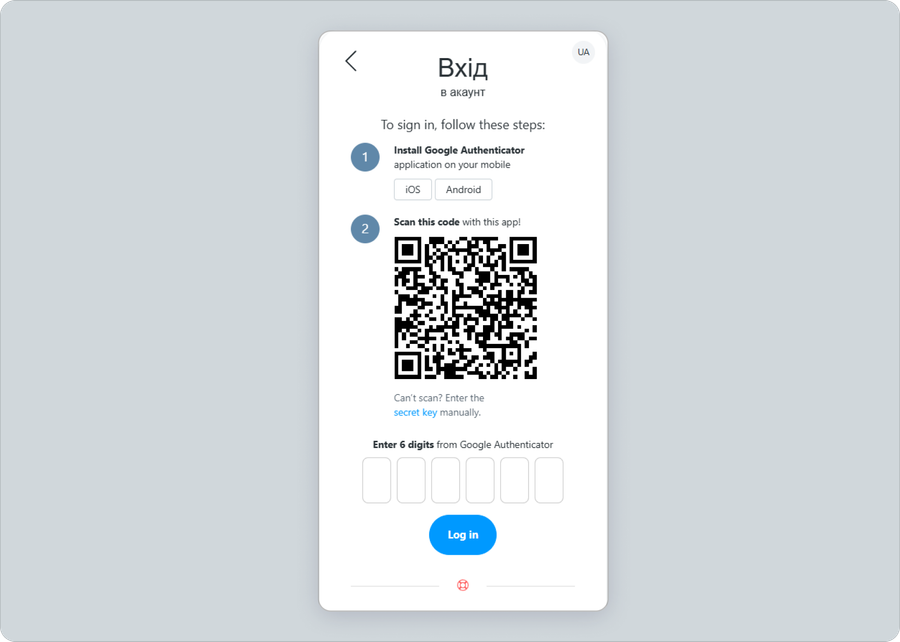
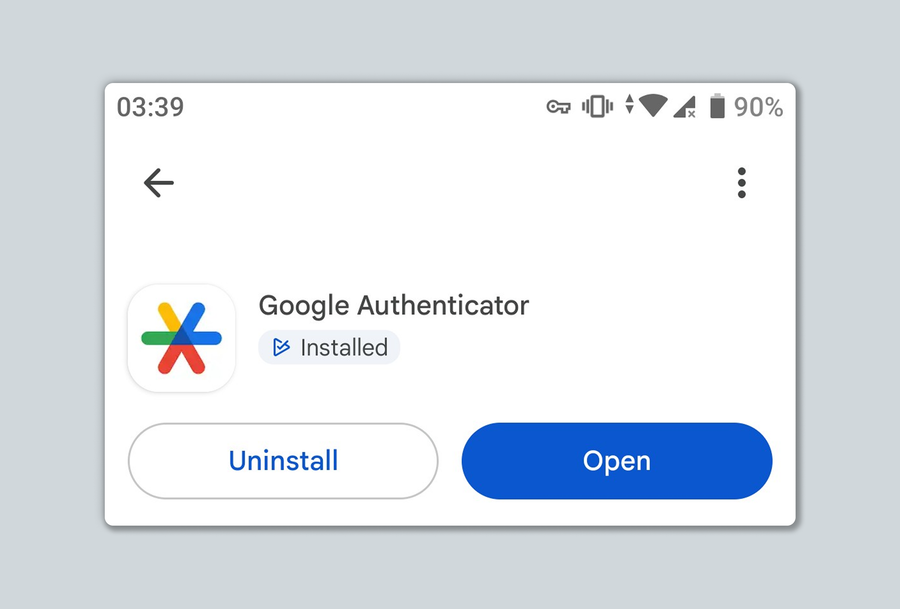
- Install the Google Authenticator app on your mobile device. You can download it from Google Play or the App Store.
- Launch this app on your mobile device. If asked whether to grant the app access to the camera — tap Yes. When the camera opens — point it at the screen showing the QR code:

- A 6-digit code will appear on your mobile device screen. Enter it into the system in the "Enter code" field:
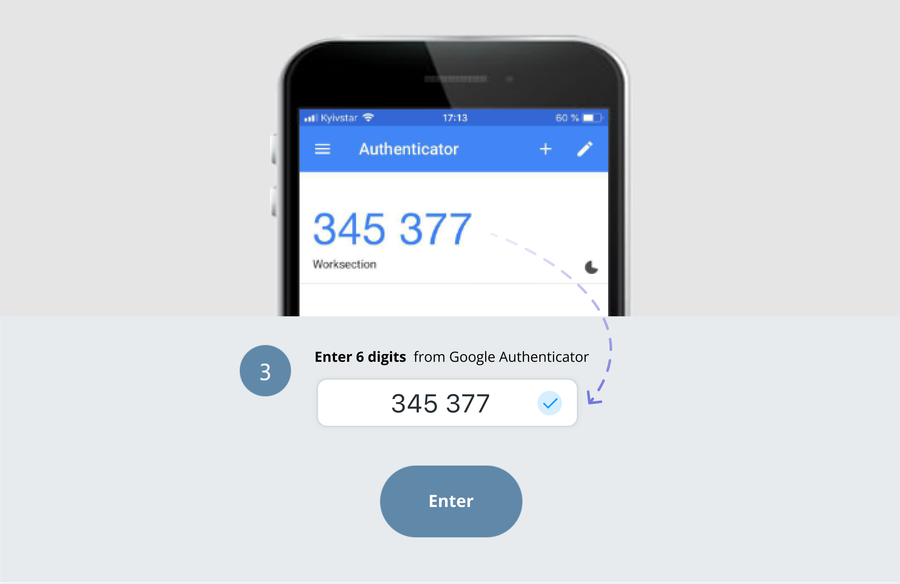
On subsequent logins, you will not need to scan the QR code again. Simply open the Google Authenticator app and enter the code. You do not need to memorize this code — a new one is generated each time.
Notes
- Make sure the exact time is set on your phone.
- If an error occurs when scanning the QR code — simply refresh the page on your computer and repeat the scanning process.
Leave your review
Did this article help you?
Glad we could help! What was helpful?
Sorry this didn't help. What went wrong?

