Solutions
worksection
beta
help
How do I use a Kanban board in «Team» mode?
The «Team» Kanban board displays tasks as columns grouped by participants. This is useful when you need to quickly see who is responsible for which tasks, how the workload is distributed across the team, and which tasks are assigned to a specific person.
The «Team» Kanban board can be opened both at the account level and at the individual project level.
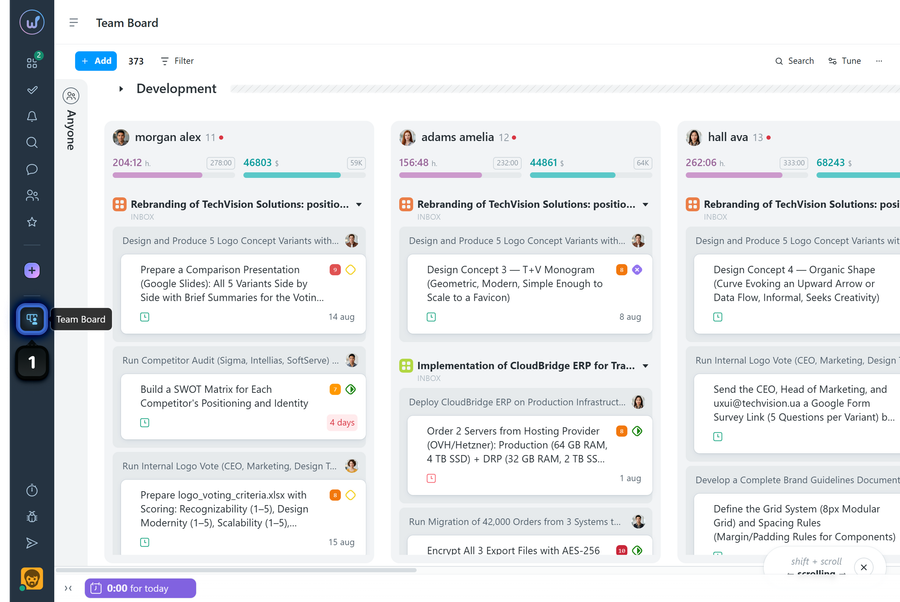
To open the board at the account level, click the corresponding button1 in the left sidebar.
Depending on their roles and permissions, different participants may see different tasks on this page:
- Account owner - sees the tasks of all participants in all projects.
- Account administrator with the «View all account projects» permission - sees the tasks of all participants in all projects.
- Team administrator with the «View team members projects » permission - sees the tasks of all participants in projects where they or members of their team participate.
- Department administrator with the «Viewf department members» permission - sees the tasks of all participants in projects where they or members of their department participate.
- User - sees the tasks of all participants in projects they participate in.
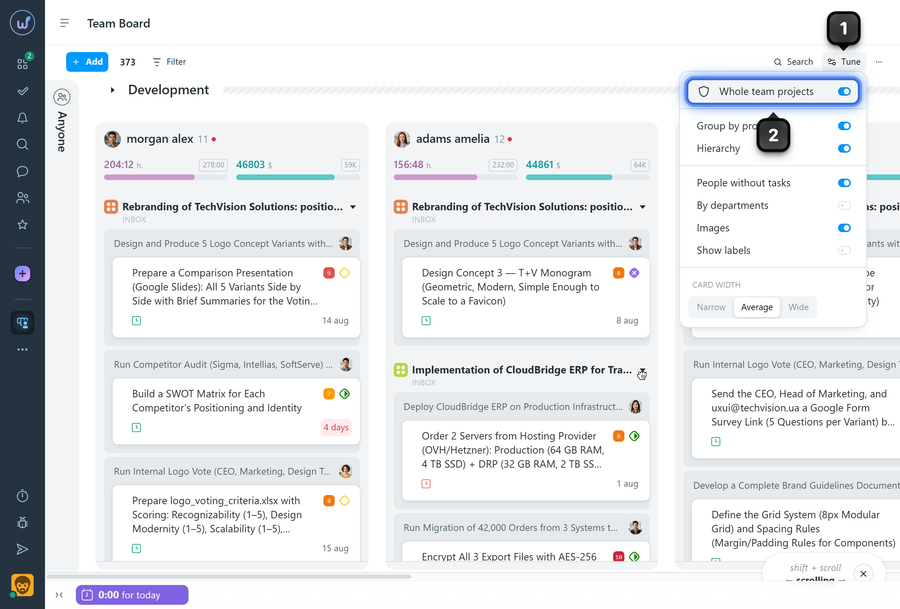
To display tasks from projects you do not participate in but can access based on your role and permissions, click «Tune»1 and enable «Whole team projects»2.
How is the «Team» board structured?
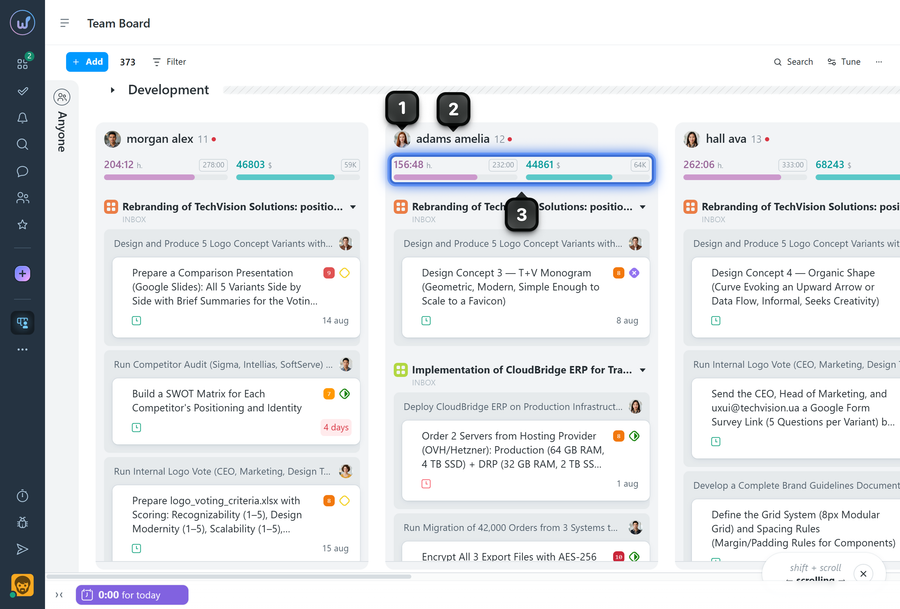
Each column on the board represents a separate participant. The column displays tasks assigned to that participant.
The top of each column displays:
1 the participant's avatar;
2 their nickname or full name, depending on the system settings;
3 estimated and actual costs for all tasks in the column (if time/financial tracking is enabled in the account and these parameters are specified in the tasks)
How does grouping work on this board?
At the account level, tasks in the columns are grouped by project by default. Each project group can be collapsed or expanded.
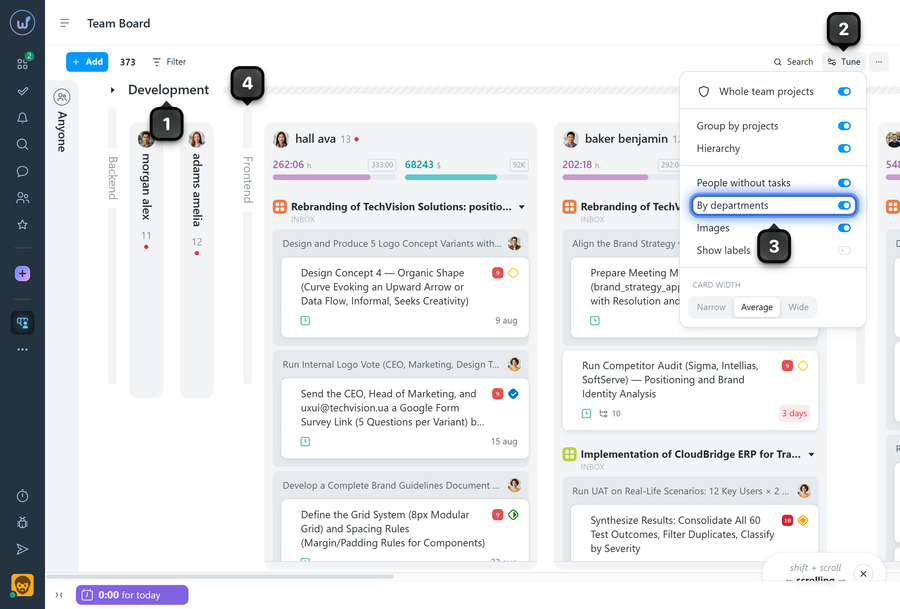
Teams1 are also displayed above the participant columns. They can also be collapsed or expanded. If you enable the «By Departments» option3 in the «Tune» menu2, departments4 will also be displayed on the board.
Please note! Search here works by participants, not by task names.
Leave your review
Did this article help you?
Glad we could help! What was helpful?
Sorry this didn't help. What went wrong?

