Solutions
worksection
beta
help
How do I use a Kanban board in "Deadline" mode?
The "Deadline" Kanban board displays tasks based on their due dates. This is useful when you need to quickly see which tasks are overdue, which are due today or tomorrow, and which are scheduled for later periods.
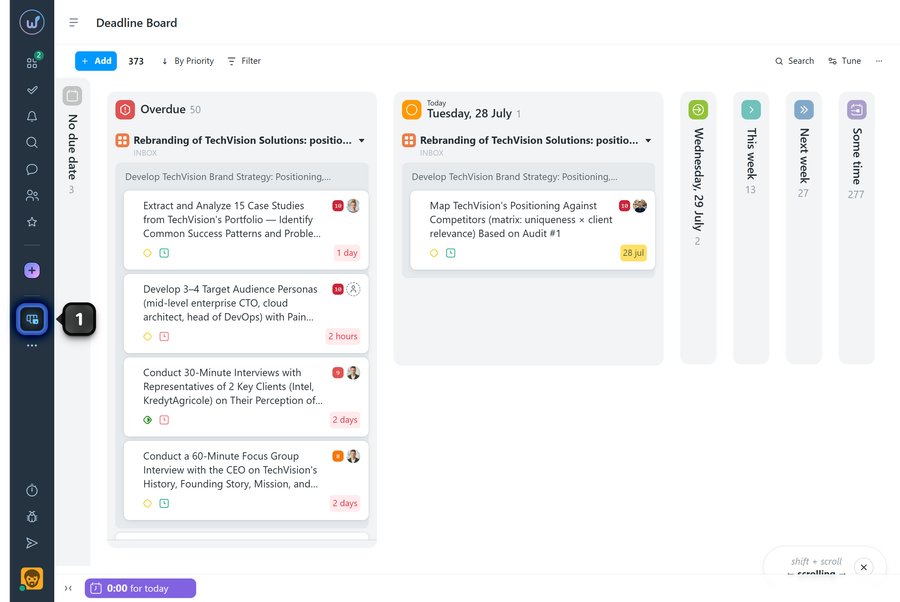
The "Deadline" Kanban board can be opened at both the account and individual project levels. To open the "Deadline" board at the account level, click the corresponding button1 in the left sidebar.
What do the columns on the «Deadline» Kanban board mean?
Tasks are distributed across columns according to their due dates:
- "No Due Date" - tasks with no due date set.
- "Overdue" - tasks whose due date has already passed.
- "Today" - tasks due today.
- "Tomorrow" - tasks due tomorrow.
- "This Week" - tasks due during the current week.
- "Next Week" - tasks due during the next week.
- "Some time" - tasks due more than two weeks from the current date.
How do I work with tasks in «Deadline» mode?
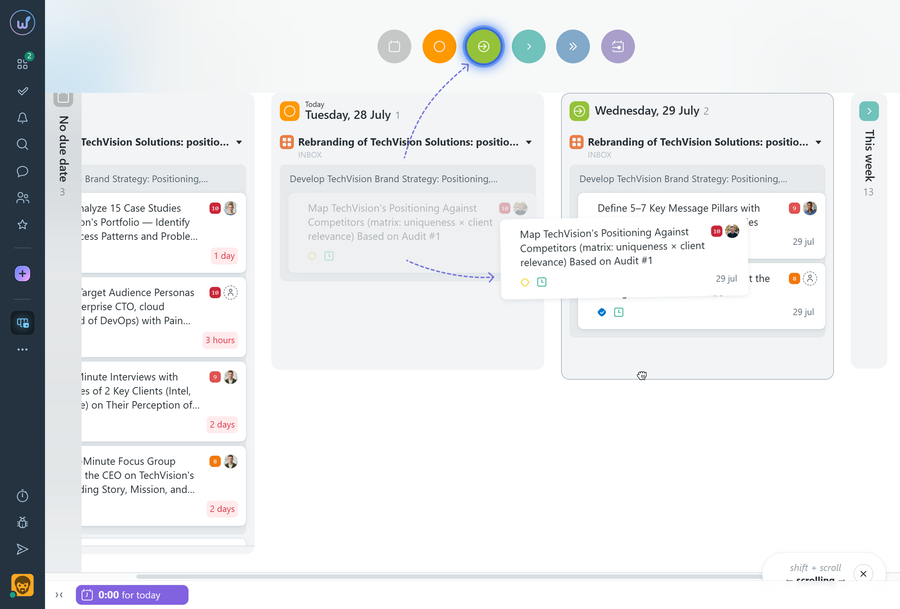
As with other Kanban boards, you can drag tasks between columns or move them using the top menu that appears while dragging. In this mode, moving a task changes its due date.
Permissions The following users can drag tasks on the "Deadline" Kanban board:
- Account owner
- Account administrator with the "allow editing everything" permission
- Team administrator with the "allow editing everything" permission (for tasks where the author or assignee is a member of their team)
- Department administrator with the "allow editing everything" permission (for tasks where the author or assignee is a member of their department)
- Project lead
- Task author
- Assignee (if the corresponding permission is enabled in the project settings)
How does the due date change when moving a task?
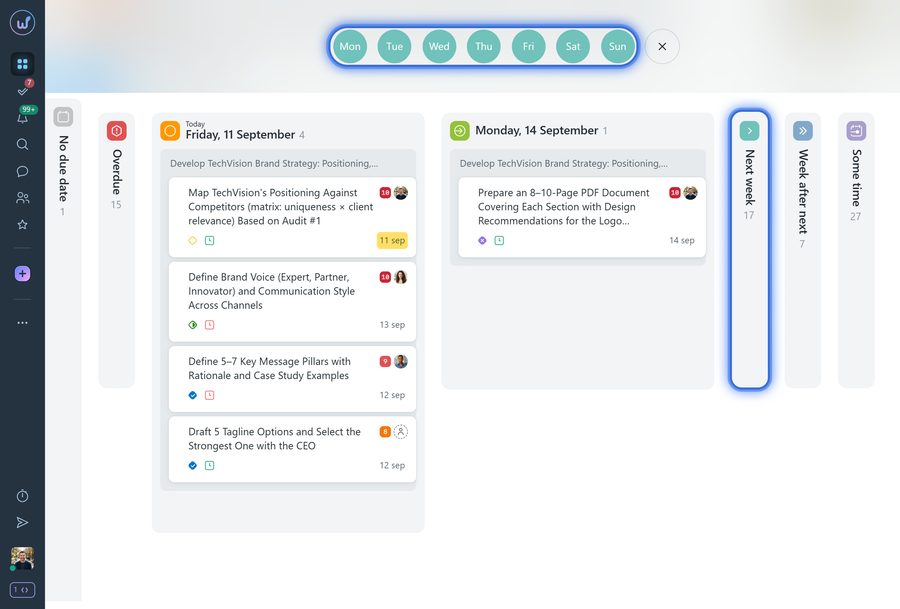
- If you drag a task to the "This Week" column, the system will display a menu at the top where you can select the specific day of the week for the due date.
- If you drag a task to the "Next Week" column, the system will similarly prompt you to select a specific day of the following week.
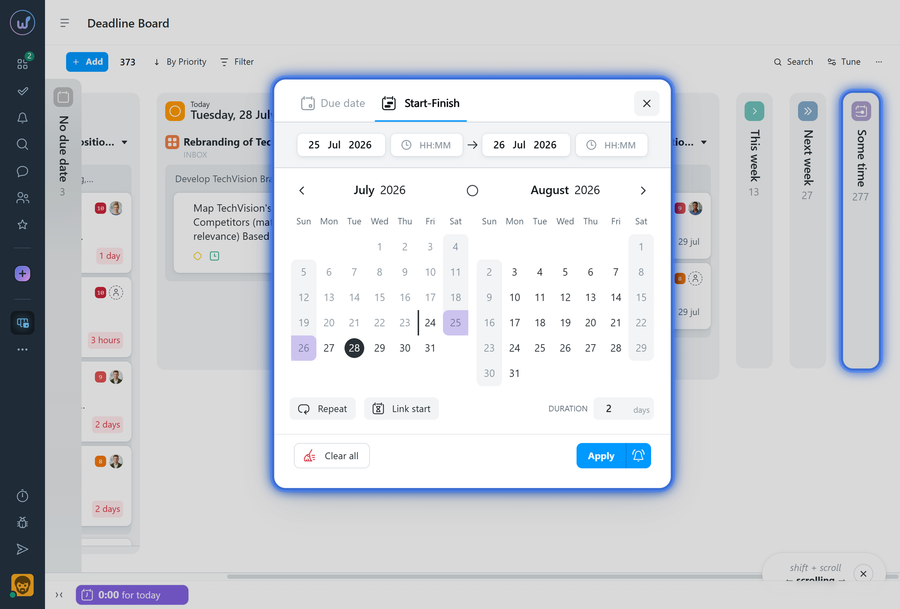
If you drag a task to the "Some time" column, a window for setting the due date will open.
Please note!
- If the "Allow assign tasks for weekends" option is disabled in Administration > Settings, under the "Holidays" section, when a task is moved to a weekend day, its due date will be changed to the nearest working day.
- You cannot drag a task to the "Overdue" column, so you cannot intentionally make a task overdue using the "By Days" Kanban board.
- You can also change the due date directly in the task without dragging it on the board.
Leave your review
Did this article help you?
Glad we could help! What was helpful?
Sorry this didn't help. What went wrong?

