Solutions
worksection
beta
help
How to drag tasks between columns on a Kanban board?
On the Kanban board, tasks can be moved between columns to change their status.
Permission to drag tasks belongs to:
- Account owner
- Account administrator with the "Allow admin to edit everything" permission
- Team administrator with the "Allow admin to edit everything" permission (for tasks where a member of their team is the author or assignee)
- Department administrator with the "Allow admin to edit everything" permission (for tasks where a member of their department is the author or assignee)
- Project lead
- Task author
- Assignee
Open the Kanban board and find the required task. Click on the task card with the left mouse button, hold it, and drag it to the column of the required status.
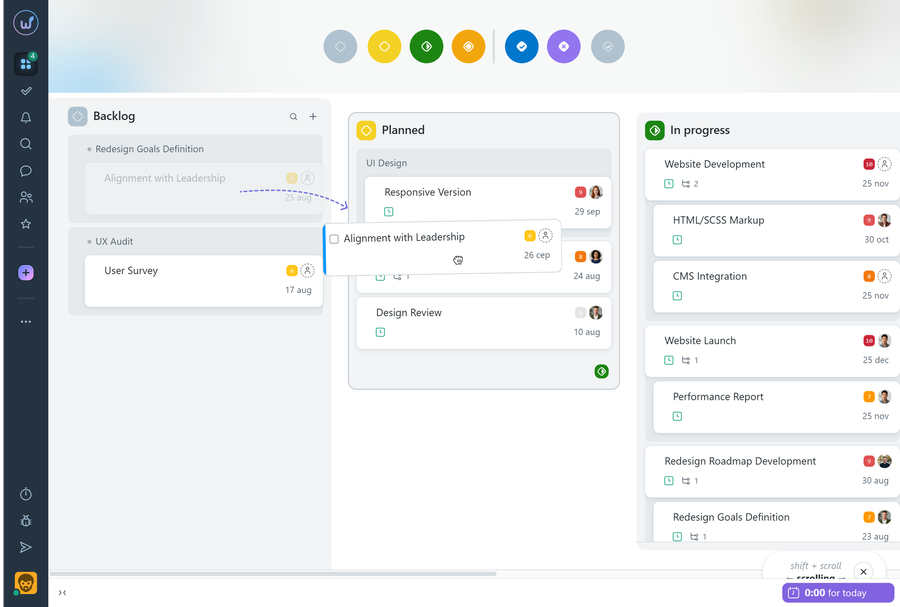
How does it work?
After moving a task to another column, its status changes to match that column.
While dragging, an additional menu with statuses appears at the top, and if there are many columns, the task can be moved to one of the statuses in this menu:
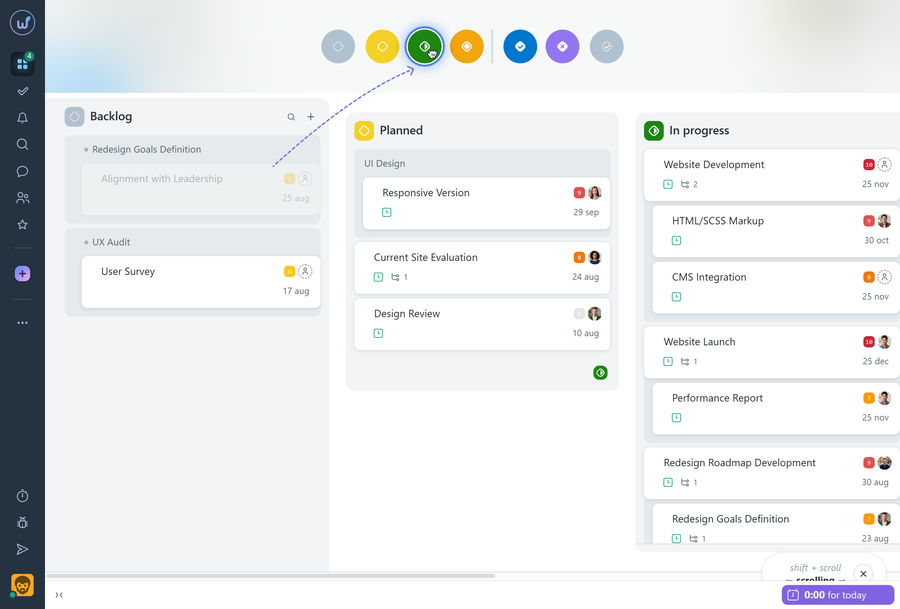
How to drag multiple tasks at once?
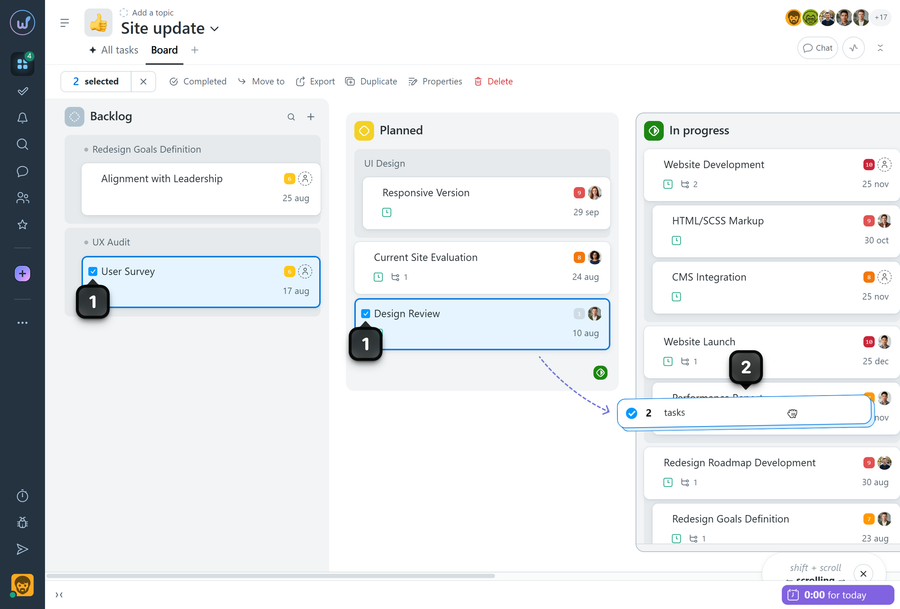
To move several tasks at once, first select them1. Then hold the left mouse button on any of the selected tasks and drag to the required column2. All selected tasks will be moved simultaneously. You can select tasks from different columns.
Note You can also simply change the status inside the task itself without dragging it on the board.
Leave your review
Did this article help you?
Glad we could help! What was helpful?
Sorry this didn't help. What went wrong?

