Solutions
worksection
beta
help
Estimates and actual costs: task and project
An estimate is how much time and money you expect to spend on a task or project. Actual costs are what members logged manually or with the timer. Worksection compares them in the task, in task and project lists, and in reports.
Permissions Estimates and actual costs are visible to all members except:
- Readers
- Client team members
- Guests: they see only time estimates, and only in tasks where they are the author or the assignee. For this, the "Guest sees their estimated costs" option must be enabled in the Time tracking settings.
Please note! Financial estimates and costs can be hidden from members with the "User" role with the "Users can view and add financial costs" option in the Cost tracking settings.
How to set a task estimate
You can set an estimate when creating a task. See How to set estimated costs?
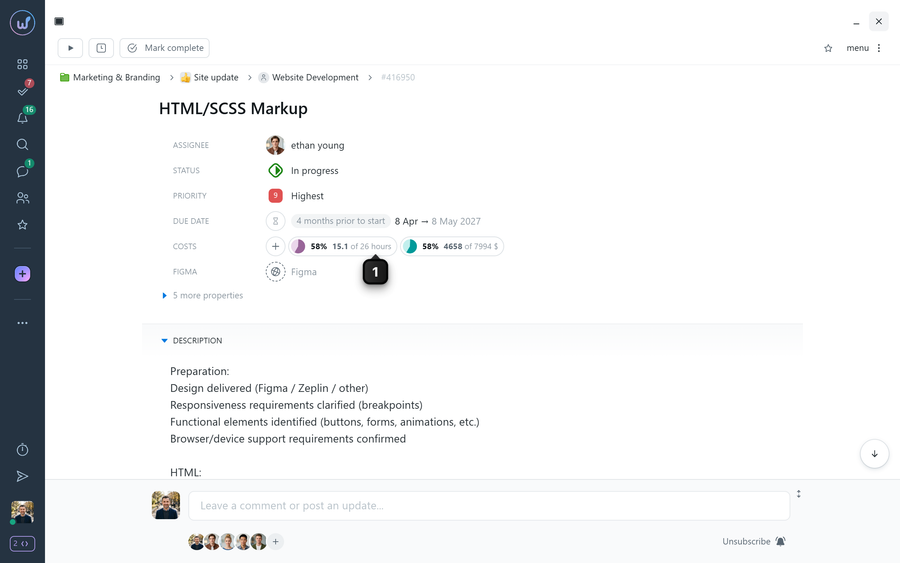
To set or change the estimate of an existing task, click the estimate value "of N hours"1 in the "Costs" row.
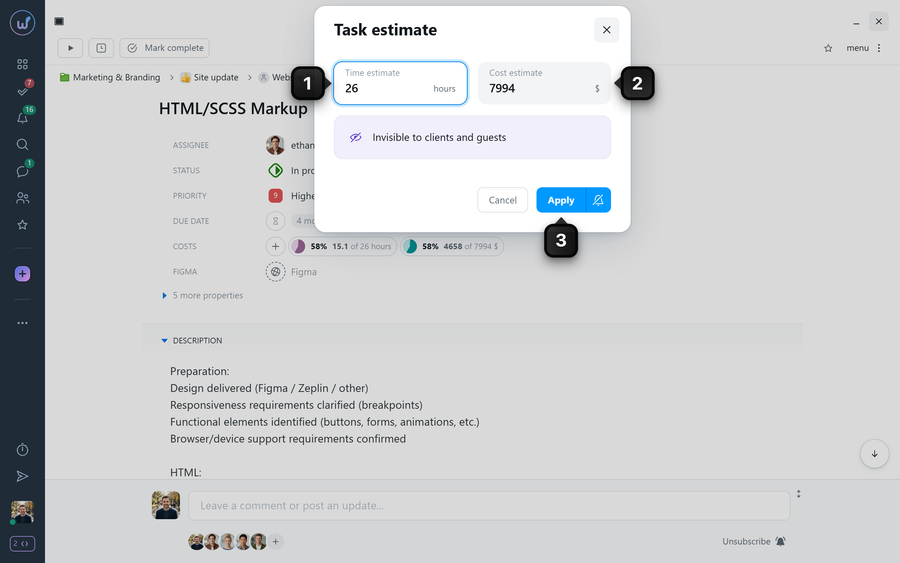
In the "Task estimate" window, enter the time estimate1 and the cost estimate2, then click "Apply"3. Who can change the estimate: see How to change the estimated costs of a task?
How to read task progress
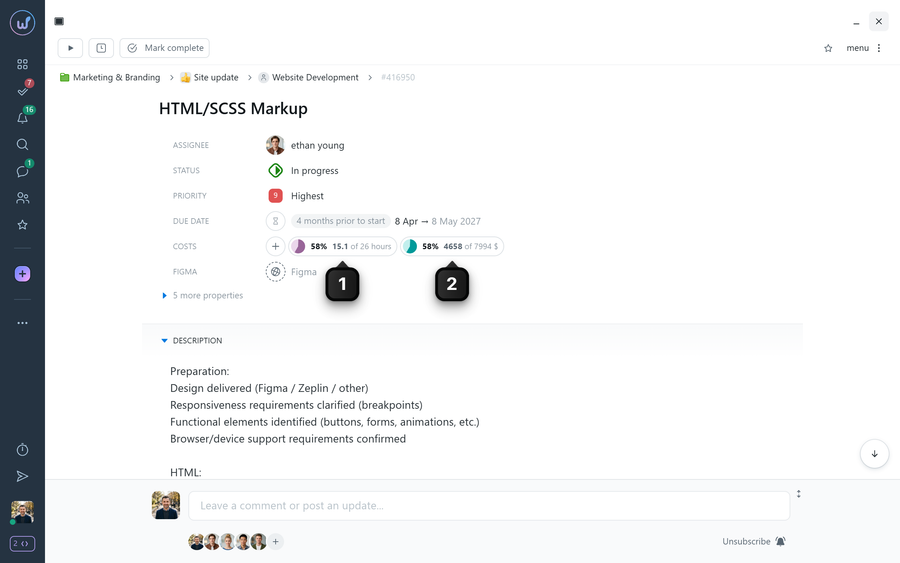
The "Costs" row of the task card shows two indicators: time1 and money2. The percentage is the share of actual costs in the estimate, followed by actual costs "of" the estimate. If actual costs exceed the estimate, the percentage turns red.
Where else you can see this ratio: Where to view the ratio of actual costs to estimated costs for a task? To show estimate and cost columns in the task list, see How to configure columns on the "All tasks" page?, and you can find tasks with cost overruns using a filter.
Are subtask costs included
It depends on the "Independent costs for task and subtasks" option in the time tracking settings:
- the option is off: subtask costs are added to the parent task costs, and the total is compared with the parent task estimate;
- the option is on: each task and subtask is counted separately, against its own estimate.
Where to find this option: see Time tracking.
How to set a project estimate
The time and cost estimate for the whole project is set on the project "Info" tab. See How do I add estimated costs to a project? Projects where actual costs exceed the estimate are shown by the "Costs overrun" filter. See How do I filter projects?
How to compare estimates and actual costs in reports
Open "Reports"1 → "Summary report"2. To include estimates in the report, click "Tune"3 and make sure the "Estimates" toggle4 is on.
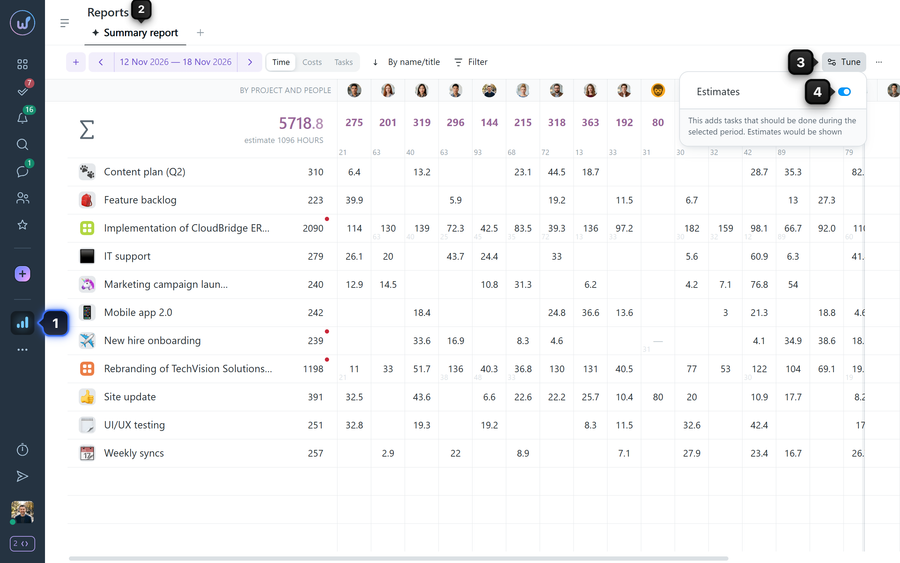
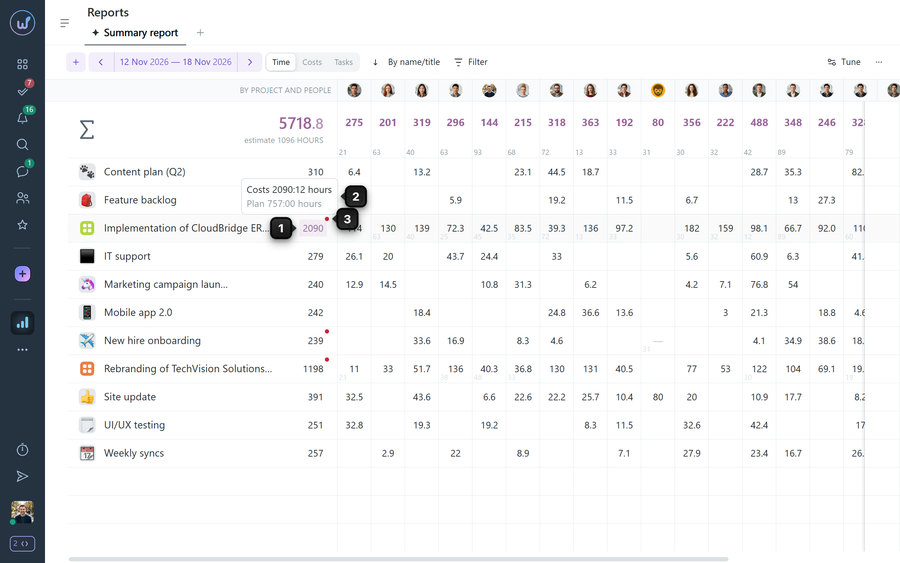
A report cell shows actual costs1. Hover over the cell: the tooltip2 shows actual costs and the estimate. A red dot3 means "Costs overbudget".
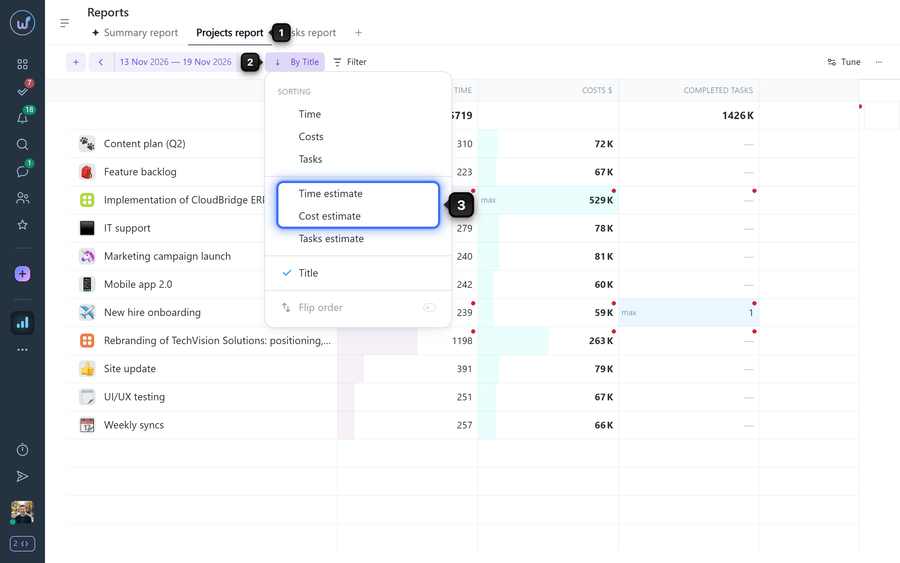
To see the projects with the largest estimates, open the "Projects report"1, click the sorting button2 and select "Time estimate" or "Cost estimate"3.
Leave your review
Did this article help you?
Glad we could help! What was helpful?
Sorry this didn't help. What went wrong?

