Solutions
worksection
beta
help
How to delete a label or label group?
When a label or an entire group is no longer needed, you can delete it. Keep in mind: the action is irreversible and will affect how labels appear in tasks, filters, and views.
Permission is available to:
- Owner
- Account administrator with permission: "Access to account settings".
Where to configure
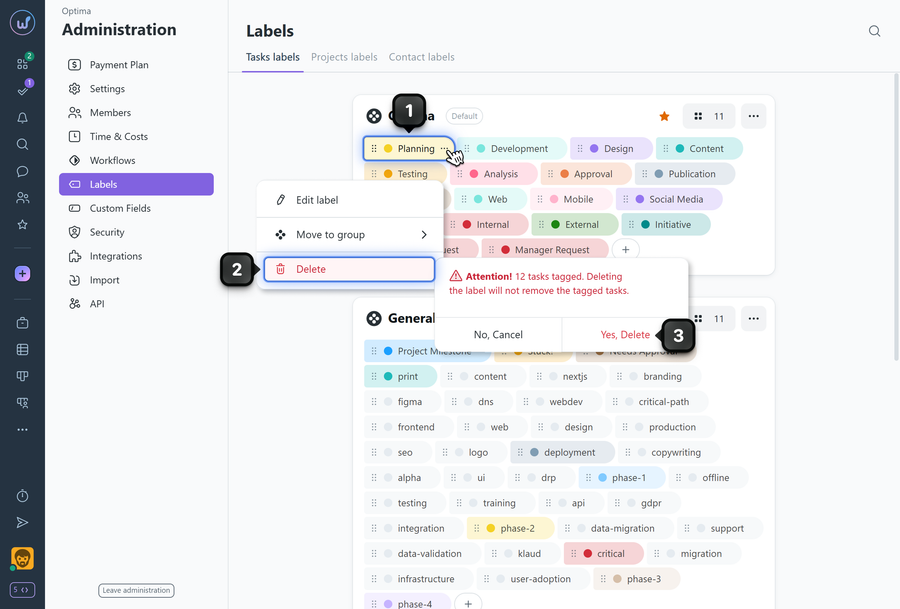
To delete a label, hover over the label you want to delete and click the "three dots" menu1. Select "Delete"2, then confirm the action by clicking "Yes, delete"3.
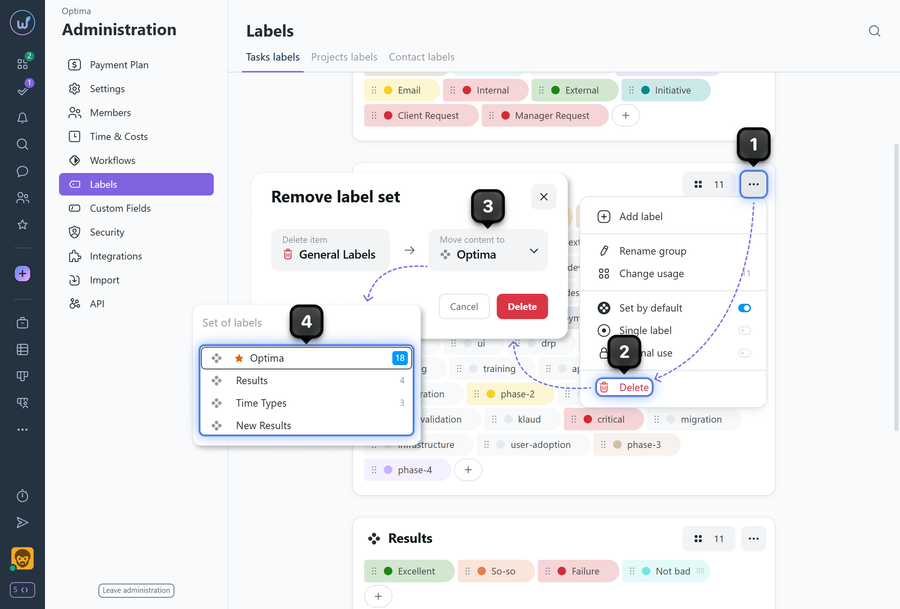
To delete a label group, click the "three dots"1 on the group card and select "Delete"2. In the dialog box there is an option3 to choose what to do with the labels in this group. They can be completely deleted along with the group, or moved to another group4 — the group will be deleted, but its labels will be transferred to the group you selected.
Please note!
- A deleted label disappears from selectors and filters and is no longer displayed in tasks where it was assigned.
- The action is irreversible: a deleted label or group cannot be restored.
Leave your review
Did this article help you?
Glad we could help! What was helpful?
Sorry this didn't help. What went wrong?
Previous
How to create a new label group?

