When your workday starts with a quest “find the task in Telegram, dig up the file on Google Drive, check the status in Excel, and remember what was agreed on in the email” – it creates a bit of chaos at work.
To simply figure out what’s going on with the project, you need another separate job. Because of this, you don’t know who is working on what right now, and you don’t understand what is really urgent and what can wait. The manager spends half of the morning’s energy not on necessary tasks, but on trying to piece together a picture from ten different applications. And some important detail is bound to get lost along the way.
We believe that the problem is not with the people. It’s just that when tools live their own separate lives, the team is forced to manually piece together this puzzle every day. Usually, windows multiply, tasks are saved anywhere, even sticky notes on the monitor, and everyone keeps their own version of how things are going in their heads.
Priorities get blurred, everything becomes urgent yesterday, and the classic situation arises where one task is worked on by two people simultaneously, or it isn’t done at all.
In Worksection 2.0, we decided to approach this radically and simply combined tasks, files, and communication in one space. As a result, the entire team sees the same picture in real time. And no one needs to ask their colleagues again during the workday.
One place instead of five
Previously, the day started with a run through tabs, starting with email, checking the messenger, the spreadsheet, back to the messenger because something just pinged. But there was no clear understanding of what was currently being worked on.
In Worksection 2.0, we made everything simpler. So you can just open one tab and instantly see everything. Who is doing what, which tasks are in progress, and what has already been closed and successfully submitted. No manual data collection – files, discussions, and statuses are tightly bound to their tasks and live alongside them.
In practice, this completely changes the rhythm of the company. You can see at any moment what a specific employee is currently working on, and you don’t have to dig through chats to find the right layout or final solution. Task statuses become clear without additional questions like “hey, are you working on that task yet?”, and the whole team finally works with one version of up-to-date information and doesn’t duplicate each other’s work just because someone overlooked something.
A dashboard that adapts to you
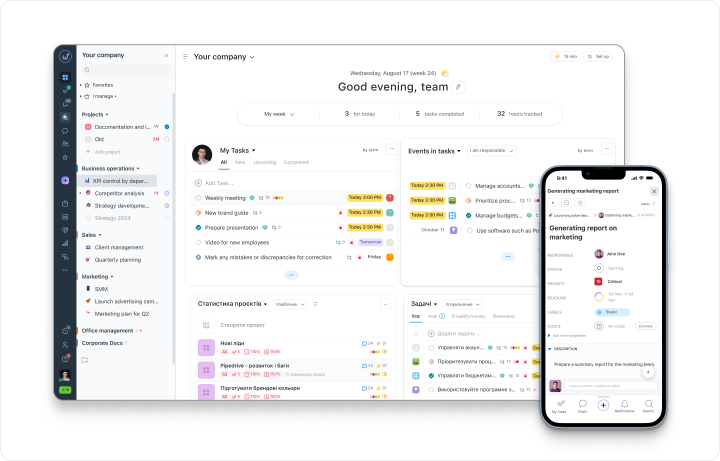
Usually, task managers are guilty of trying to show everything to everyone at once, turning the screen into a control panel for something unknown. We took a different approach and made the main page of Worksection 2.0 flexible. It automatically adjusts to what you’re working on in the company, and doesn’t overload you with information that doesn’t concern you at all.
This works very simply. When a performer opens the system, they see only their tasks for today and aren’t distracted by general timelines. The project manager keeps track of current progress and potential risks on their screen, while the supervisor has an overview of the overall state of all launches, budgets, and people’s workloads.
As a result, everyone enters the program and immediately understands their next step, without wasting time filtering through others’ tasks.
Blocks are arranged like widgets. You can customize, rearrange, or hide tasks, priorities, team activity, financial indicators, and reports from the screen at your discretion. Only what truly helps you remains on your desktop.
Instead of a million “so what’s up?” questions
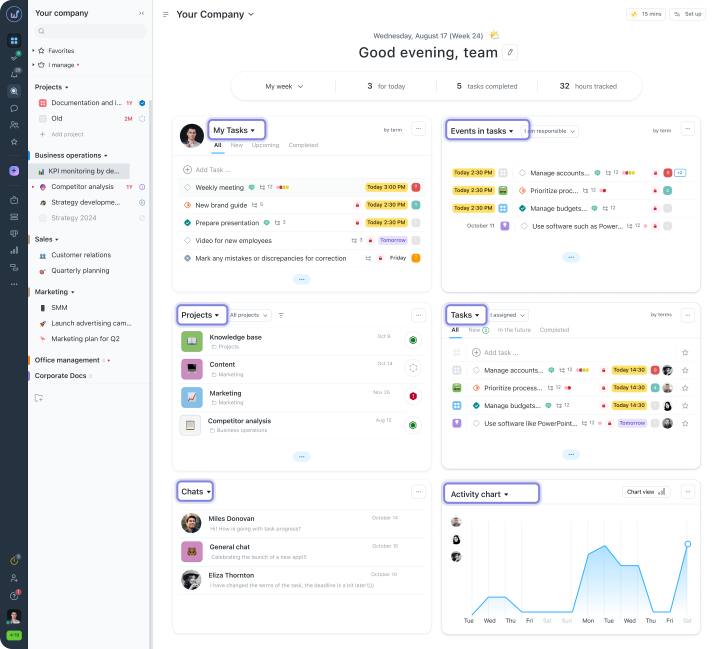
Previously, to find out the status of a project, you had to hold entire meetings or endlessly message in chats with questions about how things were going. Now, it’s enough to just open the main page. We added widgets that cover most daily inquiries from the supervisor and help keep track of everything.
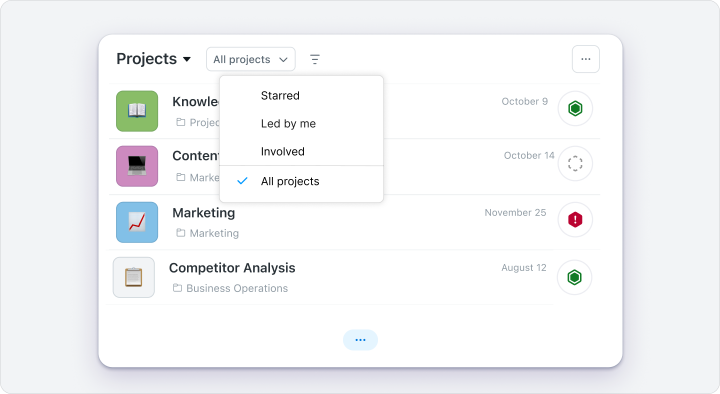
Project Widget
When you need to quickly get your bearings in processes, this block saves you from having to wander through menus for a long time looking for the right folder. You get a convenient list of everything that is currently in progress, where you can filter launches where you are the manager, or select the most important ones with a star. The system immediately shows the status of each project and the latest activity. Moreover, you can create a task, change the status, or rename directly in the widget.
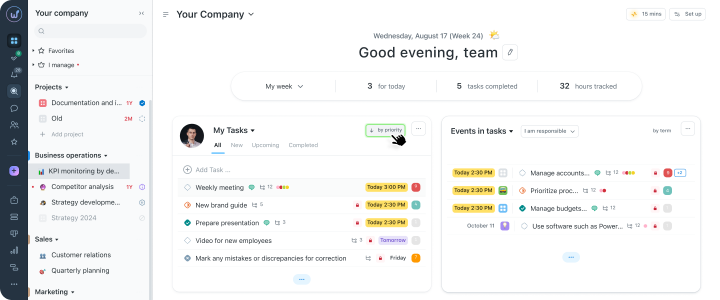
Priority Widget
This block automatically analyzes deadlines, visualizes approaching due dates, and highlights risks of overdue tasks in advance. You no longer waste time sifting through dozens of pages, because everything that requires your immediate attention is already gathered on one screen.
People Widget
Distributing new tasks randomly is a surefire way to burn out the team, which is why we provided real-time workloads for you. You can see how many tasks are already hanging on each employee, peek into their plans for the day, and assign a new task specifically to those who have free time and resources. This helps allocate work consciously rather than just dumping tasks on whoever is nearest.
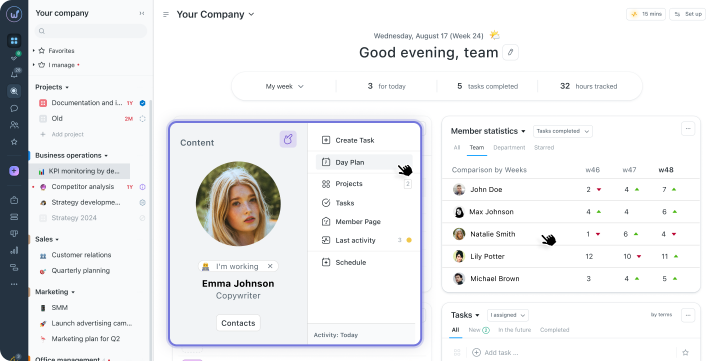
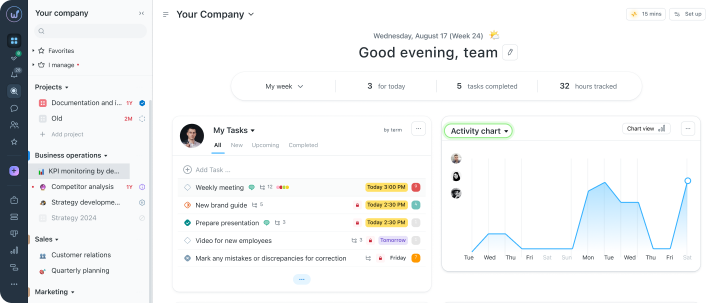
Event Feed and Activity Timeline
For those who like to see overall dynamics here and now. It shows every action in the system: new comments from colleagues, status updates, or completed tasks across all projects simultaneously. You can react to any changes or catch an important discussion without distracting the team from their work with yet another question in the messenger.
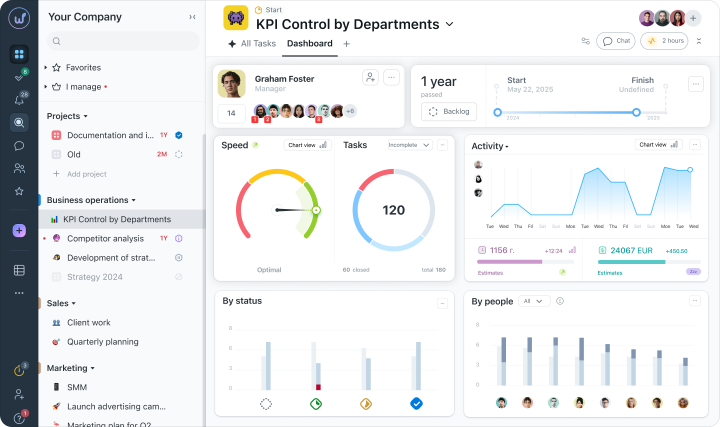
Overview of Each Project
If the general dashboard is not enough, you can always open the “Overview” of a specific project and break it down to details. There will be enough important and cool information here to see everything.
Project Timeline
This block helps compare planned and actual deadlines, predict completion dates, and highlight delays in advance. The system instantly signals the state of affairs with understandable statuses:
- All according to plan
- Risk of delay
- Deadline exceeded
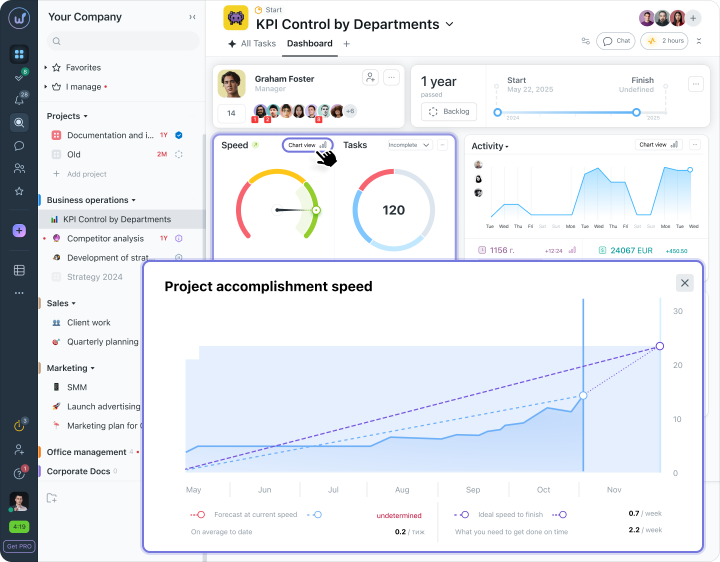
You see not only the current state but also trends. You anticipate delays before the client even asks about deadlines.
Financial Indicators
Money and time for the project are visible immediately. The system calculates the hours spent, multiplies them by the hourly rates of employees, and shows budget progress in percentages. You always see a clear comparison of the plan and the actual, so there will be no unpleasant surprises during final calculations at the end of the month.
People Analytics
This widget shows the contribution of each: how many tasks a person has closed, how many are still in progress, and how this looks compared to the previous week. It’s immediately visible who is driving the project and who needs help. It’s also easy to spot orphaned tasks here and assign performers straight from this window.
Project Activity Chart
The visualization of work over the last 7 days shows the actions of the team day by day. The system automatically highlights the top 3 most active participants of the week and highlights periods of highest productivity or stagnation. This helps to understand the real rhythm of the team based on clean data, not subjective feelings.
Task Table for Quick Work
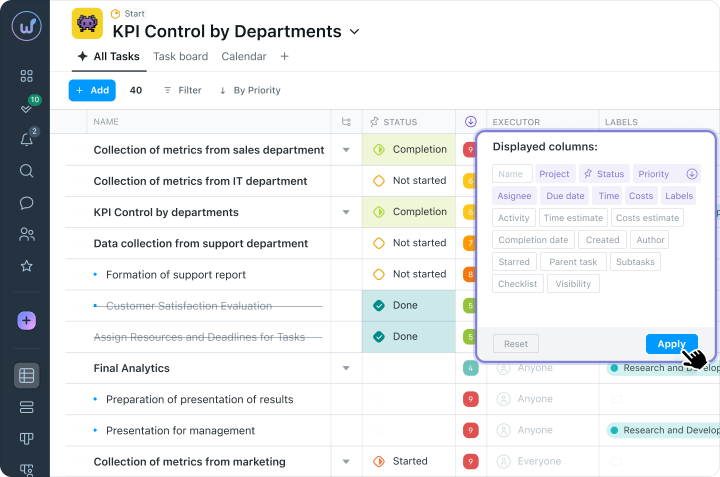
Let’s be honest, when tasks become too numerous, cards and boards start to overload the screen. In such moments, you just want to return to plain tables where everything is gathered compactly, line by line.
But why complicate life. The tabular view in Worksection 2.0 gives that feeling of clarity and speed. All your tasks are gathered in front of your eyes on one screen.
You no longer need to dig into each task to fix something. Moving a task to another colleague, updating the deadline, or changing priority can be done directly in the relevant cell. And with filtering, you can filter out the unnecessary.
Mass Management of Projects
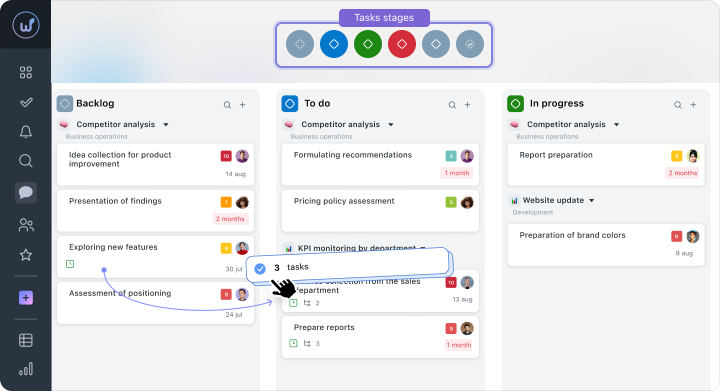
When a client suddenly changes the concept or priorities shift within the team, the manager usually finds themselves facing a disaster… Urgently rewriting deadlines, changing statuses, and reassigning people across several dozen tasks in a row. It’s easy to go off track for half a day if doing all this manually.
That’s why Worksection 2.0 includes a batch editing tool to solve such problems in just a few minutes. You simply select the necessary stack of tasks and update whatever is needed for them.
If tasks need to be distributed across other projects, they can simply be dragged to the desired folder. And for processes that repeat from month to month, you can copy ready-made task sets instead of writing the same steps from scratch every time.
Work Distribution in the Team
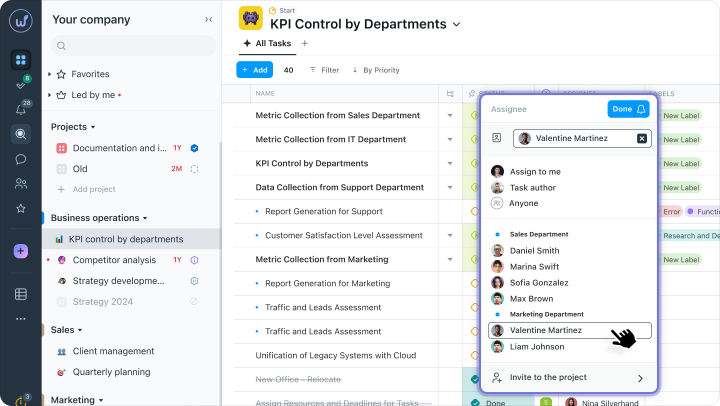
If you thought assigning a task is just writing a name in the “executor” field, then no, it’s better not to do that. It’s important to understand whether a person can actually take it on right now.
We at Worksection made this process high-quality. You can change the responsible party directly from the main dashboard or from the task table. When assigning, you see your colleague’s workload. They automatically receive a notification about the new assignment.
The history of changes in responsibilities is stored. And delegation can be done with a comment and context so that the person immediately understands what is expected of them.
Connections Between Tasks
Tasks in large projects are almost always dependent on one another. If one stage is delayed, all subsequent work comes to a halt: the developer waits for the designer’s mockups, and the client waits for the final result…
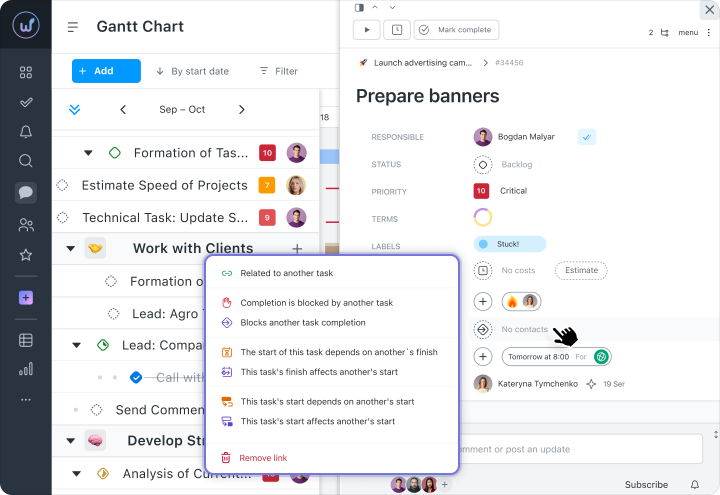
In Worksection 2.0, these dependencies are clearly visible on the Gantt chart. The system supports different types of relationships between tasks:
- Finish-Start – the next task starts only after the previous one is completed.
- Start-Start – tasks must start simultaneously.
- Blocks / Blocked – one task stops work on another.
- Related – a simple connection between tasks.
If the deadlines for a base task change, the system recalculates the schedule for the rest of the dependent tasks while maintaining the logic of the project. This helps notice critical points in time and direct the team’s efforts where they are needed for overall progress.
Information in Seconds with Search and Filters
When hundreds of tasks accumulate in the system, manually searching for a specific task takes too much time. And scrolling through lists and trying to remember folder names is not cool.
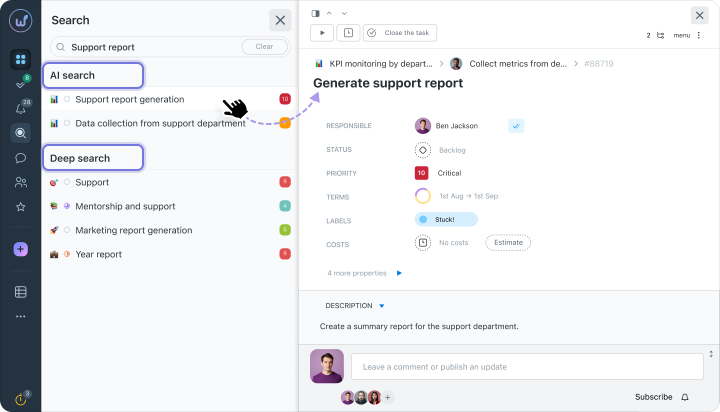
In Worksection, this process is automated with filters. You can sift tasks by status, performer, deadlines, or specific projects to get a clean list without information noise.
The search system works not only with task names but also searches inside comments, even if you don’t remember the exact wording of the phrase. Additionally, sets of filters you use daily can be saved in the system so you can return to them at any moment.
Saved Views
When every team member customizes the interface for themselves, there can be a desynchronization. The manager looks at people’s workloads, the developer looks at priorities, and the tester looks at verification statuses. Because of this, it can be difficult to quickly assess the overall state of affairs at meetings.
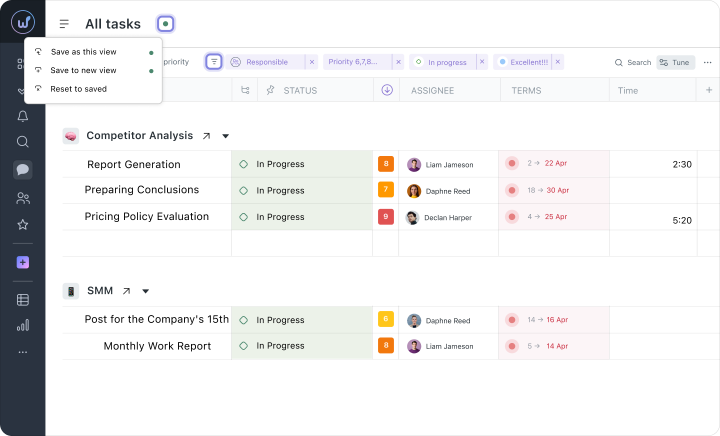
Saved views in Worksection 2.0 help everyone work together with full situational awareness. You can set up a combination of filters once, for example, to display overdue tasks in progress this week, and save it as a separate tab.
This view can be shared with colleagues. The team no longer has to manually gather necessary parameters before each call. Everyone opens the same window, sees the same data, and makes decisions about further steps faster.
Understanding Where to Start on the Day Plan
When an employee is involved in several projects simultaneously, tasks often accumulate in different folders. Because of this, it’s challenging to determine the order of work for the day and assess the actual workload.
The “Day Plan” function consolidates tasks onto one screen and lays them out by time directly in the calendar. The order of execution and priorities can be adjusted by dragging with the mouse or touchpad. This allows the team to evaluate in advance whether it is realistic to complete the entire workload within the work shift.
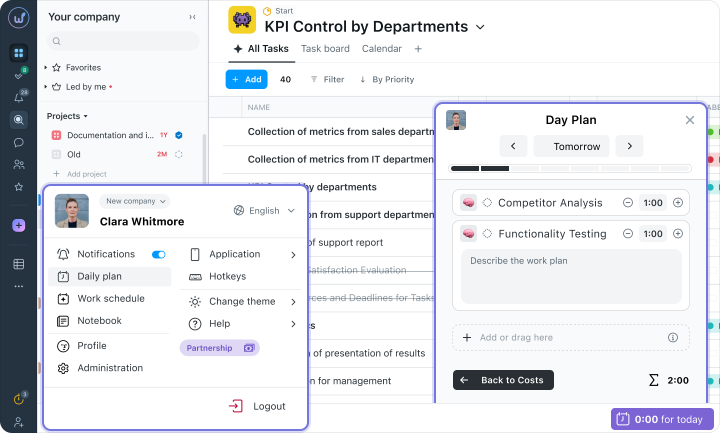
For the manager, this tool is useful because it allows you to open the day plan of any colleague. Before assigning a new task, you can see the current schedule of the person for today.
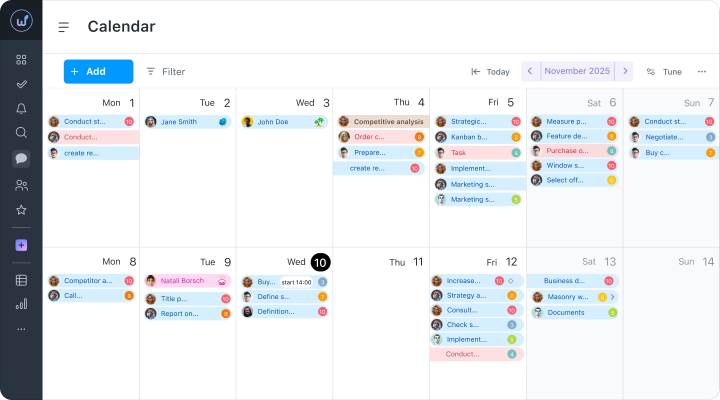
Additionally, the system can be integrated with Google Calendar or Outlook via iCalendar so that the work schedule is always up to date on all devices.
Chats – Where Tasks Are
Some details discussed in Telegram, the client approved changes there, the manager responded positively in personal messages, and the work seems to have been accepted. Meanwhile, the task continues to hang somewhere else without any updates. A week passes, someone opens the task, does everything according to the initial description, and in the end, the team receives something entirely different from what was agreed upon.
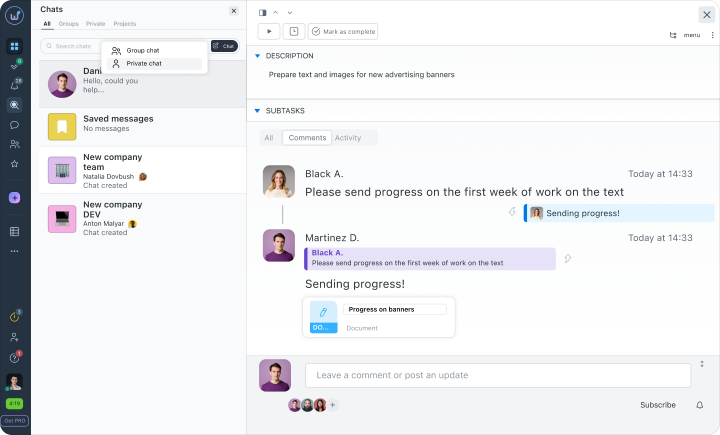
In Worksection 2.0, this won’t happen because all chats are directly linked to projects and specific tasks. You can discuss details directly in the task card, so the entire history of changes and context always remains visible to those who are doing the work.
In the interface, you can create personal, group, or project chats, and the system highlights new replies so the team doesn’t miss important updates. If you need to involve an external client in the discussion, there’s integration with email.
Staying Informed via Email Digest and Reports
One of the biggest time wasters for a manager is status meetings. You gather just to find out what’s going on.
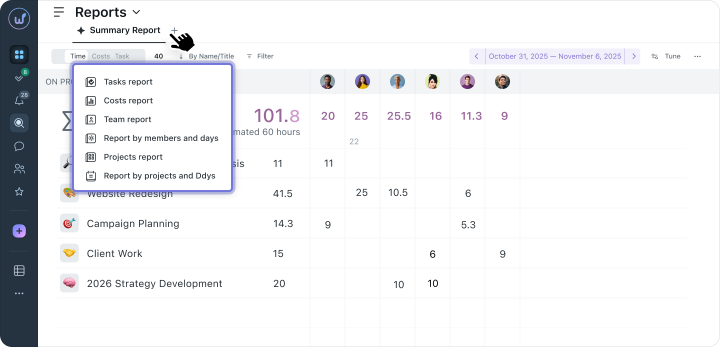
We believe this is unnecessary, so Worksection 2.0 sends structured summaries to email automatically: a daily email digest with summaries for projects and tasks, reports on people, projects, tasks, and time expenditures. Reports can be exported in PDF and CSV, filtered by period, project, or performer.
The team focuses on work rather than report preparation. And you receive the necessary information.
Deadline Reminders
Typically, deadlines are only remembered on the actual due date, or when the date in the calendar just goes unnoticed among a dozen other tasks. To prevent this from happening, managers constantly have to manually review lists and regularly ask the team what stage the work is at.
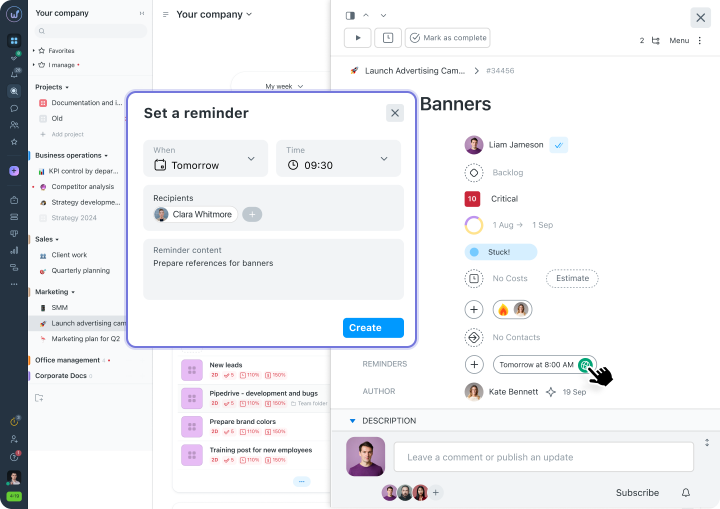
To avoid doing this manually – there’s Worksection 2.0 and its automated system that monitors deadlines and sends notifications if a due date is approaching.
Notifications come in advance, giving the performer time to calmly finish the work or warn about a possible postponement. You can customize these signals to your liking:
- receive push notifications within the system
- emails
- notifications in chat
Convenient Templates
Creating a new project and once again the same thing – creating a task structure, assigning responsibilities, setting deadlines. Every time from scratch.
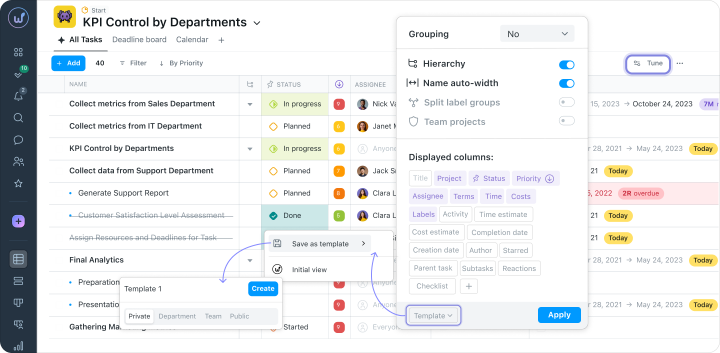
Why do that dozens of times if you can do it once? That’s what we thought too, which is why Worksection 2.0 has templates for typical projects – product launch, client onboarding, marketing campaigns.
Or you can create your own template with a full structure of tasks, responsible persons, and deadlines. Upon launch, dependencies between tasks are automatically configured, as well as support for Scrum, Kanban, and Waterfall is maintained.
Seeing What You Need Through Flexible Access
With the growth of the company and the inclusion of new people, access management becomes a security issue. In-house developers need technical details, managers need financial analytics, while freelancers or clients only need an overview of specific task progress. Granting everyone the same permissions in such a situation is inconvenient and risky.
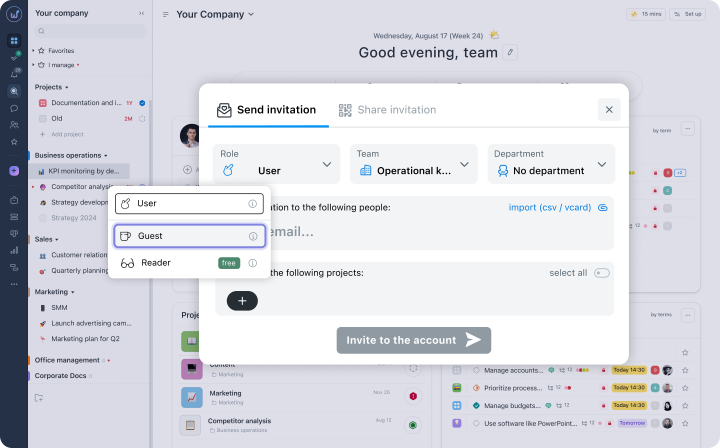
In Worksection 2.0, there is a flexible system of roles and permissions:
- account admin
- team admin
- user
- guest
Project administrators can make decisions independently within their authority. Visibility of financial data and access to confidential projects are set separately. There’s a change log to always keep track of who did what.
How to Kickstart Your Team’s Work?
- Audit of the Current Situation. Compile a list of platforms, messengers, or notebooks where you currently record work. Identify the three main problems in process organization that need to be addressed first.
- Basic Project Structure. Create the first folders or projects in the system by type of work or key clients. Set understandable statuses for the team.
- Dashboard Setup. Add the necessary widgets on the main page and remove the unnecessary ones. The workspace should show the overall picture and current priorities right on the screen.
- Create the First Tasks. Transfer current tasks into the created projects. Use the tabular view to quickly set deadlines, assign responsibilities, and sort work by priority.
- Communication in Context of Tasks. Agree with the team to discuss work details in project chats, rather than in personal messages on Telegram. Leave comments directly in task cards and use tags via @ so the person immediately sees the address.
- Role Distribution. Invite the team into the system and set access levels. Assign project administrators who can independently manage their areas, freeing up your time.
Simple Logic of a Unified Space
Constant deadlines mishaps and tasks falling through the cracks are almost always a story about an inconvenient tool, rather than irresponsibility of people. It’s hard to show impressive results when half the day has to be spent finding the right link from work chats, asking a colleague in another messenger, and verifying the final version on the fifth tab of the browser. Both people and the company’s budget get exhausted.
It’s much easier to work when all information is gathered in a single window of Worksection 2.0. Tasks, files, comments, and analytics are recorded in one space, so each performer immediately sees their piece of work. The manager gets a complete picture of the project, while the team can calmly proceed to work instead of undergoing lengthy information searches.
It’s time to try a fast approach to work, and it’s easier to manage time in Worksection 2.0!
Frequently Asked Questions (FAQ)
Can existing tasks be transferred from Excel?
Yes. Worksection supports importing tasks from CSV files. You export data from Excel, prepare a CSV with the necessary fields and import it into Worksection.
How quickly will the team adapt?
Based on our experience, 1 – 2 weeks. The first three days are for getting familiar with the interface. The first week is for actively using the main features. The second week is for complete switching and team customization.
Is it suitable for a large team?
Yes, Worksection 2.0 is created with scaling in mind: an extended structure with departments and teams, flexible roles and access rights, filters and saved views for working with a large number of tasks.
What if someone on the team doesn’t want to transition?
Resistance to change is normal. Show the specific benefits for the daily work of each. Start with one project and scale gradually. Involve those who adapt quickly to help others. Support via email and chat is available from the Basic plan, personal manager – from the Business plan.
Is there a mobile app?
Yes, Worksection 2.0 is available on iOS and Android.