What a familiar picture: the deadline is approaching, the file definitely exists, but you can’t remember where exactly. Maybe in Slack, maybe in the email, maybe someone uploaded it to Google Drive two weeks ago. You open everything in a row, write to a colleague, and so you waste another half hour.
We have been in such situations too. That’s why in Worksection 2.0, files are not kept separate from tasks. They are stored where they are worked on – together with discussions, changes, and statuses.
Why do files get lost and how does Worksection 2.0 fix this?
The problem usually isn’t that the file has disappeared. It exists, just scattered across tools that don’t know about each other. Slack doesn’t know about Drive, Drive doesn’t know about the task manager, and the task manager doesn’t know about email.
In Worksection, the file is immediately linked to the task it relates to. There’s no need to remember the location because it’s enough to open the relevant card.
There are many problems, so we suggest examining each one carefully and proposing a solution:
Files are often scattered across different tools
In most teams, some files are in Slack, some in Google Drive, some in email, and some in corporate chat. No one specifically planned it this way, but this is how it turned out. And every time a specific document is needed, it starts: in which service was it sent, who and when, is this even the latest version? And the more projects and people in the team – the more time is wasted on these clarifications instead of working.
In Worksection, the file will not be separate from the task because it is already part of it. You open the relevant one, read the description, comments, attached documents, and change history. The file can easily be dragged into the task or from the clipboard thanks to Drag & Drop attachments, and integration with Google Drive (on the Business+ plan) will not require duplication and unnecessary saving.
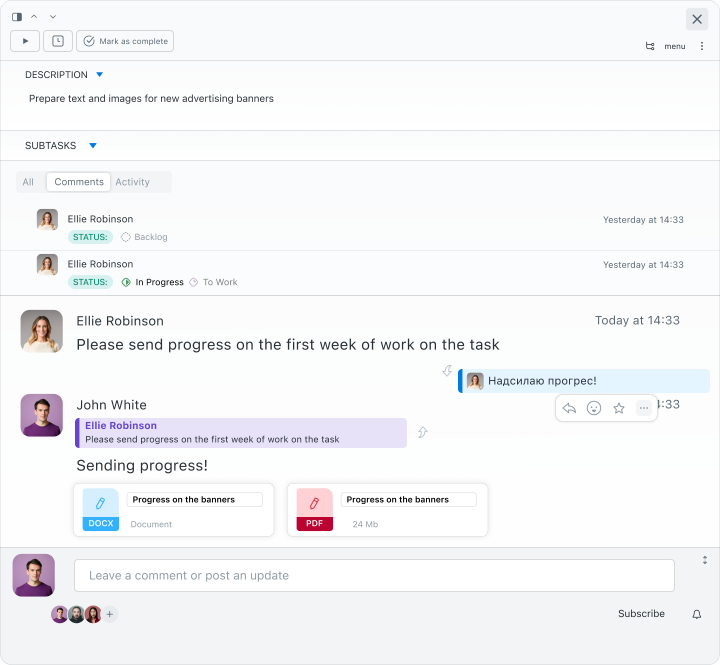
What if it’s unclear which version of the file is current?
There is also this problem when a folder with a presentation after several rounds of edits may look like this:
Client Presentation V1.pptx
Client Presentation V2 Final.pptx
Client Presentation v2 final FINAL.pptx
Client Presentation REALLY LAST.pptx
At some point, it no longer matters what the file is called – you have to ask again anyway. And it’s nice if someone remembers, but what if not? Sometimes the client is sent the wrong version, and it’s hard to blame it just on negligence. However, this is more reminiscent of a lack of a system.
In Worksection 2.0, there’s no need to rename files and agree on a final version. Each update is simply added on top of the previous one, and all history is kept automatically: who made changes and when, what changed, and the ability to revert to any previous version is very simple. The current version is immediately visible in the task card.
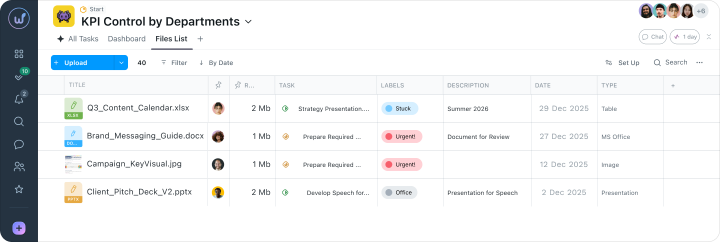
There are days when it’s hard to find a file…
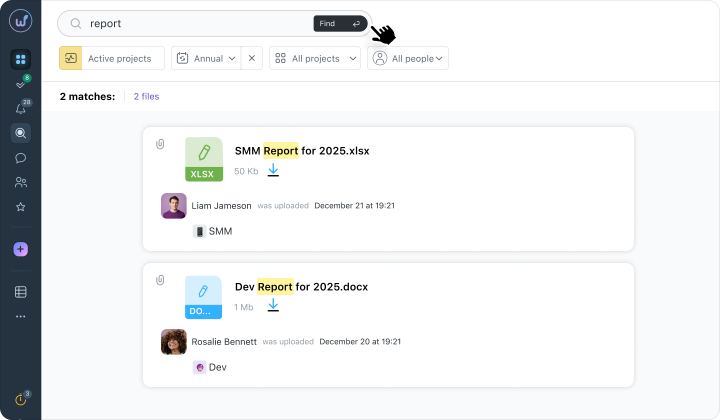
Even when everyone knows that the document exists somewhere, finding it is another matter. Searching in messengers often doesn’t find attachments. In Drive, folders lack structure. In email, the file is lost in a long chain. A new team member doesn’t understand where to start at all. As a result, files are duplicated just because it’s faster to create them again, and the team risks working with outdated information and doesn’t understand to which task this document belongs and why it is needed at all.
Worksection 2.0 has a built-in file search. You don’t need to remember the service or the exact name – just part of the word, the name of the participant who uploaded the file, or even the status of the task it is linked to.
On the Business+ plan, the AI search finds documents based on the context of tasks and projects even if you don’t remember what they are called.
Plus, there’s filtering by type: only images, only spreadsheets, only documents, so you don’t need to scroll through unnecessary ones.
It’s hard to track who worked with the file
In teamwork, files constantly go through replacements, edits, and updates. And a week goes by, and you need to figure out who made changes, whether it’s a client version or an internal one, and whether it can be reverted to how it was. At this point, it’s tough, and the only option is to write in the chat and wait or try to recall events from memory.
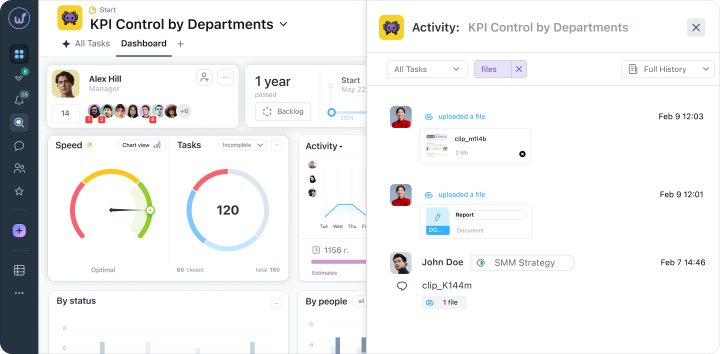
In Worksection, all of this is immediately visible in the change log:
- Who, when, and what was done with the file – uploaded, updated the version, replaced the document.
- The entire history is displayed right in the task, next to discussions and statuses, so a new team member can open the card and immediately understand the context.
- Access is also adjustable: you can determine who sees the files and what they can do with them.
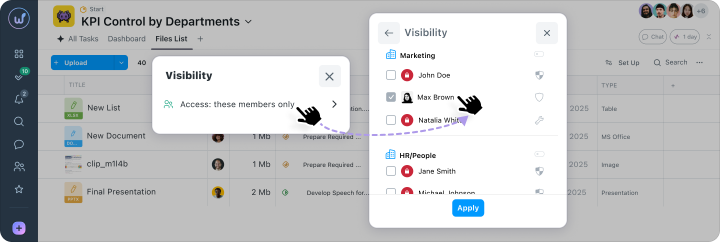
How does file management work in Worksection 2.0?
In daily file work, everything boils down to a few simple actions: add a document, quickly check if it’s what you need, update the version, or pass materials further.
In Worksection, this takes even less time and requires no additional tools.
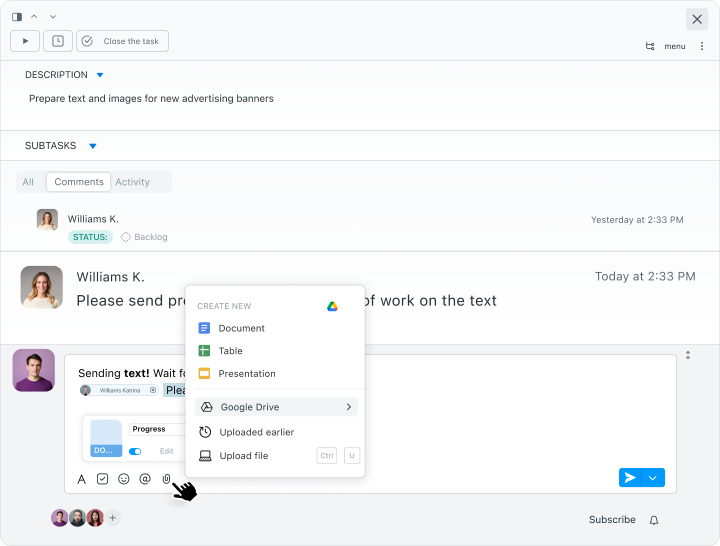
Add a file directly to the task: drag it with the mouse, paste a screenshot through Ctrl+V, or select it from your computer or Google Drive. The entire team sees it immediately in the card.
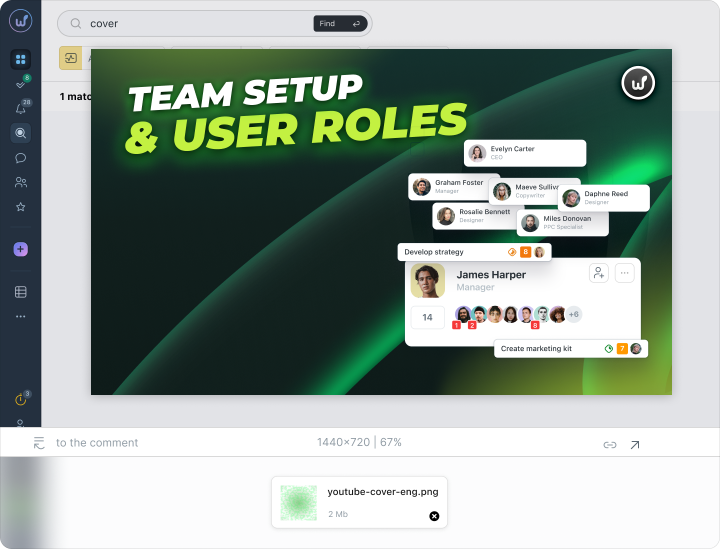
View can also be done without separate downloading. Images, PDFs, and spreadsheets open right in the interface.
When a file is updated – the new version is simply added to the existing one. There’s no need to create a separate copy with a new name. Here you can see who uploaded it and when, revert to a previous version, and leave a comment.
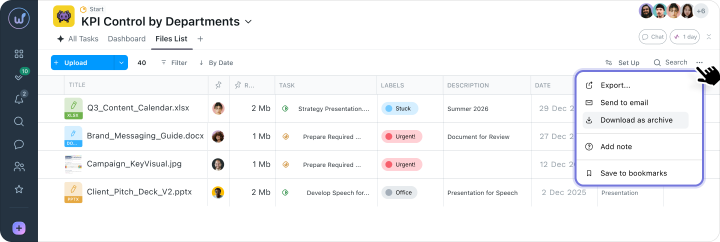
If you need to send all materials to a client or colleague, you won’t have to gather files manually. Everything can be uploaded in one archive, and the structure will also be preserved.
All information will be in the task and to understand the status of a specific task, you no longer need to open five tabs. Everything is already there – description, files with versions, comments, change history, time spent, and checklists. One place instead of five.
What is the difference between Worksection 2.0 and alternatives?
There are many tools for working with files. The question isn’t whether there’s a place to store them, but whether they are easy to find, understand, and not get confused with versions. Therefore, comparisons can always be made. We gathered popular platforms and drew parallels with Worksection.
Google Drive + chats are convenient for storage, but the file is separated from the task. To understand what it is for, who worked on it, and which version is current – one has to switch between services and piece together the picture. Versions are controlled manually, there is no single change history, and the search operates separately in each service.
Asana allows you to attach files to tasks, and that’s already better. But versioning is limited and not always obvious, the current version has to be checked manually, searching is mostly by name, and it takes time to adapt to the structure.
In Worksection, the file, task, discussion, and all change history remain together. Versioning is automatic: it shows who made changes and when. The search works by name, author, file type, and on Business+ also by context of tasks and projects. There’s no need to switch between tools, clarify versions in chats, or adapt to others’ folder structures.
We believe that a file outside the context of a task is just a file. While a file inside a task, with change history and discussion nearby, is already part of the work. This is the difference we aimed to make palpable in Worksection 2.0.
What changes for the team?
Executives no longer start their day by searching. There’s no need to remember in which chat the file was and who sent it. Just open the task, and you see everything you need for work right away. Less need for clarification, less switching, more time for the task itself.
Managers stop gathering status manually. Who updated the file, when, and what changed because all of this is already in the task. There’s no need to write in the chat and wait for a reply – the work status is clear just by looking at the actions within it.
Clients gain access to materials without additional back-and-forth. There’s no need to ask for the current version, as they can immediately see the necessary files and understand at which stage the work is. Fewer questions from both sides – accordingly, you move faster to results.
In the end
Files stop being a headache in the morning and fall out of the process. On the contrary – everything becomes one whole together with tasks, discussions, and solutions. No more time wasted on searching or clarifying because in Worksection 2.0 everything is visible as conveniently as you need it.
Try Worksection 2.0 and see how work changes when there is nothing unnecessary.