Solutions
worksection
beta
help
How to change the time frame of a task?
The time frames can be changed in the detailed view of a task, on the page with the list of all the tasks, in the calendar, and in the Gantt chart. Time frames can be changed by the administrators with the Tasks permissions, project managers, and authors of the task.
The executive cannot change the time frames of a task.
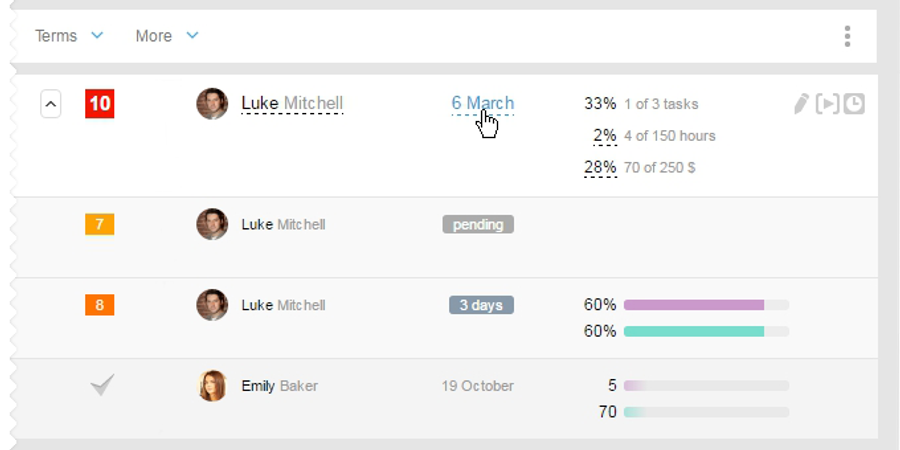
There you will see a window for "New date of completion/ Deadline" right in the calendar.
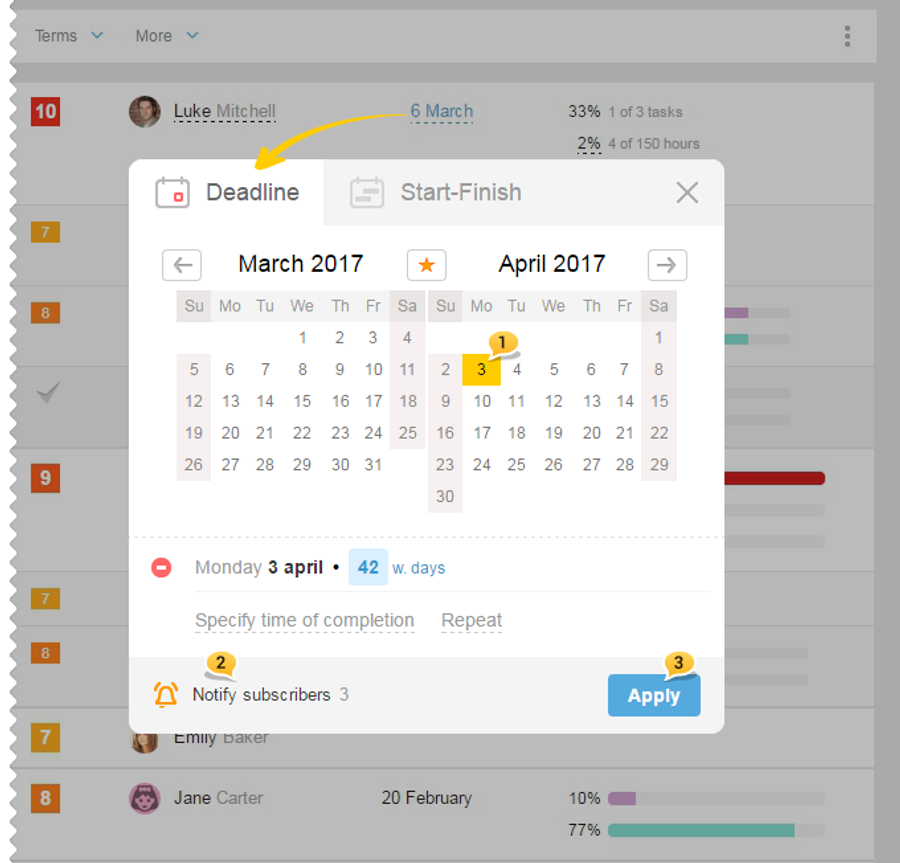
You set a new date1, choose whether to notify subscribers about this change or not2 and click "Apply"3. The date will be changed.
Two types: Deadline and Start-Finish
For tasks with no start date but with a set date of completion, that completion date is called Deadline1. For the tasks with the start and finish date, there's a neighboring Start-Finish2 tab.
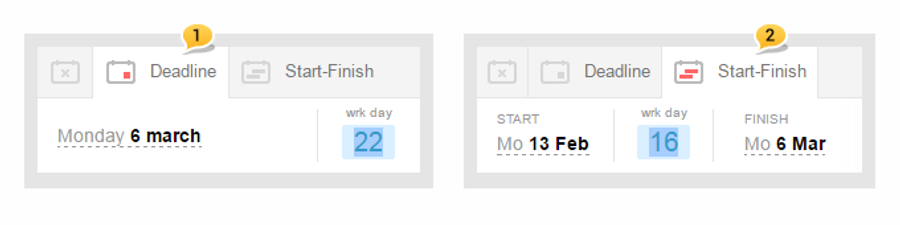
For example: if you just need a task to be completed by Monday, March 6th, and it does not matter when to start the task, then use Deadline 1 (one date). If the work on a task needs to be started on Monday, February 13th , and finished in 16 work days by Monday, March 6th, — then use the Start-Finish2 option (two dates).
Everthing on how to set dates:
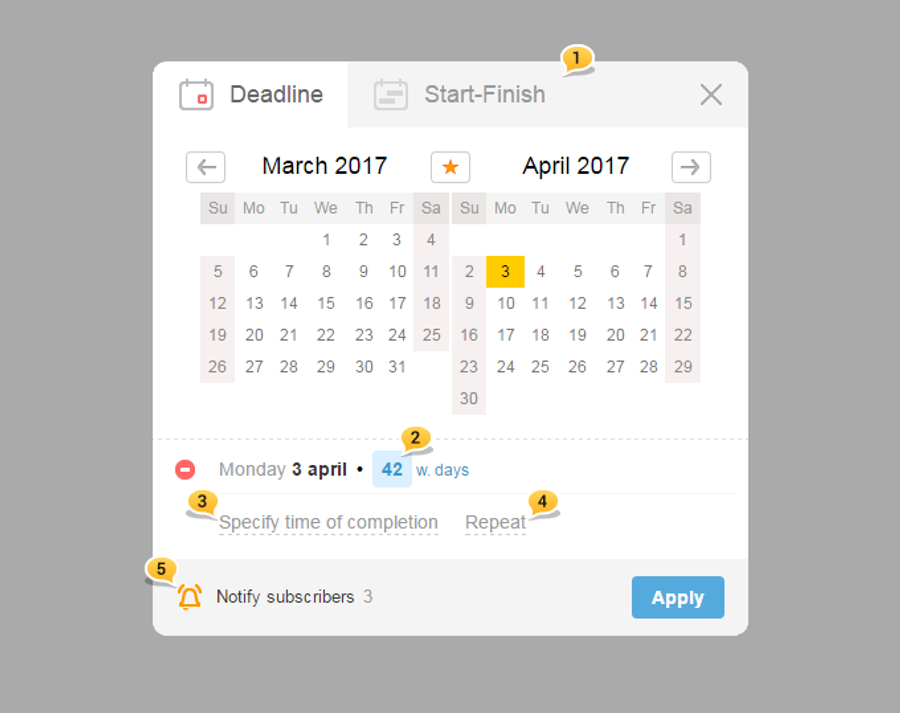
1 — You can switch between the Deadline / Start-Finish tabs on the fly
2 — new Field for entering the number of days.
For example, you know that the task needs to be completed in 15 days, then just enter the number, and the system will automatically choose the corresponding date. Definitely, you can indicate the required date by clicking on the calendar: in this case, the system will provide a prompt on the number of days left until the indicated date.
For example, you know that the task needs to be completed in 15 days, then just enter the number, and the system will automatically choose the corresponding date. Definitely, you can indicate the required date by clicking on the calendar: in this case, the system will provide a prompt on the number of days left until the indicated date.
3 — new Option to indicate the exact time of task completion (step 15 minutes)
4 — new Settings for repetitions are located here
5 — Two-position switch - Notify / Do not notify - subscribers that you've changed the dates
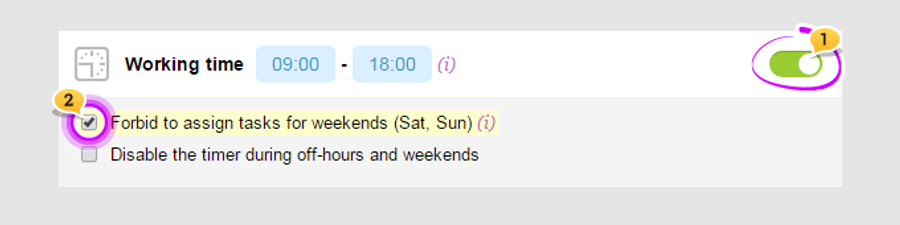
Please note: the format of entering the dates can be both in the calendar and in business days. It depends on whether it is allowed or not allowed to create tasks on weekends in the System settings ⌘alt+A in the Working time block. Before you activate it 1 and mark "forbid to assign tasks for weekends"2, the calculation of tasks' duration will be done in calendar days.
advice
There is an option in the system to set tasks with the exact time of completion. For such tasks, you can enable an additional notification in the completion date. This can be done in your Profile ⌘alt+M in the Notifications block:
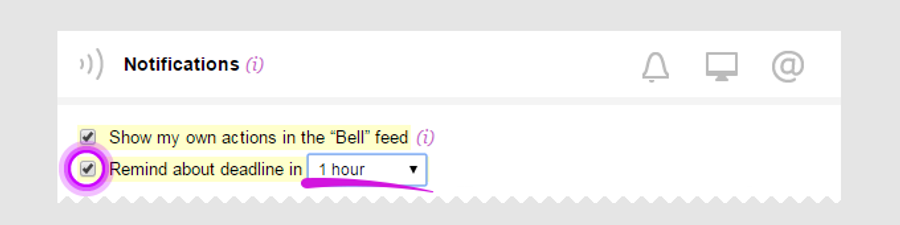
For example, a certain task needs to be completed by 2 pm, and if you activate the "Additionally remind about time in 1 hour" option, then your bell will ring twice: beforehand at 1 pm and right on time at 2 pm. If this option is disabled, the bell will ring only at 2 pm. Such "bells" are sent to your email but they can also be received as push-notifications on your smartphone.
Leave your review
Did this article help you?
Glad we could help! What was helpful?
Sorry this didn't help. What went wrong?

