Solutions
worksection
beta
help
How to edit a task? What other actions can be performed with a task?
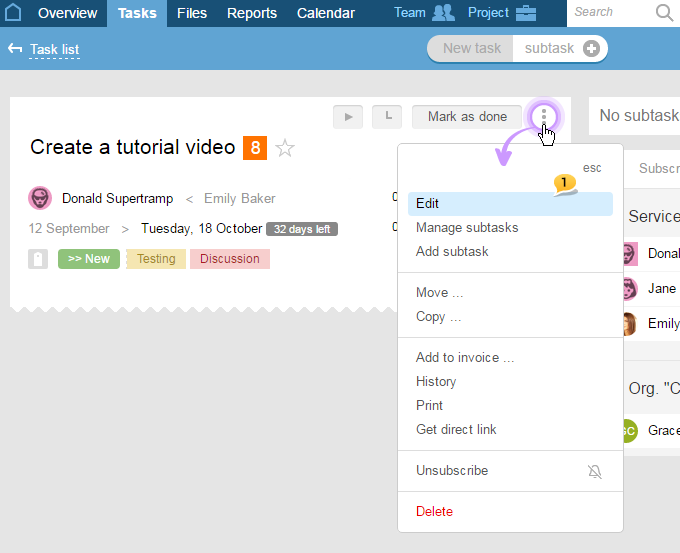
In order to edit a task, go to the task and click on the "three dots" context menu and choose the "Edit" option1:
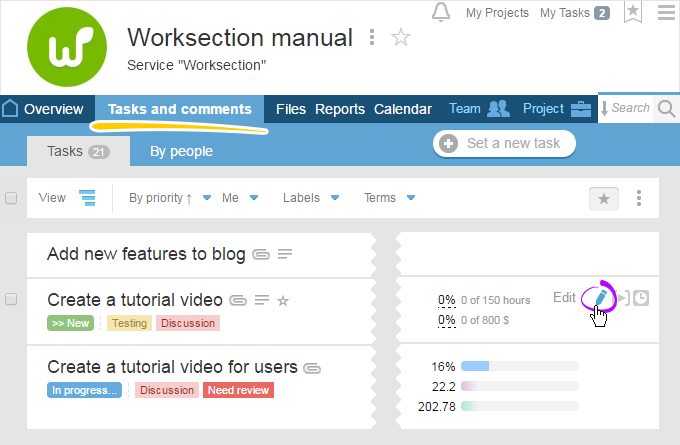
If you are in the Tasks or Tasks and comments section, hover over the task with your cursor. In the right upper corner, you will see the "Edit" option.
After these actions have been performed, the task is open for editing. Here you can:
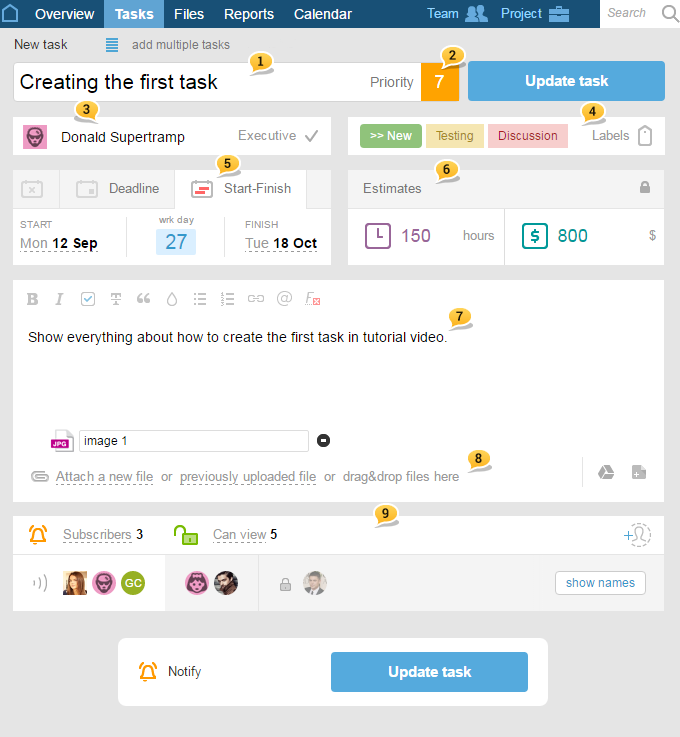
1 Change the name
2 Change the priority
3 Set a different executive
4 Add/ delete labels and status
5 Change dates
6 Edit estimates
7 Change the description of the task
8 Attach files
9 Change the list of subscribers as well as the list of people who can see the task
In the task's menu, there are other actions for the task as well, namely:
- Add subtask — add a subtask to a current task;
- Transfer — transfer a task to a different project, or (also here) transform a task to a subtask;
- Copy— copy a task to a different project;
- History — show the history of the events by the task;
- Print — print the task;
- Get the link — get the link for the chosen task;
- Unsubscribe — unsubscribe from the selected task;
- Delete — delete a task with all the subtasks.
In the next questions of this section, you can find more detailed actions that can be performed with a task.
The task can be edited by the task's author, project manager, and Administrator with the "tasks" permissions.
Leave your review
Did this article help you?
Glad we could help! What was helpful?
Sorry this didn't help. What went wrong?

