Solutions
worksection
beta
help
How do I create a custom field for tasks?
Permissions Custom fields can be created by:
- Account owner
- Account administrator with the "Access to account settings" permission
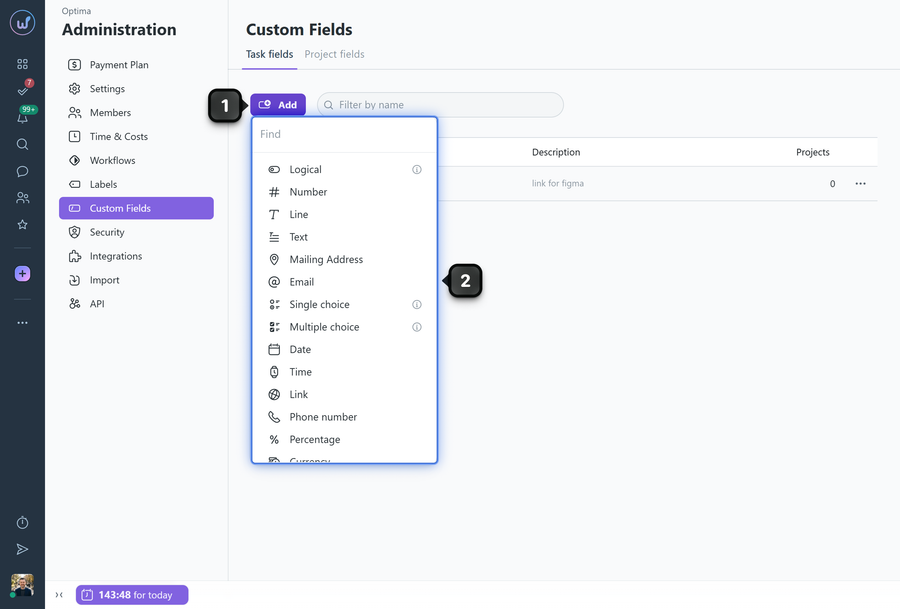
To create a custom field for tasks, go to Administration → "Custom fields". On the "Task fields" tab, click "Add"1 and select the required field type2:
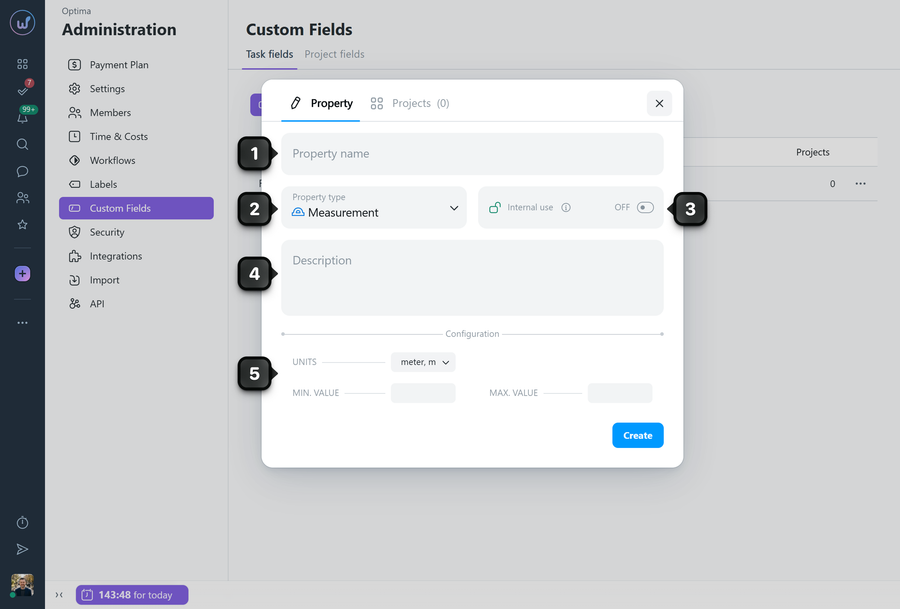
In the window that opens, configure the field parameters:
1 Property name - required field;
2 Property type - can be changed if you selected the wrong type;
3 Internal use - when enabled, the field will only be visible to participants of the "My team" type. The field will be hidden from client teams;
4 Description - additional information about the purpose of the field. It will be displayed in Administration and as a tooltip on the Table view page;
5 Configuration - settings that depend on the field type.
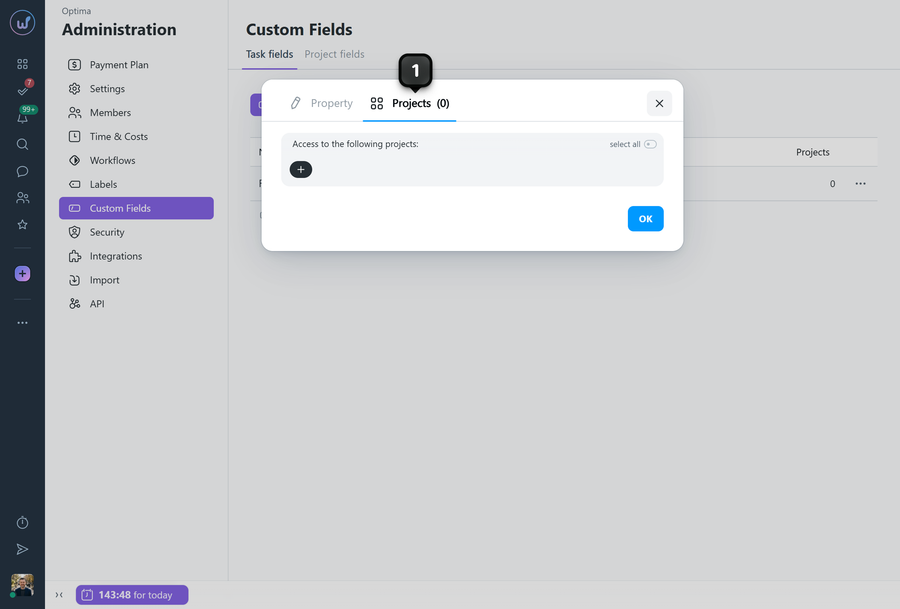
On the "Projects" tab1, select which projects' tasks this field will apply to.
Click "Create" - the field will be added.
Note! A custom field for tasks can also be created directly from the task window using the "Add property" button.
Leave your review
Did this article help you?
Glad we could help! What was helpful?
Sorry this didn't help. What went wrong?

