Solutions
worksection
beta
help
Transferring data from one Worksection account to another
In Worksection you can transfer data from one account to another on your own.
Permissions Only the account Owner can create access keys.
To do this, you first need to create an access key in the account you want to transfer data from, and then use it in the account where the data should appear.
Creating an access key in Worksection
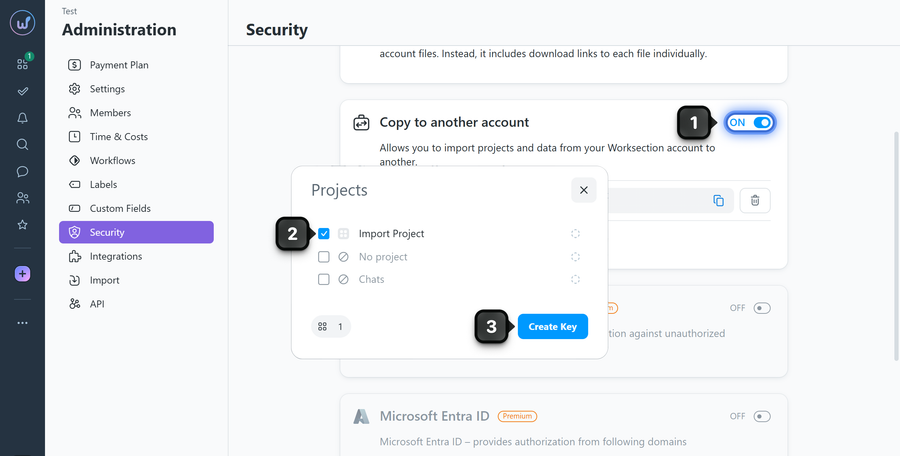
Go to Administration > Security, and in the "Copy to another account" block, enable the corresponding toggle1. In the window that appears, select the projects2 you want to transfer to another account and click "Create key"3. Multiple keys can be created.
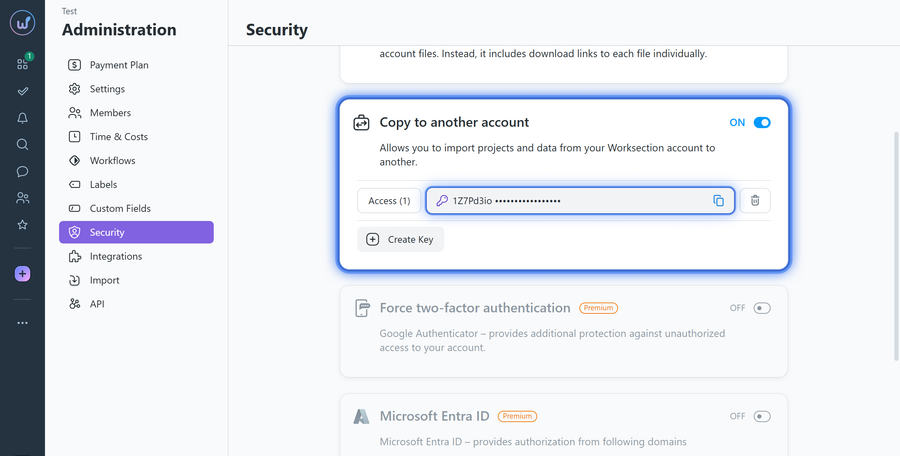
The created key will appear at the bottom of the list. To copy it, click on the indicated field:
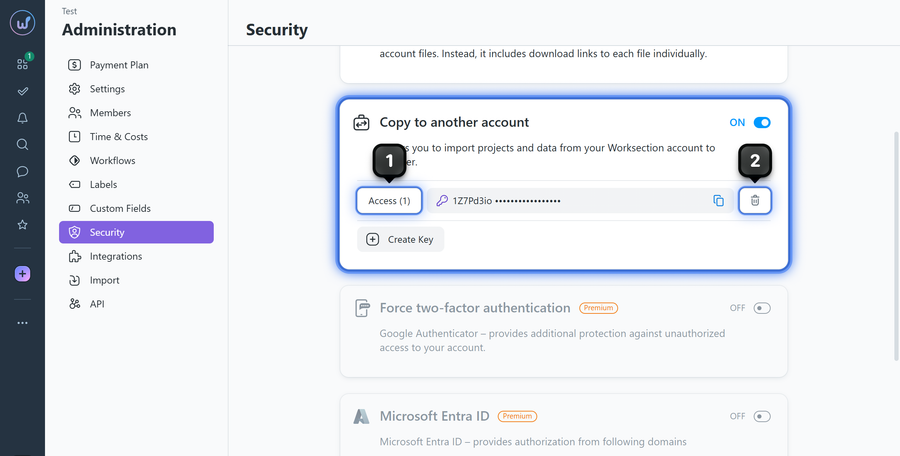
Note If needed, for any key you can change the list of projects available for import1, and once the data import is complete, the key can be deleted2.
Importing data to another Worksection account
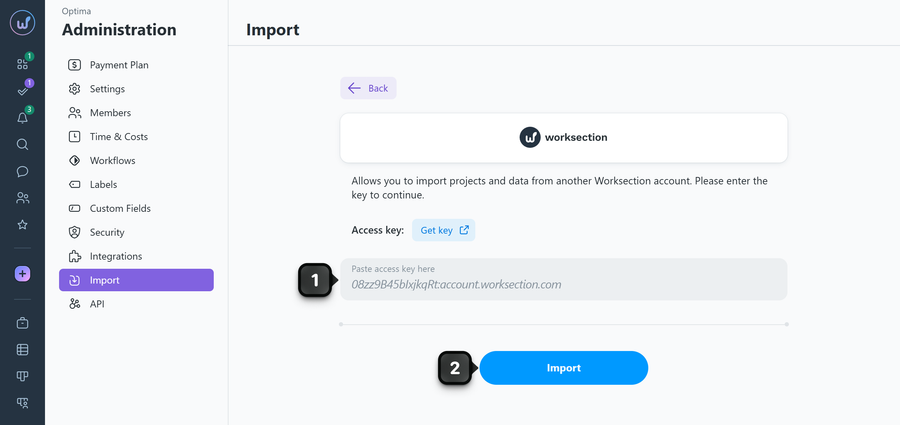
In the account where you want to transfer the data, go to Administration > Import, click on the Worksection tile, paste the key into the "Access key" field1, and click "Import"2.
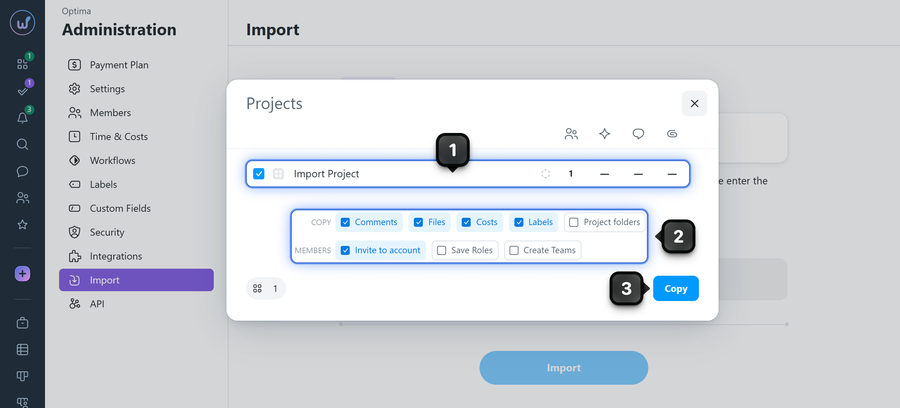
Select the required projects1 and options2, then confirm the copy3.
Tip
Click on a folder name to select all projects within it.
Import options
- Comments — imports public and private project comments.
- Files — imports public and private project files. If files are stored on FTP, Google Drive, or added via the "Previously uploaded" feature, the links to such files are replaced with physical files.
- Costs — imports time and financial costs along with their descriptions.
- Labels — imports task labels and statuses.
- Project folders — creates the same folders that the projects were in within the other account. If disabled, projects are imported into the first folder of your account.
- Invite to account — sends invitations to project members. If disabled, they are added to Contacts.
- Save roles — preserves the role and permission set assigned to each member. If disabled, members are assigned the User role.
- Create teams — creates teams and departments that members belonged to in the other account. If disabled, members are added to the main team.
Please note! The following data is not transferred:
- project statuses and color labels;
- project history;
- contacts whose cards are mentioned in projects;
- pinned image state;
- status assignees;
- status links (the "next status" feature);
- member work schedules.
Leave your review
Did this article help you?
Glad we could help! What was helpful?
Sorry this didn't help. What went wrong?

