Solutions
worksection
beta
help
Timer and time tracking in tasks
You can record the time spent on a task in two ways: run a timer while you work, or add costs manually. Both create cost entries in the task, and reports are built from them.
Please note! The timer works if time tracking and the timer are enabled in the account. To enable them, see Time tracking and Timer.
How to start the timer
Open a task and click "Start timer"1.
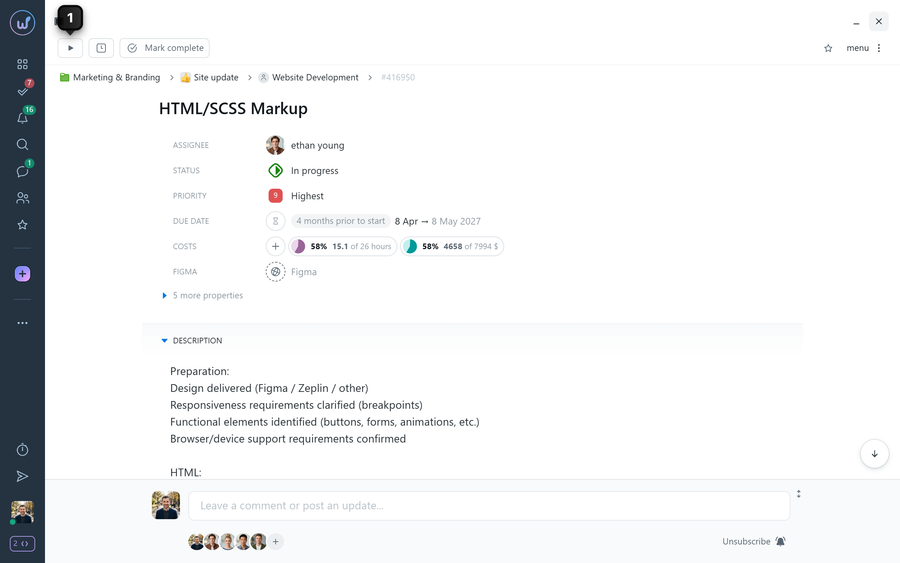
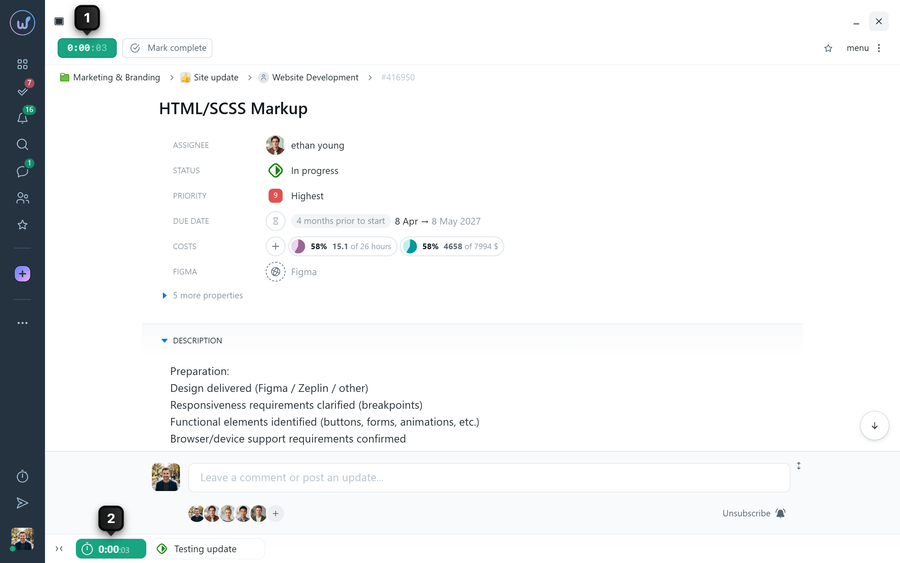
The timer starts, and a green bar with the time1 replaces the button. The same bar appears in the tray2: it stays there even if you go to another section or reload the page.
How to stop the timer
Click the green bar with the time, in the task header or in the tray. The Costs / Day plan window opens with the timer card. If needed, describe what you are working on1, then click "Stop and Save"2.
If you started the timer by mistake, click the trash icon3, "Delete permanently". The timer stops, and no entry is created.
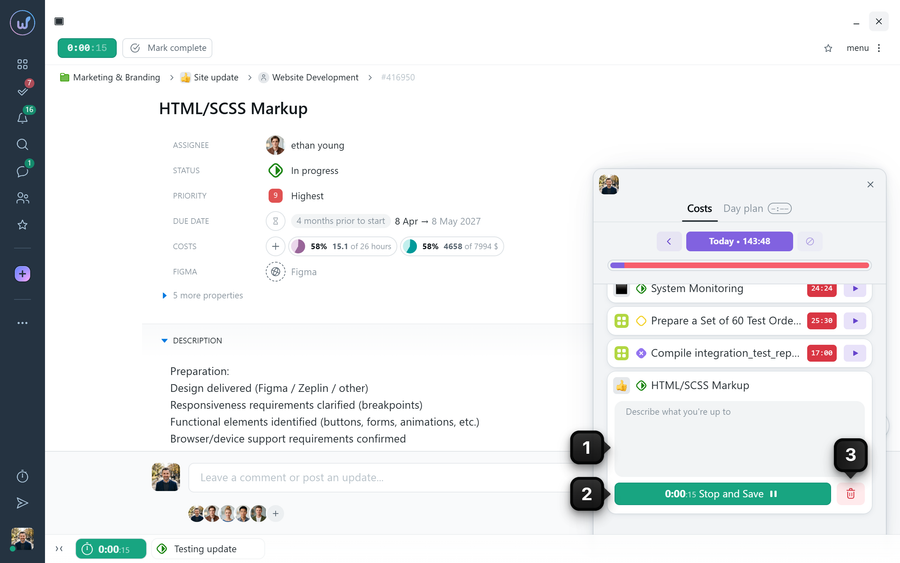
Please note! If you start the timer again in the same task on the same day, the time is added to the entry already saved instead of creating a new one. In this case there is no "Delete permanently" trash icon, only "Stop and Save".
Where to see the time tracked by the timer
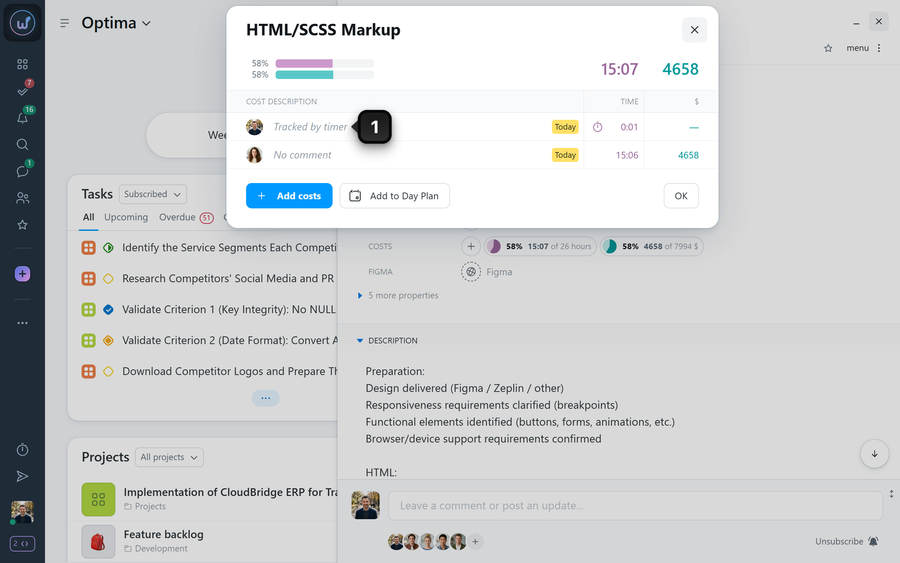
After you stop the timer, the time is added to the task costs. To see the entry, click the time indicator1 in the "Costs" row of the task.
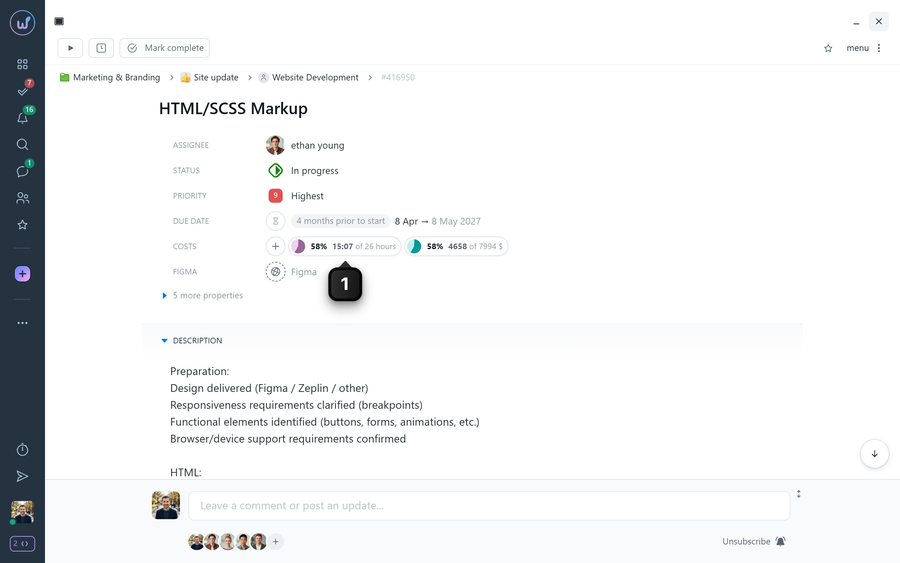
The task costs window opens. The timer entry is marked "Tracked by timer" with a stopwatch icon1.
How to edit or delete a cost entry
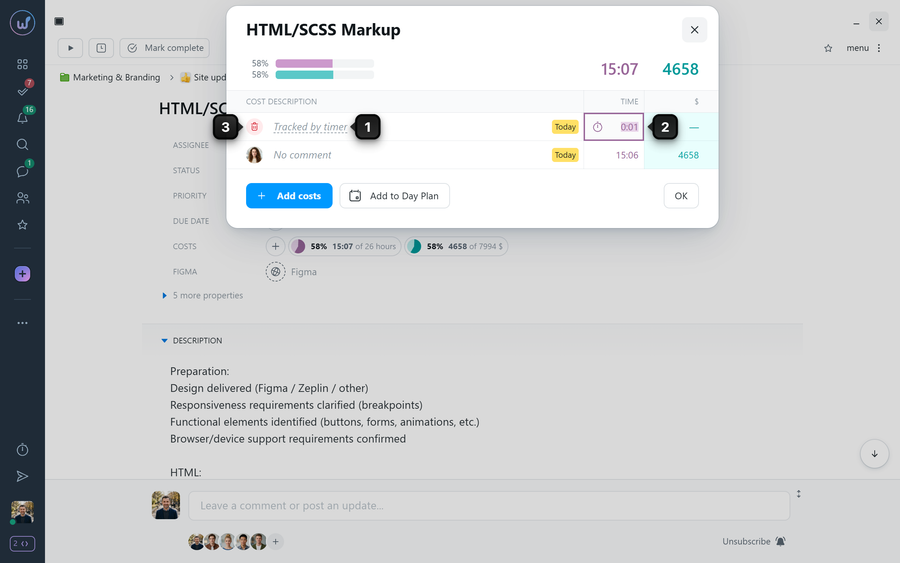
In the same costs window, you can edit or delete any entry, both from the timer and added manually:
- to change the comment, click it1 and type the new text;
- to change the time, click it2 and enter the new value;
- to delete the entry, click the trash icon3, then "Delete".
Anyone who adds costs can edit and delete their own entries.
Permissions Other members' entries can be edited and deleted by:
- Account owner
- Account administrator with the "Allow admin full access to time and finances" permission
- Team administrator with the "Manage all costs and timers" permission, for entries of their team members
- Department administrator with the "Manage all costs and timers" permission, for entries of their department members
Can I run two timers at once
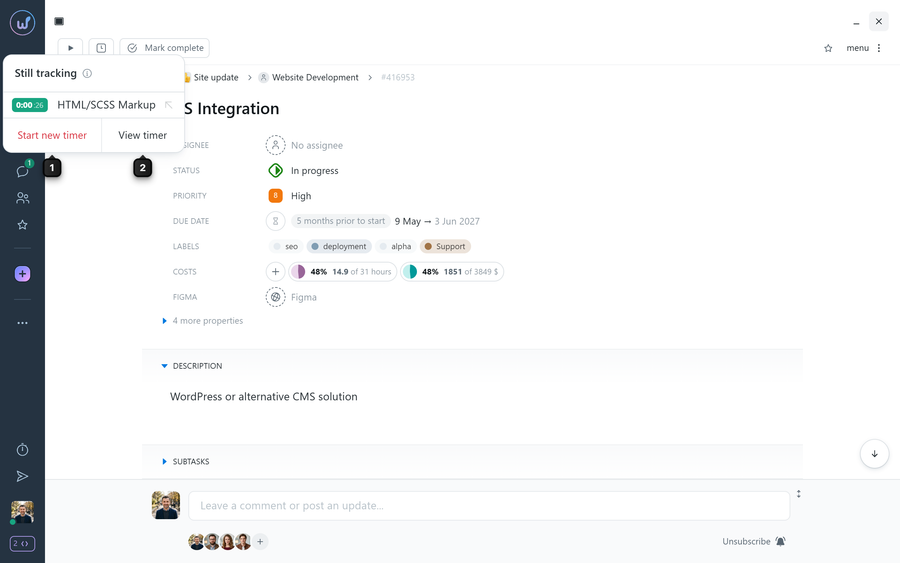
No. Only one timer can run at a time. If you start a timer in another task, the "Still tracking" window appears with the task where the timer is already running:
- "Start new timer"1: the current timer stops and saves the time, and a new timer starts in the new task;
- "View timer"2: go to the timer that is already running.
How to add costs manually
If you forgot to start the timer, add the time manually. In the task, click "Add to costs"1, enter the time2, add a comment if needed3, and click "Add costs"4. For details, see How to manually log time and financial costs in a task?
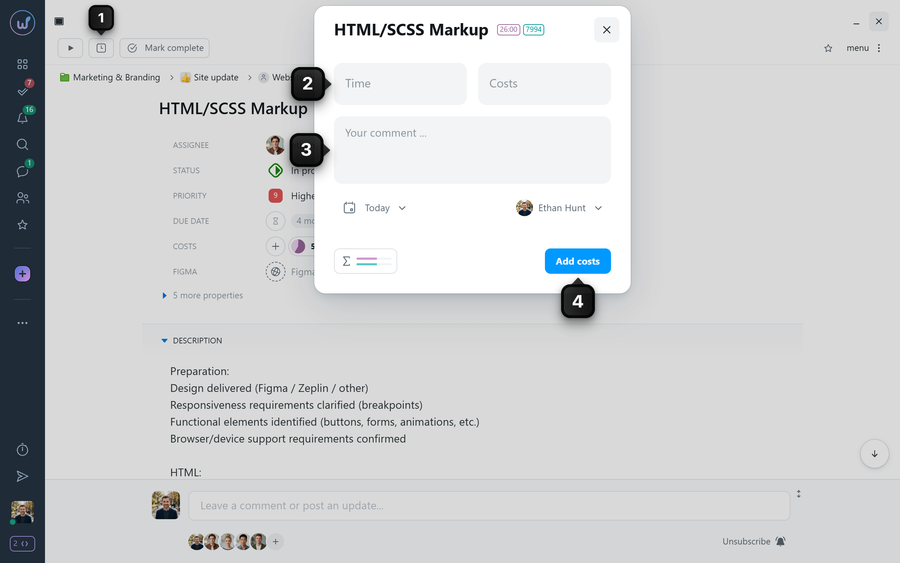
Please note! The digits you type in the "Time" field go to hours first. To enter 1 h 30 min, type "1", press the right arrow key (or click the minutes) and type "30". If there are no minutes, just type the hours: "2" means 2:00.
You can restrict how costs are added in a project (for example, allow time only from the timer or only for the current day) in the project settings. See How do I configure permissions and restrictions in a project?
How to see and stop other members' timers
Permissions Other members' timers can be seen and stopped by:
- Account owner
- Account administrator with the "Allow admin full access to time and finances" permission
- Team administrator with the "Manage all costs and timers" permission, for timers of their team members
- Department administrator with the "Manage all costs and timers" permission, for timers of their department members
Members with the "User" role do not see other members' timers.
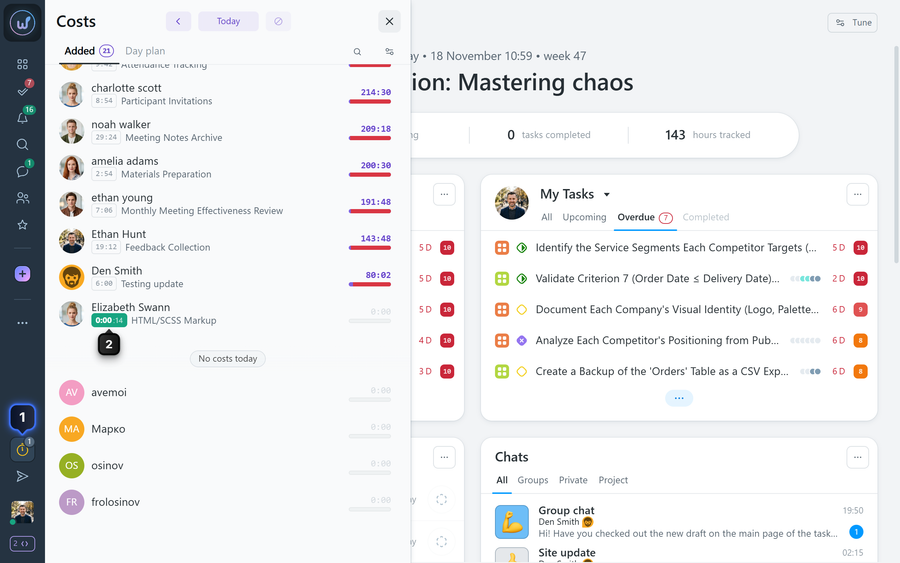
When someone has a timer running, a counter appears on the "Costs" icon in the sidebar1. Click the icon to open the "Costs" panel. Next to the member with a running timer, instead of the time you will see a green bar with the time ticking and the task name. To stop this timer, click the bar2.
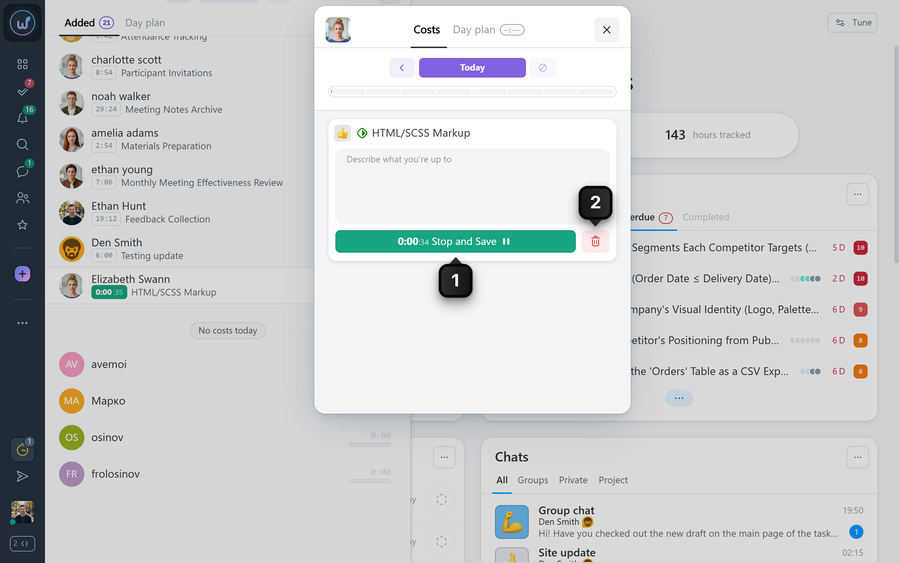
The member's Costs / Day plan window opens with their timer card. Click "Stop and Save"1 or the trash icon "Delete permanently"2. The entry is saved on behalf of the member.
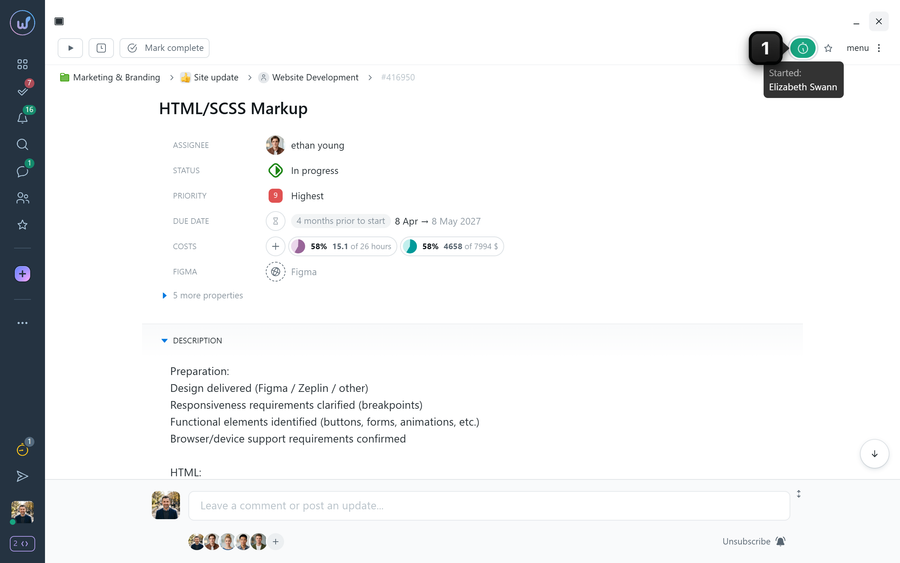
A running timer is also visible in the task itself: a green icon appears on the right of the header1. Hover over it to see who started the timer.
Leave your review
Did this article help you?
Glad we could help! What was helpful?
Sorry this didn't help. What went wrong?

