Solutions
worksection
beta
help
How to use the personal menu?
The personal menu opens when you click on your avatar in the left sidebar. It is available on all pages of Worksection and provides quick access to key profile settings, account switching, help, theme, and other useful tools.
Where to find the personal menu
1. Click on your avatar in the bottom left corner
2. The personal menu with additional options will open
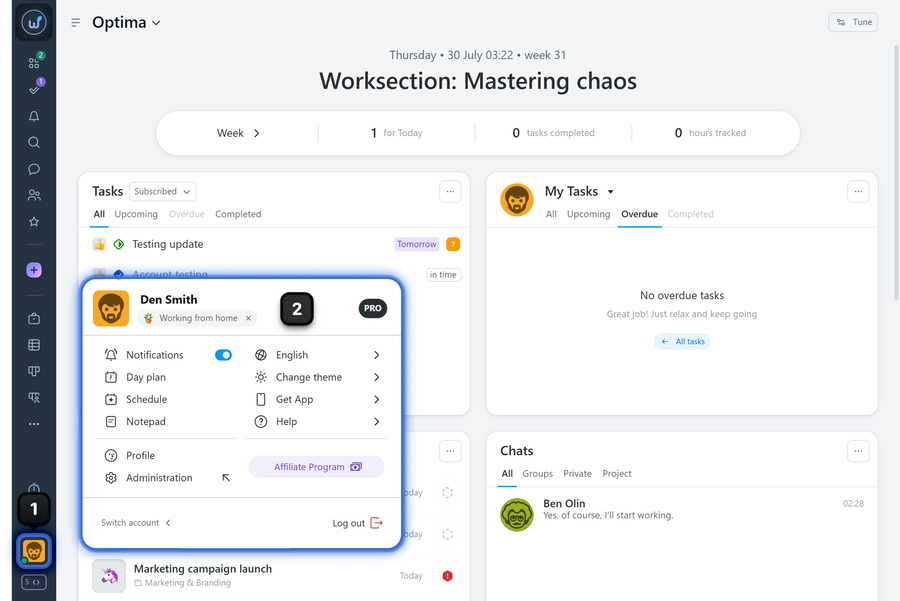
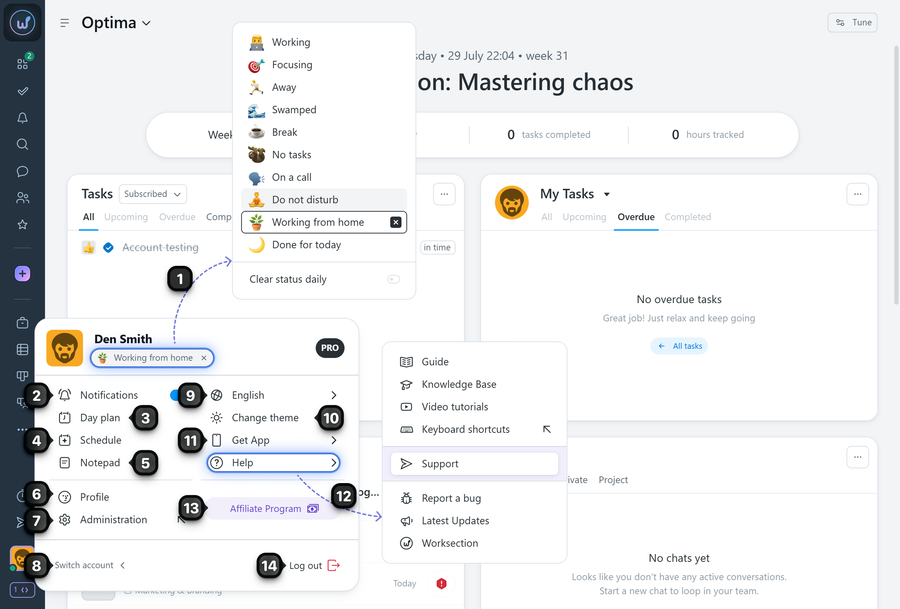
- Member status — choose from a set of options (will be visible to colleagues in the "People" widget and in the "Member card")
- Notifications — enable or disable notifications according to your preferences
- Day plan — open and edit your day plan
- Schedule — view your work schedule calendar
- Notepad — quick personal notes right in the system
- Profile — open your profile
- Administration — access to general system settings (available to the Owner and Account Administrator with the "Access to account settings" permission)
- Switch account — quickly switch to other accounts linked to your email
- Interface language — change the system interface language
- Change theme — switch between light/dark theme
- Get App — go to download apps for iOS and Android
- Help — quick links to guides, knowledge base (FAQ), tutorial videos, support, website, keyboard shortcuts list, and latest system updates
- Affiliate program — registration in the affiliate program and partnership terms
- Log out — sign out of the account
- Use the theme switcher for comfortable work during day and night
- Notepad — capture ideas and work notes in one click
- Quick help — the "Help" section has all reference materials and support contacts
Notes on access
- The Administration item is only visible to users with the appropriate permissions
- The set of items in the personal menu may vary depending on the role and account settings
Leave your review
Did this article help you?
Glad we could help! What was helpful?
Sorry this didn't help. What went wrong?

