Solutions
worksection
beta
help
How does the left sidebar work and how to customize it?
The left sidebar is a vertical menu displayed on all pages of Worksection that provides quick access to the main features of the system.
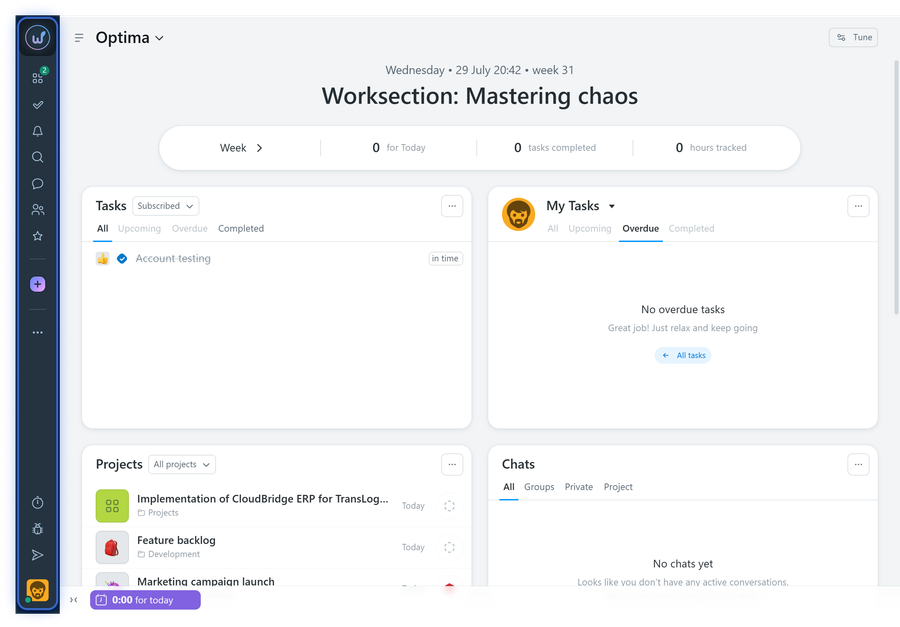
Left sidebar structure
The left sidebar is conventionally divided into three main sections:
Top section (below the company logo)
Contains 6 main buttons:
Required buttons (cannot be disabled):
1 Project — returns to the last opened project page2 My tasks — opens a window with all your tasks
3 Notifications — shows all notifications (bell icon)
4 Search — opens the system-wide search window
5 Chats — opens the available chats window
6 All members — members window
Optional button:
7 Saved — displays tasks marked with a star, as well as saved pages (can be disabled).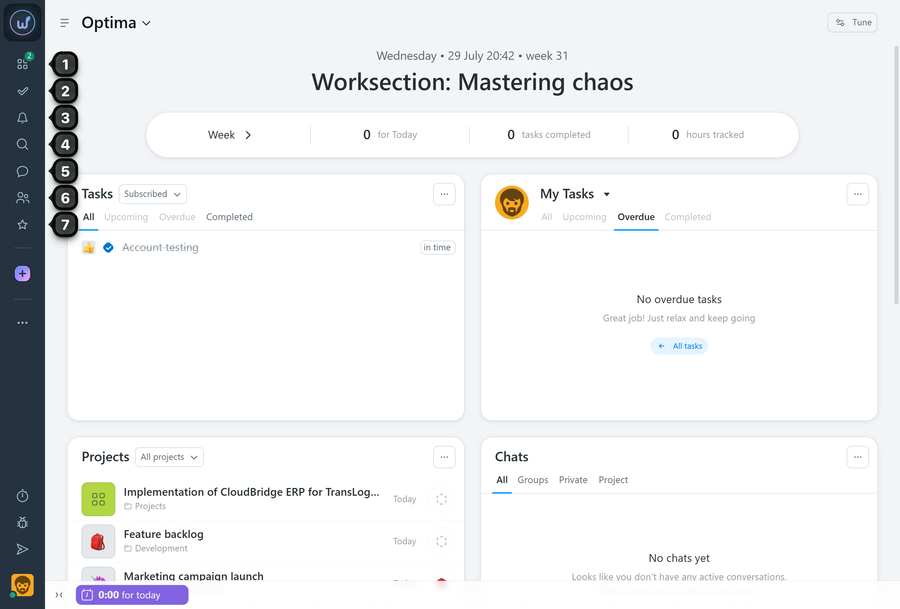
Middle section (functional buttons)
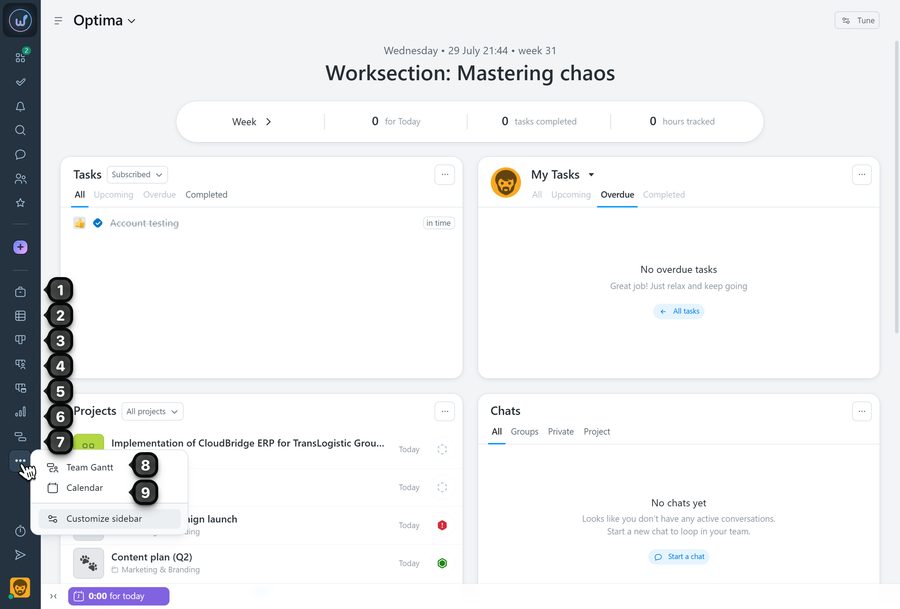
After the purple plus button (quick create) there are buttons for quick navigation:
- Projects — list of all projects
- Task list — all tasks in the account
- Task board — view tasks as a kanban board
- Team board — tasks grouped by assignees
- Deadline board — tasks grouped by deadlines
- Reports — detailed account reports
- Gantt chart — Gantt chart view
Additional buttons (via "three dots") If not all buttons fit, click ". . ." below the section to see:
- Team Gantt — Gantt chart grouped by people
- Calendar — calendar view
Bottom section
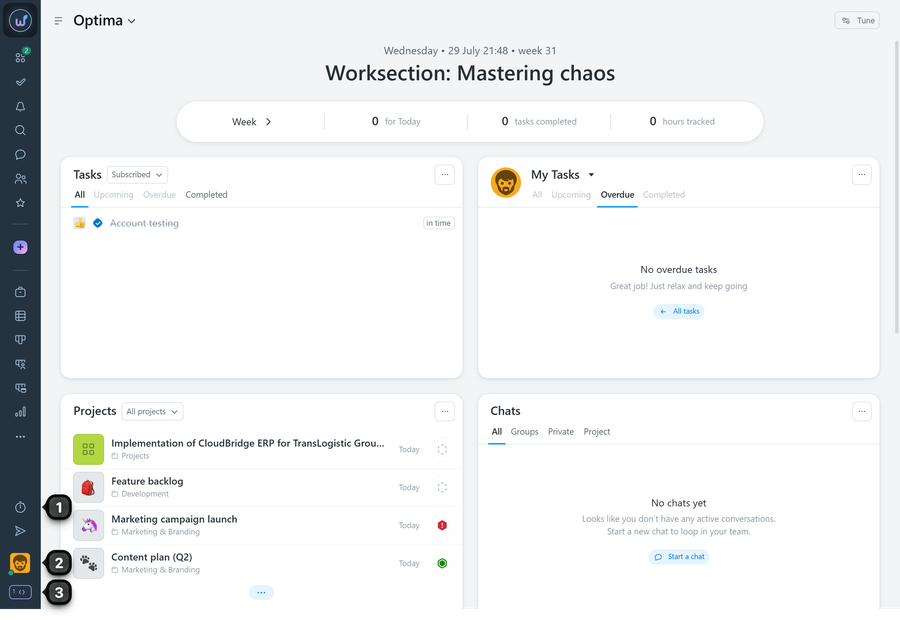
- Costs — information about running timers and logged expenses (Pro plans only)
- Your avatar — personal menu
- Tray — tray activation button
Sidebar settings
How to customize the sidebar:
- Click the "three dots" button (⋯)
- Select "Customize sidebar"
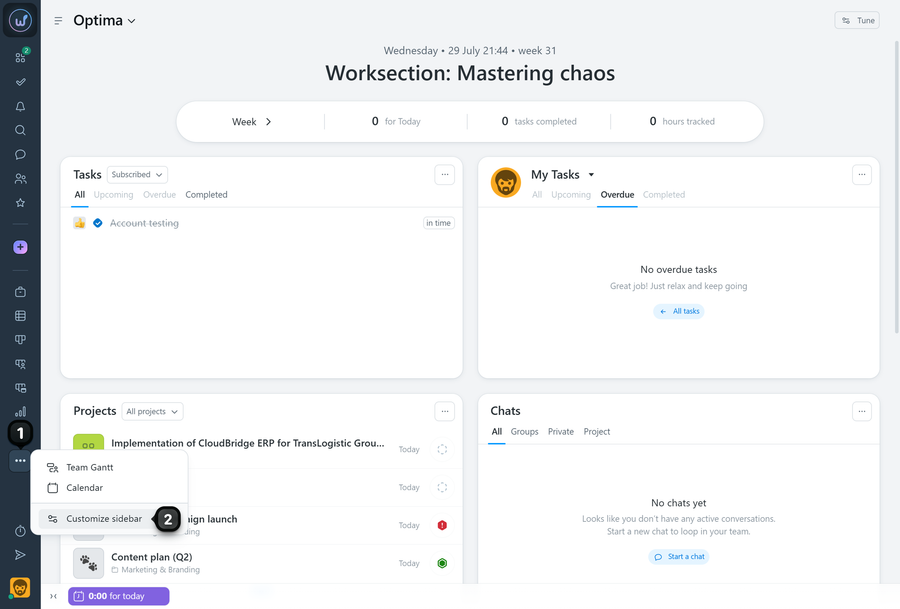
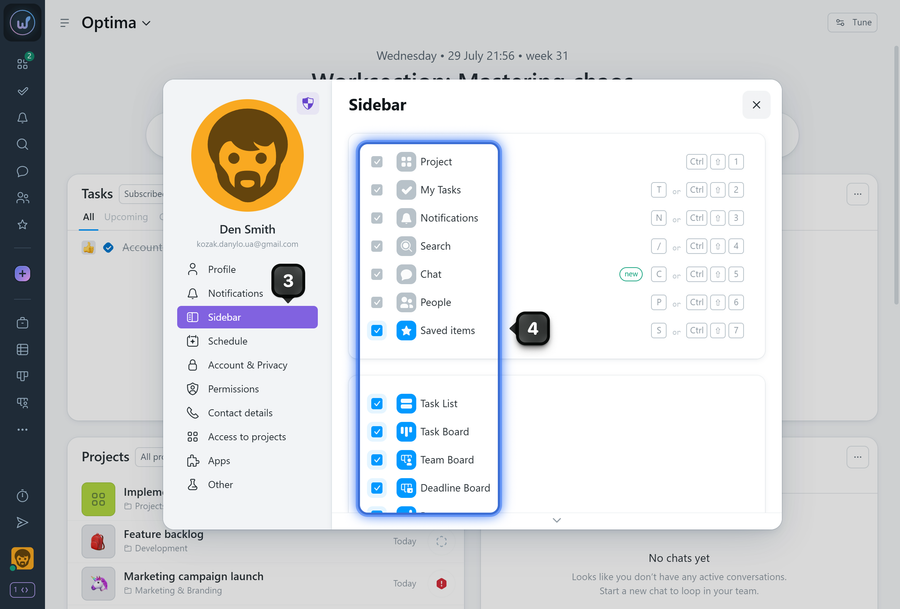
- In the opened profile window you will be taken to the "Sidebar" tab
- Enable or disable the desired elements
Personal menu (avatar)
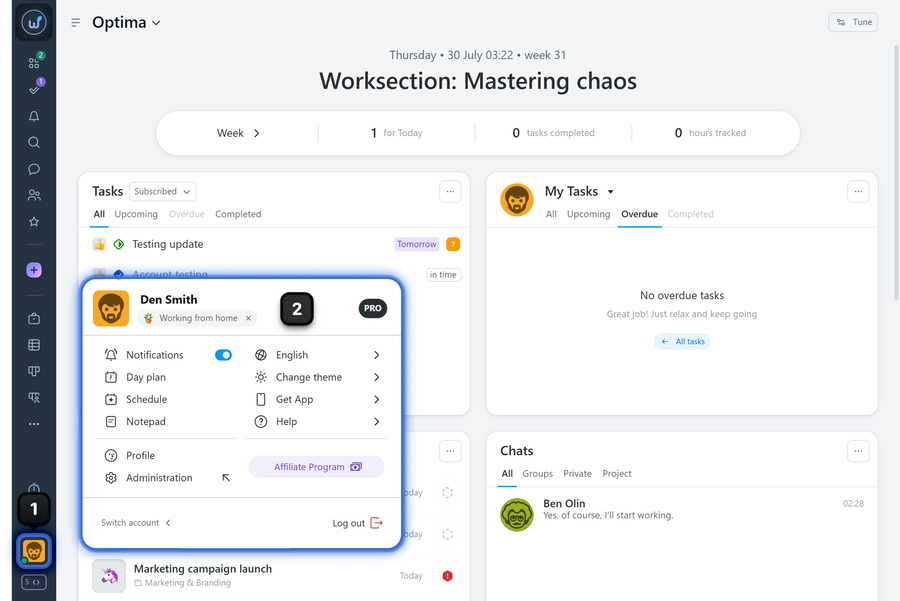
Clicking on your avatar1 at the bottom of the sidebar opens a menu2 with additional options:
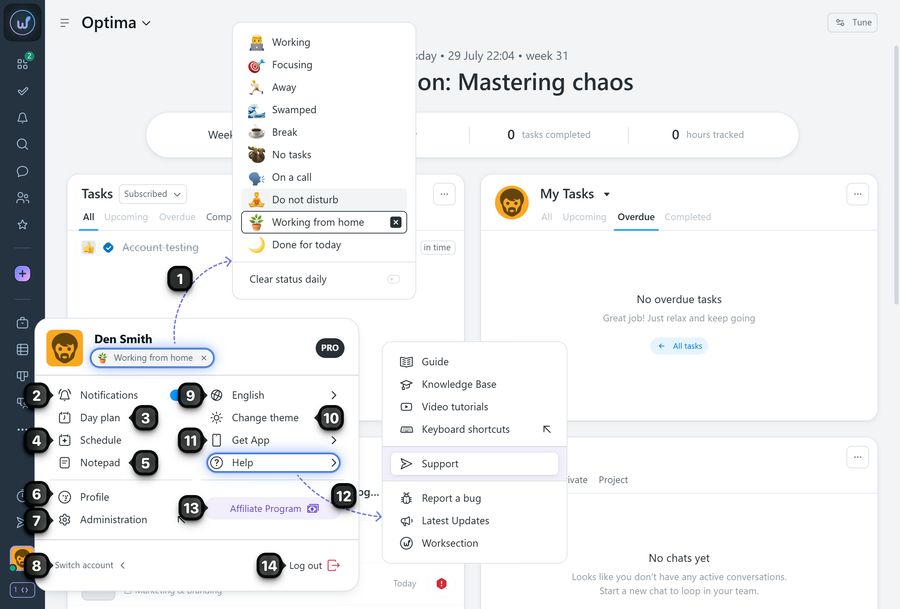
Personal menu features:
- Member status — choose from a set of options (will be visible to colleagues in the "People" widget and in the "Member card")
- Notifications — notification settings
- Day plan — edit your day plan
- Schedule — view and edit your work schedule
- Notepad — personal notes
- Profile — edit personal information
- Administration — system settings (if you have the rights)
- Switch account — quickly switch to another account if you are registered in multiple accounts
- Interface language — change the system language
- Change theme — light/dark theme
- Get App — links to mobile apps
- Help — links to guides, videos, support
- Affiliate program — register in the affiliate program
- Logout — sign out of the account
Useful tips
- Tooltips: Hovering over buttons displays tooltips with names
- Responsiveness: The number of visible buttons depends on screen size
- Quick access: The purple plus button allows you to quickly create tasks, projects, and invite people
- Personalization: Customize the sidebar to your needs for maximum convenience
The left sidebar is your main navigation tool in Worksection, providing quick access to all key system features.
Leave your review
Did this article help you?
Glad we could help! What was helpful?
Sorry this didn't help. What went wrong?

